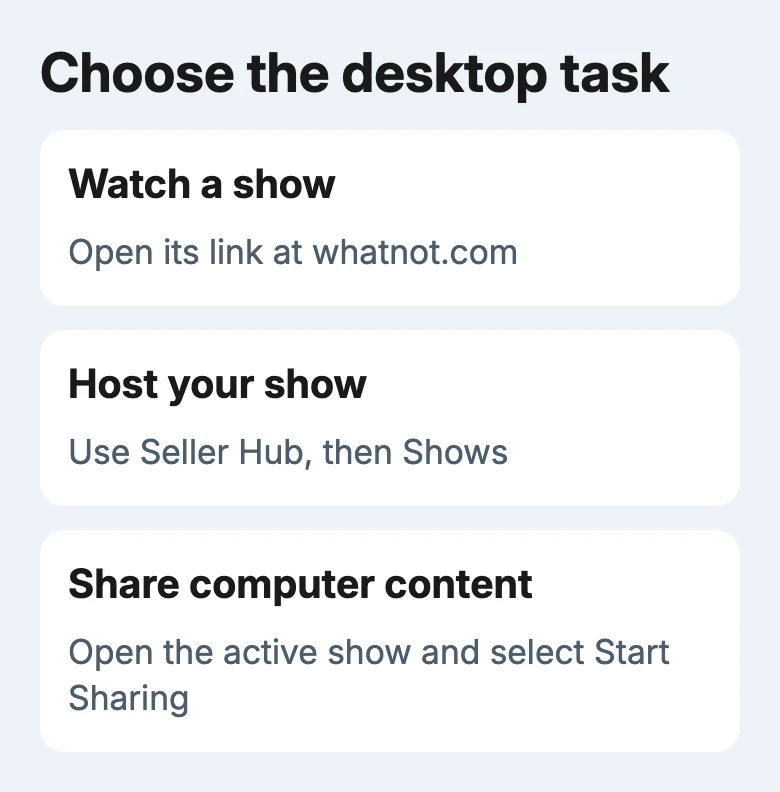
Yes, Whatnot works on a computer through whatnot.com. Open the site in a browser to watch a show, sign in to participate, or use Seller Hub to manage and start a show if your account has selling access.
The desktop website also handles screen sharing, even when you're using a phone as the live camera. Choose the route for what you want to do: watching a show needs less setup than sending a camera feed or sharing computer audio.
In this guide
Open the show in your computer's browser
Type whatnot.com into the address bar, or open the show link its seller shared. A show link can open on the website when the Whatnot mobile app isn't installed. A computer doesn't need a phone emulator just to use that web route.
Sign in to your existing Whatnot account to join chat or make a purchase. Watching through a show link isn't the same as joining in. A shared link doesn't remove the sign-in requirement for those actions.
Use the same account you normally use on your phone if you want to continue with that account on the computer. Check the signed-in profile before assuming that a missing seller control is a browser problem.
If a link opens a scheduled show that hasn't started, check its date and time. A page waiting for the seller to go live doesn't mean desktop viewing is unsupported. Try the active show link when the broadcast starts.
The website gives you a larger display and a keyboard for chat. Keep the live show open while using its controls, rather than treating a preview image as the actual video player.
Use Seller Hub for your own show
An account with selling access can schedule and manage shows from the web. Open Seller Hub, then Shows in the left-hand navigation. Find the upcoming show you want to manage rather than starting from someone else's live page.
The show scheduling and starting instructions describe the same web route. Open your show and select Start Show when you're ready to begin broadcasting.
For an upcoming show that needs changes, find it in Shows, select More, then Edit Show. Adjust the existing show when its time or details need changing; changing the date doesn't require a new broadcast.
Review the details before publishing or starting the show. Its title, category, and selling format should match what you're presenting. Finish those details before checking the live picture.
When finished, use the live show's More > End Show control and confirm it. Closing the browser only pauses the show. Ending it properly tells viewers you're finished, so they aren't left waiting through a paused picture.
Give Chrome access to your recording devices
To broadcast from your computer, accept the genuine Whatnot site's request to use your camera and microphone. If access was blocked earlier, change that site's permission before trying another camera.
In Chrome, open Settings > Privacy and security > Site settings. Open Camera or Microphone to review the selected device and site permissions. Google's instructions explain the camera and microphone permission steps.
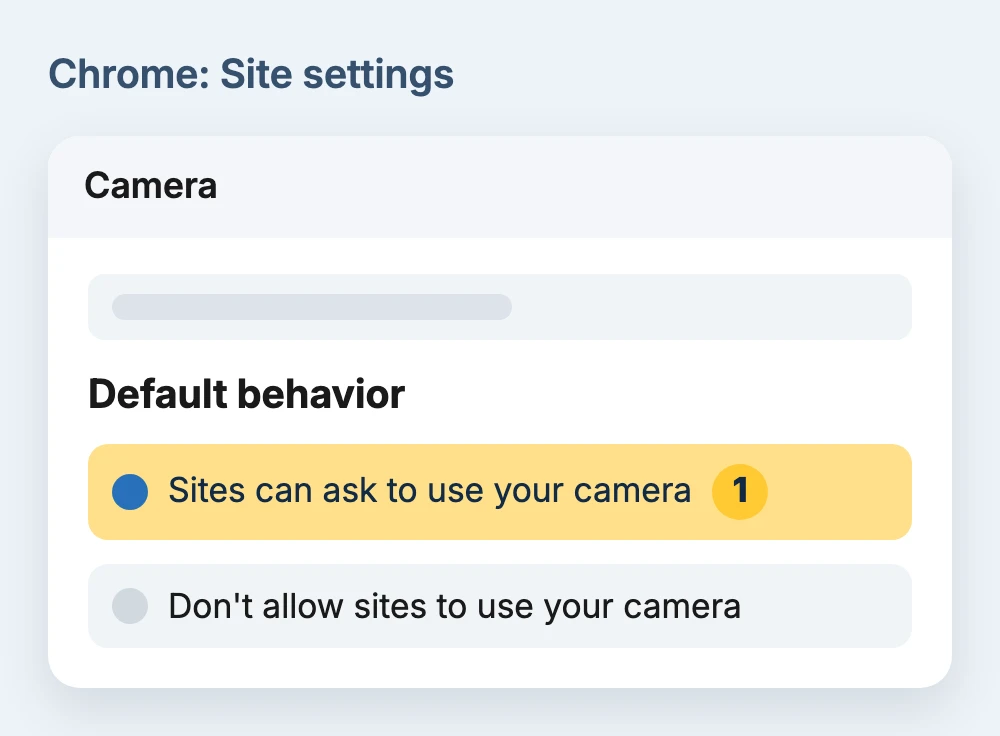
Choose the camera or microphone actually connected to the computer. A laptop's built-in microphone and a USB microphone are separate inputs. Allowing the site doesn't automatically make the browser choose the input you meant to use.
If access is already allowed but the preview is still blank, use the Chrome camera checks. They cover a device that isn't available to the browser, which is different from a missing Seller Hub control.
For a picture that works while your voice doesn't, follow the separate Chrome microphone checks. If you ask for help, say whether the picture works and whether the microphone works.
Share a computer tab during a phone-hosted show
Screen sharing starts on the website, even if the live show was started on a phone. On the computer, open a new tab, go to Seller Hub > Shows, and find your active show.
Select Start Sharing. In the browser's sharing window, pick the entire screen, a particular window, or a browser tab, then select Share. This controls how much of your computer viewers can see.
I'd share a single browser tab when that's all the show needs. It's easier to keep the broadcast focused when switching to a different application doesn't also change what viewers are watching.
Choose the content before confirming the share. A whole-screen share can include other windows and notifications that appear during the show. A specific window or tab keeps the shared area limited to that selection.
For audio, use a browser tab. Whatnot's screen-sharing guidance supports audio from a tab, rather than a shared window or the entire screen. Sharing the picture successfully doesn't mean that the audience also receives its sound.
In Chrome's sharing window, check Share system audio when sharing the tab. Control playback volume inside the app or content being shared. Lower the phone's playback volume if it creates an echo beside the computer.
Stop sharing without ending the live show
Return to Seller Hub > Shows on the computer, find the active show, and select Stop Sharing. Confirm Stop Sharing. The live show continues after the shared screen stops, so use this when returning to the camera presentation.
Use End Show only when the broadcast itself is finished. Stop Sharing removes your computer content; End Show finishes the broadcast for your audience.
If the audience can't hear the shared content, check that you selected a tab and enabled audio sharing. For a missing camera picture, check its permission and chosen input instead of the tab-audio settings.
For a missing seller control or account error, contact Whatnot through its Help Center. Include the operating system, browser version, exact error, and whether the show started on the phone or website.
The Short Version
Use whatnot.com on the computer. Sign in for chat and purchasing, use Seller Hub > Shows for your own broadcasts, and start screen sharing from the website. Share a browser tab when you also need its audio.
Checked November 29, 2026.
 If you have any business, I can build it online