

Reconnect an Oura Ring through the Oura App when its Bluetooth connection stops working. Put the ring on its powered charger with your phone beside it, then check the app's Bluetooth permission before rebuilding the pairing.
A missing ring, an app that can't scan, and a ring that isn't charging need different checks. Work through the phone connection first; a factory reset isn't the starting point for any of them.
In this guide
1. Bring the ring and phone together on power
Put the ring on its matching charger and connect the charger to power. Plug the phone into its own power supply too, then leave the phone beside the ring while you open the Oura App.
Check the charging response before changing the phone. If the charger doesn't respond or the ring can't charge, use the Oura charging checks first. A phone setting won't wake a ring with no power.
Oura's connection troubleshooting recommends temporarily switching off the phone's Wi-Fi and moving other wireless devices away. Keep Bluetooth on during this comparison.
Try reconnecting without a laptop, headphones, or another wearable close beside the ring. This checks whether nearby wireless devices are affecting the connection. If it reconnects, wait for syncing to finish, then restore your usual setup.
Install any available Oura App update and the phone's available system updates. On iPhone, check Settings > General > Software Update. On Android, search Settings for Software update; the location depends on the manufacturer.
If the app still searches without connecting, check permissions next. A charged ring can remain invisible to an app that isn't allowed to use the phone's Bluetooth connection.
2. Give the app permission to find the ring
On Android 12 and later, open Settings > Apps > Oura > Permissions > Nearby devices > Allow. Use See all apps first if Oura isn't in the initial app list. Return to Oura afterward.
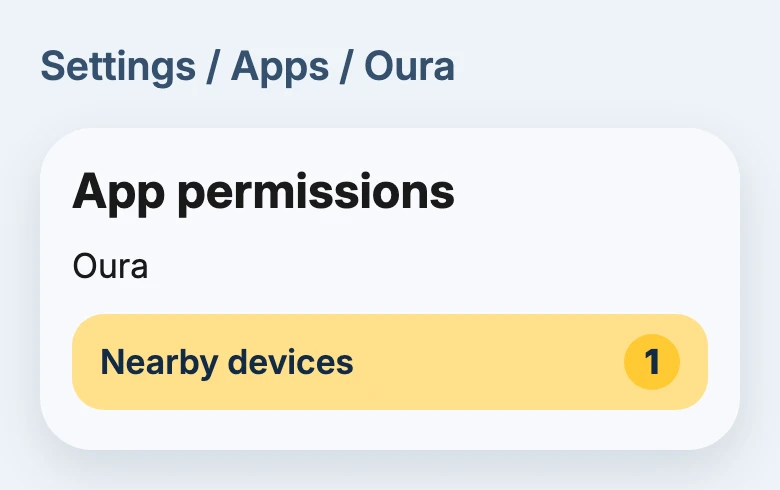
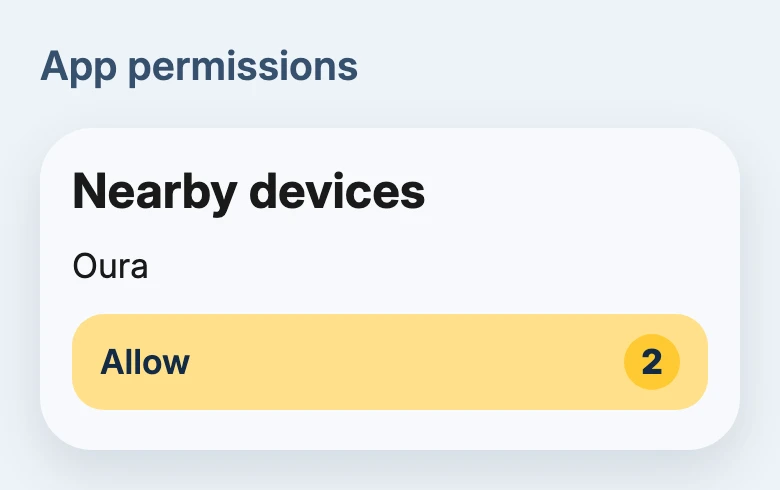
On Android 11 and earlier, open Settings > Apps > Oura > Permissions and allow Location. Location services are needed for Bluetooth connectivity on those older versions; checking only the main Bluetooth switch misses that requirement.
On iPhone, open Settings > Privacy & Security > Bluetooth and enable Oura. This is separate from Settings > Bluetooth, which switches the phone's Bluetooth radio on or off.
For a different accessory that also stays missing, the iPhone discovery checks explain pairing mode and old connections. For this ring, finish reconnection in Oura rather than treating it like headphones.
Open the app again after changing permission. If it now finds the ring and begins transferring data, the phone had blocked the app's access. If nothing changes, refresh the saved connection.
3. Remove the stale pairing and reconnect through Oura
Keep the ring on its powered charger throughout this reset. Turn off Bluetooth on your phone, then fully dismiss Oura from the recent-apps view.
On gesture-controlled iPhones, drag upward from the bottom, stop partway, then lift your finger. Swipe Oura out of the app switcher. With a Home button, double-click Home first.
On Android, open the recent-apps view and dismiss Oura. The gesture or navigation button depends on the phone. Closing only the app's current screen and returning Home doesn't necessarily close the app.
Turn Bluetooth back on and remove the ring's saved pairing in Bluetooth settings. On iPhone, open the ring's information button, then select Forget This Device. Android generally calls this Forget or Unpair in the device's settings.
Open Oura and follow its instructions to pair the ring again. The app should stop searching and show the ring connection, then sync its data. Let that transfer finish before moving the phone away.
I'd do this before removing your account or attempting a factory reset. It gives the phone and ring a fresh Bluetooth connection without erasing the ring.
4. Follow the right route for a replacement phone or ring
A ring that stopped connecting to the same phone is different from one you're moving to another phone. Use the manufacturer's new-device setup instructions when the phone or ring has changed.
Use the Oura account that already holds your history when signing in. Creating another account isn't a connection repair and can leave you looking at the wrong history while trying to troubleshoot.
On Android, a pairing prompt may offer access to contacts and call history. Those aren't needed for the ring connection. Leave that access off and continue with Pair if the prompt appears.
For a first setup, check the app's current phone compatibility requirements too. An unsupported phone needs a compatible device; repeated pairing attempts won't add Bluetooth features that the phone lacks.
If this is the original phone and original ring, continue with the charger-based hardware reset. Use the new-device instructions only when you're moving to another phone or replacing the ring.
5. Try the supported hardware reset, then request help
With a corded charger, leave the ring seated on it. Hold the ring in place with a finger and tap the charger firmly and rapidly on a table a few times. Wait about a minute, then reopen Oura and check the connection.
Tap the charger as described; don't drop the ring or hit it directly. The reset may take several attempts to activate. Follow the charger-specific instructions if your charger is different.
On Android, also check whether Battery Saver is active in Settings > Battery. Turn it off for the reconnection attempt. If the ring connects with the app open but stops later, also check settings that limit the app in the background.
Restart the phone if the earlier steps haven't restored a connection. If other Bluetooth accessories work but Oura still can't find this charged ring, open Contact Us in Oura Member Care and request connection troubleshooting.
Include the ring model, charger type, phone model, Android or iOS version, app version, and whether the ring ever appears during pairing. Mention a recent phone change or the exact update after which the problem began.
If the ring still won't connect after the supported resets, ask support whether it needs to be checked for a hardware fault. Explain which resets you've already tried so support can move past the basic Bluetooth checks.
The Short Version
Charge both devices, allow Oura's Bluetooth access, and rebuild the pairing through the app. Use the transfer steps for a new phone. Ask Member Care to assess a charged ring that still can't connect.
Checked November 29, 2026.
 If you have any business, I can build it online





