
For Oura Ring battery issues, check whether the ring won't charge or runs out too quickly. Start with the matching charger and its light. If it charges but drains quickly, update the app and ring's software before assessing the battery.
If the ring isn't connected, the app may show an old battery percentage. Put the ring on its charger and open the app so you can check a fresh reading.
1. Check the charger before blaming the battery
Use a charger that matches your ring's generation and size. Another model's dock isn't a reliable way to check charging even if the ring seems to fit. Charging docks and battery-powered cases have their own troubleshooting steps.
For a Gen3, Ring 4 or Ring 5 dock, connect the empty dock to power. Oura says its light should briefly glow white and fade. Its charging-dock instructions describe the model differences.
If no light appears, try another USB-C cable and power source. Rotate the connector as instructed. If the empty dock still doesn't respond, tell support what you've tried before buying a replacement ring.
Put the ring on its dock and open the app. If the white light fades, leave it there for two minutes, then try connecting again. If it still won't connect, ask support to help with that before judging the battery reading.
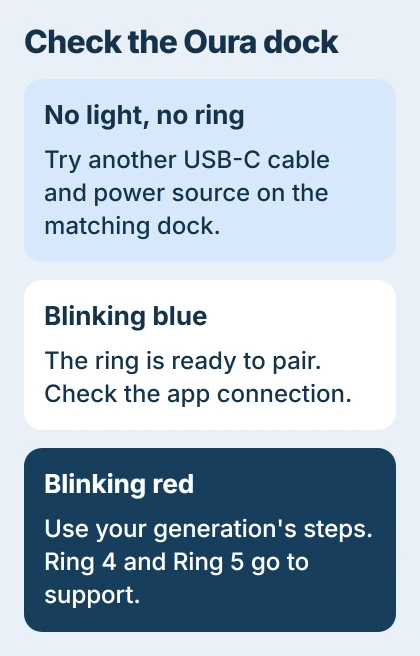
A blinking blue light means the ring is ready to pair. For blinking red, Ring 4 and Ring 5 owners need to contact support. Gen3 has more steps for placing the ring on its dock again and checking firmware, the ring's own software.
Don't use a Gen3 factory-reset suggestion for every red light. The steps depend on your dock's generation, and a reset can't fix a failed cable or power source.
2. Compare runtime with the right model
Once the ring connects, tap the battery icon and note the charge. Track when it next needs charging and whether the app stays connected. These notes help support assess the change in battery life.
The current battery-life guidance gives Ring 4 a typical five to eight days and Ring 5 six to nine days. Gen3 can last up to seven days when new.
Those figures are for new batteries; ring size, settings, features and use can change them. Gradual loss of battery life in an older ring is different from a sudden drop after an update or a ring shutting down soon after charging.
Compare with your ring's recent battery life too. If it used to last several nights and now needs daily charging under similar use, tell support. Include its age, generation and when the change began.
Missing sleep results don't always mean a failed battery. The known-issues list also includes syncing and missing-data problems. Check for your symptom before changing battery settings.
3. Update the app and ring firmware
On Android, open Google Play, tap your profile, then Manage apps & device to check for updates. The app-update steps cover this route. Install an Oura App update if one is available.
Then open Oura and check for a firmware update for the ring. Keep your phone's Bluetooth on and the ring charged past 30% so the update can finish.
The battery troubleshooting procedure calls for two charge cycles after the firmware update. Each cycle means charging to 100%, then using the ring normally until it reaches about 25%.
Don't run the ring flat during this check. Stop at about 25%; letting it die can leave gaps in your data.
After each cycle, put the ring on its charger, open the app and let it sync. Open the menu, choose Settings, then Back up all data in the Account area. You can continue with the backup if the sync doesn't start.
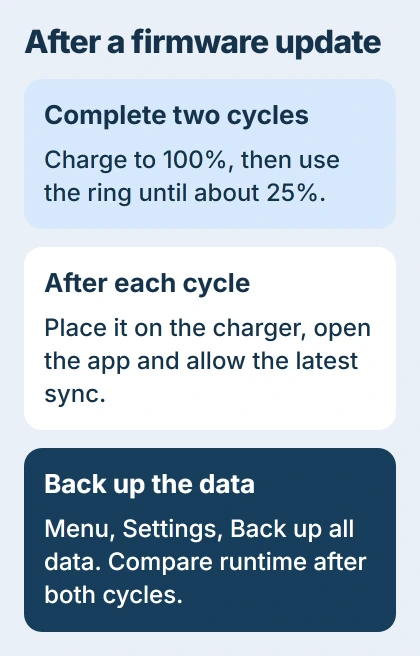
Wait until both cycles are done before judging battery life. If it still drains much faster than before, send support your notes, the firmware version and the charger results from the first check.
4. Reduce preventable drain without losing track of charging
For everyday use, charge the ring for short periods regularly instead of waiting until it's nearly empty. The battery-care tips recommend keeping it around 25% to 80% during ordinary use.
Aim for at least 30% before bed so you're less likely to miss the night's detailed results. For battery reminders, open Settings > Notifications in the app and enable battery-level notifications.
To reduce wireless connections, tap the battery icon, turn on Ring airplane mode and confirm. The ring still collects data with its wireless connection off, but the app won't show live updates until it reconnects.
To reconnect, put the ring on its charger and wait a few seconds. Reopen the app if needed. It will then sync the saved data; if the ring was disconnected for longer, the transfer can take longer too.
Airplane mode also stops battery notifications. Use it if you're happy to wait for syncing and can manage without live low-battery alerts.
Check the phone's own battery drain separately. Your phone and ring have different batteries, even when the app shows information from both.
5. Save the data and ask for a battery assessment
I'd contact support before repeating resets on a ring that charges normally but can't hold a useful charge. Give them the generation, purchase date, app and firmware versions, runtime notes and any charger-light behavior.
If support requests a factory reset, sync and back up first. The reset removes data still stored on the ring; data already synced to the account remains available. You'll need to pair the ring again afterward.
The factory-reset procedure is for the ring; resetting a charging case takes different steps. Follow the reset for the device support is helping you with.
If your phone won't charge, use the Android charging checks for that problem. The phone needs power to connect to the ring while you troubleshoot and update it.
If charging or battery life still isn't right, ask Oura support about your options in your region. They'll need your device and purchase details to check replacement coverage; a charge estimate alone can't tell them.
The Short Version
Check the matching dock and a fresh battery reading. For rapid drain, update the software, complete the two charge cycles and back up. If battery life stays short, ask support to assess it before repeating resets.
Checked November 5, 2026.

Isaac Smith is the founder and editor of PC Glance, a website that covers computers, laptops, and technology. He is a tech enthusiast and a computer geek who loves to share his insights and help his readers make smart choices when buying tech gadgets or laptops. He is always curious and updated about the latest tech trends.