Saved Chrome passwords are in Google Password Manager. On a computer, open Chrome's three-dot menu, choose Passwords and autofill > Google Password Manager, select the website, and click the eye button to reveal its password.
Your computer or phone can ask you to unlock it before showing the password. Open the Chrome profile that saved the login first; another profile can have a different list even on the same device.
In this guide
Reveal a saved login in desktop Chrome
Start with Chrome's profile picture near the top-right corner. Choose the profile you normally use for the website. A work window and a personal window can look similar while keeping different saved information.
Open the three-dot menu and choose Passwords and autofill > Google Password Manager. In the password list, search for the website or scroll to its entry. Select it to see the saved login details.
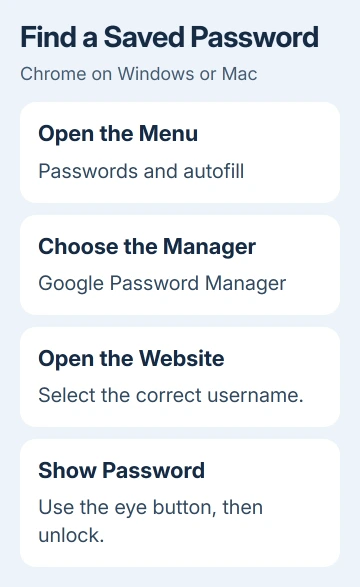
Click the eye button beside the password. Confirm your identity if prompted. Depending on the computer, that can use Windows Hello, the device's sign-in password, or Touch ID. Once you've unlocked it, you can read the saved password.
Google explains how to reveal a login using Show password.
This shows the password already saved; it doesn't change the website's password or send a reset email.
Check the username or email on the same entry. When several logins exist for one website, the correct site name alone isn't enough. Open the entry for the account you actually want to use.
If Chrome fills your login successfully, you don't need to reveal it just to sign in. Viewing is useful when another device asks you to type the password, or when you need to check which login Chrome remembers.
Open the password list on Android
Android has its own route through Chrome's Settings, rather than the desktop Passwords and autofill submenu. Use the Chrome app in the same Android profile where you saved the login.
- Open Chrome and tap its three-dot More menu.
- Tap Settings.
- Open Autofill and passwords > Google Password Manager.
- Search for the website, then tap its saved entry.
- Tap Show password and complete the device-unlock prompt if one appears.
The entry shows the saved username and password together. Match both to the account you're trying to open. A password saved for another email can work for that account while failing on the one you meant to use.
Menu wording in older Chrome releases can be shorter, such as Password Manager in Settings.
The current Android password steps place it inside Autofill and passwords.
If several Google Accounts are available in the password manager, check which one is selected. Changing the account displayed there changes the saved list you're looking through; it can't supply a login that you never saved.
Use Chrome's password manager on iPhone or iPad
Chrome's saved list is separate from the iPhone's Passwords app. A login stored through Apple's password tools may be in Passwords even when Chrome's own list has no matching entry.
In Chrome, tap More > Settings > Autofill and passwords > Password Manager. Select the website, tap Show password, and unlock the device when asked. The More button can sit in a different place from Android's menu.
Use the iPhone saved-password guide if the login belongs to Apple's Passwords app. Check where the password was saved before creating another copy of that account in Chrome.
On iPad, follow Chrome's iPhone and iPad password-manager route too. The wider layout doesn't turn it into the Mac version, so don't look for the desktop submenu just because a keyboard is attached.
When you finish viewing, return to the password list or leave the password manager. Avoid revealing a login while sharing your screen. The eye button shows readable characters, including in a screen recording or a photo.
Understand the unlock prompt before trying another password
A Windows Security dialog normally wants the computer's sign-in method, instead of that website's password. Your device PIN and Google Account password are different sign-in details.
Read the prompt's account name and available sign-in choices. Use the method that unlocks that device. Typing a website password into a Windows Hello PIN field won't help reveal the saved entry.
The prompt protects access to passwords already stored on the computer. Knowing which website you're opening doesn't remove that protection. If you've forgotten how to unlock the device, use its account-recovery options.
For repeated prompts while Chrome fills logins, the Chrome Windows Security prompt guide explains the filling setting and why viewing a password can still require authentication.
I'd reveal just the entry you need. Exporting the whole list creates a readable file containing many logins, which leaves you with more passwords to protect when you only need to look up one.
When the website or password isn't listed
Check the profile and account before assuming the entry was deleted. A website saved in your personal Google Account won't automatically appear in a separate work profile's local password list.
Then search using the site's main name instead of only the page you visited. Sign-in services can use an account domain that differs from the address of a shopping, email, or subscription page.
An entry that offers a passkey instead of a password may have no password characters to reveal. A passkey is another sign-in method, unlocked through the device, rather than a hidden string you can copy from the eye button.
If no saved copy exists, use Forgot password on the website's own sign-in page. Complete that site's recovery process, then let Chrome save the replacement when it offers. A password manager can't display a value it never stored.
For a list that suddenly becomes empty, stop before deleting the Chrome profile or clearing password data. Note which profile is affected and whether the entries are still available on another device.
If unlocking the device doesn't let you open entries from the right account, use Chrome Help's Google Password Manager support options. Say whether the list is empty, one entry is missing, or Show password won't accept your sign-in.
The Short Version
Open Chrome's password manager, select the website and username, then use Show password. Authenticate with the device when prompted. If the entry is missing, check the profile and account before using the website's password recovery.
Checked November 11, 2026.