Chrome new tab extensions can stop taking over when disabled, replaced by another extension or used in an unsupported window. Open regular Chrome and inspect the extension's status before changing startup settings.
An Incognito New Tab page is a separate case: Chrome does not allow extensions to replace it through the normal New Tab override. Enabling an extension for Incognito does not remove that restriction.
In this guide
Test a new tab in the correct Chrome window
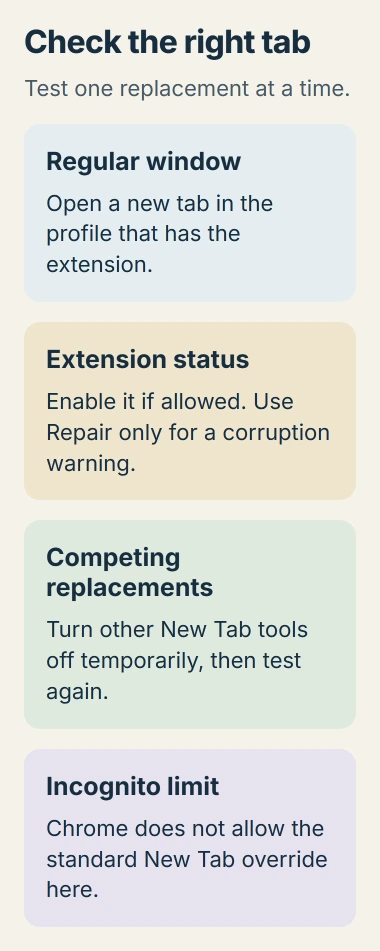
Open a regular window in the Chrome profile where the extension was installed. Then create a new tab. Use Ctrl + T on Windows or Command + T on Mac, rather than relaunching Chrome or clicking Home.
Google's extension override documentation describes a replacement for the browser's New Tab page. Home and startup pages have their own controls.
Status: Google's extension controls and Incognito restriction reviewed November 2, 2026. No Chrome profile or extension was changed during preparation.
If the desired page appears only when launching the browser, review the Chrome startup and Home settings. Saving a startup address does not configure every later tab.
An owner asking for a blank new tab tried a suggested startup-page change and reported that it did not affect the New Tab button. The adviser then acknowledged the distinction. Test the action the extension is intended to change.
Re-enable the extension or follow its displayed warning
Enter chrome://extensions in the address bar. Find the intended extension, confirm its name and inspect the status. If its toggle is off and Chrome allows it to be enabled, turn it on and open a fresh tab.
Google says the same management page provides Repair for a corrupted extension. Select that action only when Chrome marks the extension as corrupted, then confirm the repair and retest.
When the switch refuses to stay enabled, work through the activation checks before troubleshooting what a fresh tab displays.
The extension-management instructions distinguish disabled, damaged and unsupported extensions. A missing toolbar icon alone does not mean the extension is off; icons can be unpinned.
Before replacing a session-saving add-on, check its stored sessions and JSON backups so an extension repair doesn't cost the tab list.
If Chrome says the extension is unsupported, use the supported-extension replacement guidance. A compatibility warning needs a maintained extension, rather than repeated toggling or a broad browser reset.
Leave one New Tab replacement enabled for the comparison
Inspect the other enabled extensions for dashboards, start pages or bookmark tools that also replace New Tab. Temporarily switch those competing replacements off, leaving the intended extension enabled. Keep a note of what was changed.
An extension can also change where clicked Chrome links open, even when the New Tab page looks normal.
Open another tab and inspect the result. If the intended page returns, re-enable the other extensions individually and test after each. The extension whose return changes the page is the one to leave disabled or reconfigure.
Google states that extensions can control browser settings, including the New Tab page. Its settings-control guide explains that disabling or removing one restores the settings it controlled.
Check an extension's own options too. Some bookmark tools offer New Tab replacement as an optional feature. Disable only that feature when the rest of the tool is still useful and its settings provide that choice.
For a theme that should change a website rather than New Tab, check Stylish's installed styles on that website.
An enabled color tool has a separate job: start its page eyedropper and copy the sampled color rather than testing a New Tab override.
Why does the extension fail only in Incognito?
Google explicitly rules out replacing the Incognito New Tab page through an extension override. Allow in incognito grants eligible extension functions access there; it does not make this particular replacement available.
Use the custom page in a regular window. Allowing Incognito access remains a separate choice for any other features the extension provides.
Report a blank extension page or a blocked control
If the extension opens its page in regular Chrome but shows an error, the override has happened and the failure is now inside that page. Record its error and check the extension's own support instructions.
For a managed work or school profile, contact the administrator when installation or activation is blocked. Provide the extension name, its Chrome Web Store listing and the message on the management page.
If one enabled extension still fails in a regular window, report the Chrome version, extension version and exact result to its developer. Distinguish a default New Tab page from an extension page that loads blank or fails to sign in.
The Short Version
Test a fresh tab in a regular window, check the extension's status and compare with competing New Tab tools disabled. Startup settings do not control every tab, and the standard extension override cannot replace Incognito's New Tab page.
 If you have any business, I can build it online