

ColorZilla is a color picker add-on for Chrome that samples a page pixel and copies its color code. Install it from its official Chrome Web Store listing, pin it, then start its eyedropper. Its editor and history keep sampled colors handy.
For an occasional color check, Chrome also has an eyedropper inside DevTools, its built-in page inspection tools. That takes more clicks to reach but avoids installing an extension. Both routes are for desktop Chrome.
Install the picker from its official listing
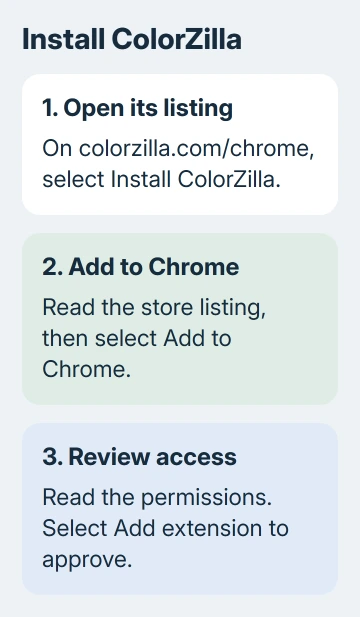
Open the ColorZilla download page and follow Install ColorZilla to its Chrome Web Store listing. The developer's own link helps you reach the right extension when other tools have similar names.
Read the listing and requested permissions, select Add to Chrome, then confirm Add extension if you're happy to proceed. Google's extension installation instructions explain those prompts.
Use a normal Chrome profile to install it. Chrome doesn't permit extension installation in guest sessions or Incognito windows. Your employer or school can also control extension installation on computers it manages.
After installation, open Extensions, the puzzle-piece button beside the address bar. Find ColorZilla and select its pin control. Its own toolbar button should then stay within reach, rather than being hidden in the extensions list.
If Chrome reports that an extension is unsupported or disabled, don't force an old package back into the browser. The unsupported-extension checks explain that case. You can also use the built-in picker to sample your color.
I'd use the toolbar extension for repeated sampling and DevTools for a one-off check. Both can sample a color; the difference is how quickly you can get to the tool.
Sample a pixel and copy the format you need
Open the page containing the color. Click the ColorZilla toolbar button. On Windows, its default behavior starts the eyedropper automatically. On Mac and other platforms, choose Pick Color From Page from its menu.
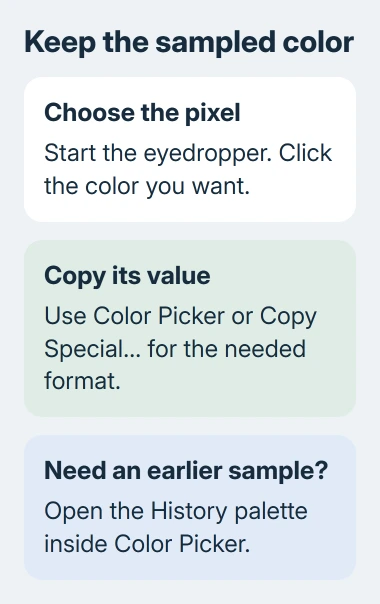
Move over the exact patch you want and click it. Sampling stops and the selected color is remembered. For a logo or photograph, choose the actual interior pixel rather than a softened edge or the shadow surrounding it.
Open the extension's menu and choose Color Picker to inspect the selected color. You can copy a value from its entry boxes or use Copy Special… to choose another supported clipboard format.
Choose the format the destination expects. A web style field might request a hex code such as #2468AC, while an image editor may show separate red, green and blue fields. Copy the complete value that field needs.
For automatic copying, open Options > Auto Copy > Enabled and choose the preferred color format. Sample another pixel, then paste into a plain text field to check what the clipboard contains before using it in your design.
Don't assume the app accepted a value because pasting worked. Check the resulting swatch. A missing leading #, a different color format or a separate opacity control can make the receiving app interpret the value differently.
Use history and resampling for colors that change
The extension keeps sampled and manually selected colors in its History palette inside the Color Picker. Open that palette when you need a color from an earlier sample instead of trying to land on the same pixel again.
For a button or link that changes color when hovered, the first sample may capture that temporary state. Open the menu and choose Resample last location to sample that position again after moving the pointer away.
A photograph, gradient or transparent overlay can contain many nearby colors. Sampling two points can therefore produce two valid results.
Move into a flat area when the goal is a single background color rather than the color of a particular pixel.
For a page-wide palette, Webpage Color Analyzer examines colors used by page elements. That's a different job from choosing one pixel in an image. Use the eyedropper when you want the color of the patch you can see.
If a precise brand color matters, check the sampled value against the brand's own specification when available. A sampled screen pixel tells you what was displayed at that point, which can include blending and effects.
Reach Chrome's built-in picker without an add-on
Right-click an element on the page and select Inspect. DevTools opens with that element selected in the Elements panel. In Styles, look for a color, background-color or another color declaration with a small color preview beside it.
Click that preview square to open the Color Picker. Click its Eyedropper control, then click the color you want to sample. The selected value appears in the picker, where you can use Copy to clipboard.
If the selected element has no color preview, inspect a colored heading or a section with a background instead. The picker is opened from an existing color declaration, so you may not see one in the styles for the first element you select.
Use the Display value switcher to choose the color format needed by the destination. DevTools supports several color spaces, while its eyedropper samples in sRGB, a common screen-color space. Keep that limit in mind for wide-gamut designs.
Editing a value in Styles changes the page's current local appearance. It doesn't update the website's published files. Copy the color into your own document or project to keep it there.
For a value defined by the page rather than a sampled pixel, inspect its Computed styles. This is useful when a gradient, transparency or overlapping element makes the visible color different from the underlying style value.
Fix a picker that won't start on a page
First try an ordinary web page. Browser settings pages and protected store pages aren't good tests of whether the picker works on normal sites. Then open Extensions > Manage extensions and check that the picker is enabled.
Open its Details and check the site-access setting. Give access to the specific site when the tool needs it, then reload that page and retry. The Chrome extension repair checks cover an extension disabled or failing more generally.
If your organization blocks installation, ask its administrator whether the picker is approved, or use DevTools if that's permitted.
These desktop tools aren't available in Chrome on a phone. Follow the steps on a Windows PC, Mac, Linux computer or Chromebook.
For a fault limited to this extension, send its developer the Chrome version, operating system and whether sampling fails on one ordinary page or all of them. Include the menu action that fails.
Those details help them work on the problem without seeing your private page content.
The Short Version
Install ColorZilla from its developer-linked listing, pin it and sample a page pixel. Copy the needed format, use History for earlier samples and resample hover colors when necessary.
For occasional checks, open a color swatch in DevTools and use its built-in eyedropper.
Checked November 8, 2026.

Isaac Smith is the founder and editor of PC Glance, a website that covers computers, laptops, and technology. He is a tech enthusiast and a computer geek who loves to share his insights and help his readers make smart choices when buying tech gadgets or laptops. He is always curious and updated about the latest tech trends.