

Teams can still be installed as an Edge web app. When the app installation command does nothing, check Edge's installed-app list first, then retry from the current Teams site after updating the browser.
A May 2024 workaround restored the installation dialog through classic Teams. That client is no longer available. Use the current controls and check whether Teams alone fails to install.
In this guide
1. Check whether Edge already has the Teams app
Open Edge in the profile you use for Teams. Enter edge://apps, then look through the installed cards for Teams. Browser profiles can have different installed web apps, so check the profile icon before assuming the app has disappeared.
If Teams is listed, select Open on its card. If Teams opens in its own window, it's already installed. Focus on restoring the missing Start or taskbar shortcut.
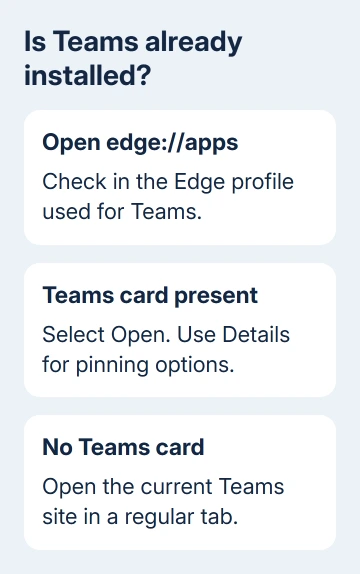
Open the card's Details and use its pinning controls if offered. The Edge website pinning steps explain that part separately. Pinning an existing app avoids creating a second shortcut to the same service.
If the card opens a broken or obsolete Teams address, note that address before removing it. Select Details > Uninstall to remove that web app, and review the option to delete its app history and data before confirming.
Removing the app's saved data may end its signed-in session. Keep your work-account sign-in and verification method available. Once the old app is gone, continue with a fresh install from a normal Edge tab.
2. Install from the Teams page that actually works
Open teams.microsoft.com in a regular browser tab and sign in. Let Teams finish loading your account. Check that a chat or team opens before trying the app installation again.
If the page redirects to a current Teams address, keep that working page open. Don't replace its address with an old classic-client link copied from a discussion.
Microsoft's current Teams web-app guidance supports installing Teams as a progressive web app, or PWA, in Edge and Chrome. This is a website running in its own app window.
Choose Settings and more > More tools > Apps, then Install this site as an app. On older versions, look for Apps without opening More tools first. When the site supports installation, its address bar may show a button for that too.
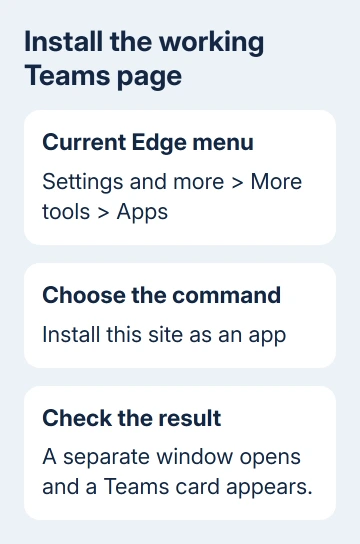
Complete the installation dialog if it appears. The result should be a separate Teams window and a Teams entry on edge://apps. If Teams just opens in another browser tab, look for its edge://apps card to check whether installation finished.
This Edge app and the downloaded Teams desktop client are separate installations. Repairing the desktop client's files won't repair Edge's app list, and installing a web app doesn't replace the desktop client automatically.
3. Update Edge and restart before another attempt
Open Settings and more > Help and feedback > About Microsoft Edge. Wait for the update check, then select the offered restart option. Reopen Teams afterward and try installing once more.
Save unfinished messages before restarting the browser. The update may need every Edge window closed before it finishes. Use the version shown after the restart when reporting a continuing problem.
If other websites install as apps but Teams doesn't, Edge's app feature is still working for those sites. In the original report, WhatsApp installed normally while Teams' install command did nothing.
If every website's installation fails, tell IT that distinction. A browser update, app-installation policy or damaged browser setup deserves attention before spending time on the Teams account itself.
4. Refresh the Teams session without erasing everything
First check Teams in an InPrivate window from Edge's menu. Choose the account and organization used in the ordinary tab. This checks Teams without your ordinary tab's saved session. Return to a regular window to try installing it.
If Teams works there but still has problems in the ordinary tab, open Settings and search for cookies. Open the control for viewing site cookies and stored data, then search the site list for teams.microsoft.com.
Remove the Teams entry, reopen the current Teams site and sign in again. Newer settings layouts can group these controls differently; select the stored-data list rather than the option to block every site's cookies.
This clears Teams' saved browser session, rather than your entire browsing history or saved passwords. It won't bypass a workplace access rule. If sign-in fails after the cleanup, take that error to the account administrator.
I'd keep this cleanup limited to Teams. Clearing every site's data makes you sign in again elsewhere without telling you why Teams won't install. If the session refresh changes nothing, continue with extensions and managed settings.
The Teams connection checks cover a page or client that cannot load chats. An account that cannot use Teams in a tab needs that problem fixed before app installation can help.
5. Compare extensions and workplace restrictions
Open Extensions > Manage extensions from Edge's menu. Turn the installed extensions off, reload the normal Teams tab and attempt installation again.
If installation works with extensions off, check which add-on made the difference. Enable each extension separately, checking Teams after each one, to see whether a particular add-on breaks the installation.
On a company computer, open edge://policy and check whether web-app settings are managed. Administrators can deploy web apps through WebAppInstallForceList and configure them through WebAppSettings.
Share those policy names with IT for the installation check. Having a policy listed doesn't necessarily mean it blocks Teams. Send its displayed value and the failed action rather than deleting workplace policies yourself.
Why the classic Teams workaround has expired
In the May 2024 discussion, an owner cleared Teams cookies, opened the classic Teams address, installed that page and then switched to new Teams. They confirmed that the app continued working afterward.
That result depended on classic Teams still opening. Classic Teams became unavailable on July 1, 2025. Repeating the old link now can send you to an unavailable-client message instead of the installable page.
When Install still does nothing
Use the working Teams browser tab for the immediate meeting. Tell IT if Teams is the only app that won't install. Include what happened in a fresh Edge profile and request a check of service health and web-app deployment.
Include the Edge version, operating system, Teams address after sign-in, whether edge://apps contains Teams, and whether other websites install. For a personal account, use Edge's Help and feedback > Send feedback with those details.
The Short Version
Find an existing Teams card first. If none is installed, use the working Teams page and Edge's Apps menu. Update Edge and check Teams' session, extensions and workplace policies. The classic Teams installation workaround has expired.
Checked November 23, 2026.
 If you have any business, I can build it online






