

Edge pins a website to Start by turning it into an app. Open the page, choose Settings and more > More tools > Apps > Install this site as an app, and keep Pin to Start ticked in the window that follows.
The old Edge had Pin to Start right there under More tools. The new Edge that replaced it in 2020 shipped without that entry, which is why people still go looking for it.
The app route works in today's Edge on Windows 10 and 11 PCs alike, and you don't need anything besides Edge itself.
In this guide
1. Install the site as an app
Open the website in Edge and go to the exact page you want the Start entry to open, such as a bank's sign-in page or a shared calendar. Then:
- Select Settings and more, the three-dot button at the far end of Edge's toolbar.
- Choose More tools > Apps, then the option to install this site.
- Select Install in the small prompt that appears.
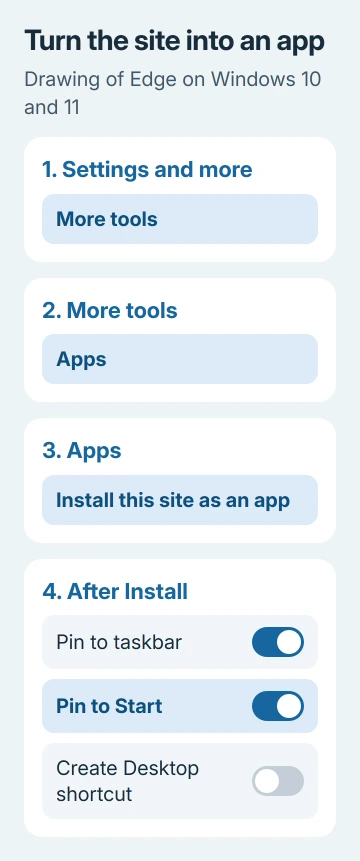
The new app window then offers Pin to taskbar, Pin to Start and Create Desktop shortcut. On Windows 11 the first two come ticked, so the site lands at the end of Start's Pinned section and in the All apps list.
Some sites are built to run like apps, and Edge offers to install those by itself with a small icon in the address bar. Accepting that offer does the same job as the menu route.
2. Pin it from edge://apps if Start doesn't show it
Type edge://apps into the address bar and hit Enter. Every installed site gets a card on that page; select Details on the one you want, then choose Pin to Start.
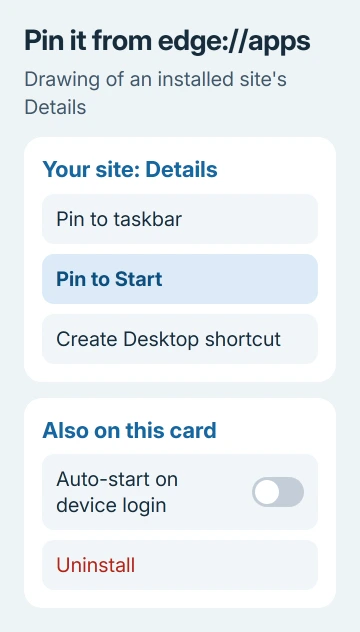
The same panel has Pin to taskbar and Create Desktop shortcut, plus an Auto-start on device login switch if you'd like the site to open each time you sign in to Windows.
Once you have a few installed sites, sort the page by install date, recent use or name to find the right card quickly.
Microsoft's own page on installing and managing apps in Edge lists those same choices. If a label reads slightly differently on your PC, the card's Details panel is still the place to look.
3. What changes once a site becomes an app
The pinned site opens in its own window, without tabs or an address bar. That suits a webmail inbox or a calendar you keep open all day, and it's less handy for a news site you click around in.
Each pinned site also becomes an entry in your apps list. One owner who wanted about 50 pages in Start folders was let down to find that meant 50 more apps, so I'd keep this for the handful of sites you open every day.
To undo it, open edge://apps, select Details on the card and choose Uninstall. Edge asks whether to delete the app's history and data too, and the Start entry goes with the app.
4. Try the direct Pin to Start if your menu has it
Some Edge versions list Pin to Start straight under More tools. When it's there and it works, that's the quickest route of all.
It doesn't always work, though. On one owner's Windows 11 PC, both Pin to Start and Pin to taskbar did nothing at all when selected. If yours does the same, go back to the app route.
5. The older taskbar workaround
The first workaround people found in 2020 went through the taskbar, and owners on Windows 10 confirmed it worked:
- Open the site and choose More tools > Pin to taskbar.
- Right-click the new taskbar icon, then right-click the site's name sitting over Unpin from taskbar.
- Choose Pin to Start, then unpin the taskbar icon if you don't want it there.
It wasn't dependable even then. One owner later found the Start entry had turned into a blank tile with a long W~MSEdge name that opened nothing.
The asker sometimes got a Missing Shortcut box from the taskbar icon instead, and had to browse to msedge (Edge's program file) before the page reached Start. The app route avoids both problems.
When the pin still won't appear
Make sure Edge is up to date first. Type edge://help in the address bar, let it install any update, then restart Edge and install the site again.
If no newly installed app ever shows up in Start, the problem is Start itself, not Edge. The Windows 11 Start menu settings explain how pinned items and the All apps list behave.
A desktop shortcut to the website still gives you one-click access in the meantime. To report it to the Edge team, use Settings and more > Help and feedback > Send feedback and tick the box that includes diagnostic data.
The Short Version
From Settings and more > More tools > Apps, turn the site into an app and keep Pin to Start ticked. Missed it? Open edge://apps, select Details on the site's card and choose Pin to Start.
Checked November 19, 2026.
 If you have any business, I can build it online






