
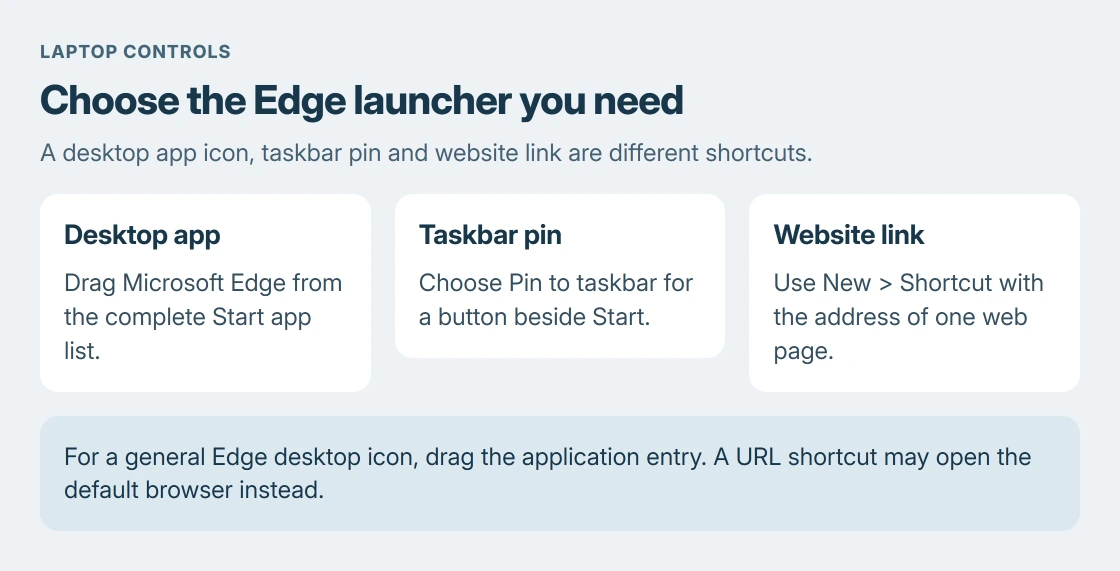
An Edge shortcut on an HP laptop starts in Windows: open Start's app list and drag Microsoft Edge onto the desktop. This creates a browser launcher. Taskbar pins and saved website links are separate options.
Drag the Edge app from Start onto the desktop
Reduce any open windows so there is clear desktop space beside Start. Open Start > All in Windows 11, or Start > All apps if that is the label shown. Find Microsoft Edge in the list.
Drag that app entry out to the desktop and release it there. Microsoft documents this application-shortcut method in its desktop customization instructions.
Status: Windows 11 and Windows 10 shortcut and taskbar instructions checked with Microsoft on 24 October 2026. No HP settings, icons or default browser were changed.
On Windows 10, open Start's app list and drag the same Edge entry. The procedure is a Windows feature; an HP-branded shortcut utility is unnecessary for it.
Double-click the new icon and confirm that Microsoft Edge opens. The shortcut does not reinstall the browser or change which application opens links from other programs.
Use a taskbar pin for access beside Start
For an icon on the bottom bar, open Start and search for Microsoft Edge. Right-click its app result and choose Pin to taskbar. Microsoft says this is a separate way to keep an app available in its taskbar guide.
Alternatively, launch Edge first and right-click its taskbar icon to pin it. After closing the browser, the pinned button remains available. That result is different from a new icon appearing on the desktop.
A website shortcut should contain the website address
If the goal is one page rather than the browser itself, right-click desktop space and choose New > Shortcut. Enter that page's full web address, continue with Next, name the link, then choose Finish.
Microsoft states that this shortcut wizard accepts a file, folder or web page. An ordinary URL shortcut can use the default browser; naming it Edge does not force another browser's links into Edge.
For a general Edge launcher, return to the application-list method. Avoid replacing its app target with a website address unless opening that site is the intended result.
If the new icon is not visible or does not launch
When every desktop icon is hidden, the desktop visibility checks cover the View setting and Desktop folder. Check those before creating repeated copies of the same shortcut.
Try Edge directly from Start. If it opens there, the browser installation is present and the shortcut needs attention. If Start cannot launch it either, another desktop icon will not repair that application failure.
A shortcut that works by double-click but responds slowly to an assigned keyboard combination is a different problem. The shortcut-key delay guide covers that distinction.
If Edge is absent from the installed-app list or a managed laptop blocks shortcut creation, ask its administrator or Microsoft Support about the installation. Supply the exact message and say whether Edge starts from Start.
The Short Version
Find Microsoft Edge in Start's complete app list and drag it onto the desktop. Pin to taskbar creates a different launcher location. A New > Shortcut entry containing a URL opens a particular page and may use another default browser.

Isaac Smith is the founder and editor of PC Glance, a website that covers computers, laptops, and technology. He is a tech enthusiast and a computer geek who loves to share his insights and help his readers make smart choices when buying tech gadgets or laptops. He is always curious and updated about the latest tech trends.