

Edge's Hmmm, can't reach this page message can come from the website, your connection or Edge itself. Check another website first: one failed address needs a different fix from every browser losing internet access.
If the same page opens in another browser, start with a fresh Edge window and its extensions. If it fails across browsers and devices, check the website or router before clearing browser data.
In this guide
1. Match the failure to the page or connection
Reload the failed page once, then open two unrelated websites. Use a known working bookmark or type the full address carefully so a misspelled name doesn't look like a network failure.
If only one address fails, try it in another browser. A site that fails there too may be unavailable, have changed its address or require access through a workplace connection.
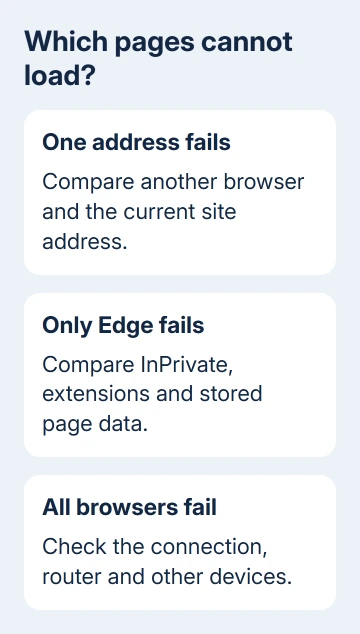
If only an old bookmark fails, open the site's current home page and navigate to the needed page. A working home page with a broken saved link points to the address rather than your whole internet connection.
When every site fails, check the Wi-Fi or Ethernet indicator near the Windows clock. A connected Wi-Fi signal only confirms the link to the router; the router's internet connection can still be down.
Use another device on your Wi-Fi to open the failed address. When comparing a phone, switch cellular data off so its working cellular connection cannot hide a Wi-Fi fault.
Keep the page's extra error text handy, especially a DNS, timeout or connection-reset code. The large heading is shared by different failures; that smaller detail can change the next repair.
2. Retry Edge without its usual website session
Choose Settings and more > New InPrivate window, or press Ctrl+Shift+N on Windows. Open the same failed address there. Don't use a different site for this comparison.
If it opens in InPrivate, your connection can reach the site. Next, check the extensions and site data saved in your profile. The InPrivate result doesn't tell you which one caused the problem.
Some extensions are allowed in InPrivate. To check them directly, open Extensions > Manage extensions, turn the installed extensions off, and retry the page in your normal window.
If the page opens, enable a single extension and reload. Repeat for the remaining add-ons. Leave a failing extension switched off; its developer can check the compatibility problem.
An owner in the original page-loading discussion described new tabs failing in Edge while the same pages opened in Chrome or Firefox. Other replies said the suggested cleanup didn't work.
That is why I'd compare the exact page before deleting anything. A second browser that loads the site lets you continue working while checking what differs in Edge.
3. Refresh cached files, then check site data if needed
Press Ctrl+Shift+Delete in Edge to open its browsing-data dialog. For Time range, choose All time. Check Cached images and files. Leave unrelated categories unchecked, then choose Clear now.
Reload the failed page. Edge keeps downloaded page files in its cache. Downloading fresh copies can fix some loading or display problems, but it won't help if Edge still can't reach the server.
The Edge cache controls explain the categories if the dialog offers more than expected. Clearing passwords isn't part of this check.
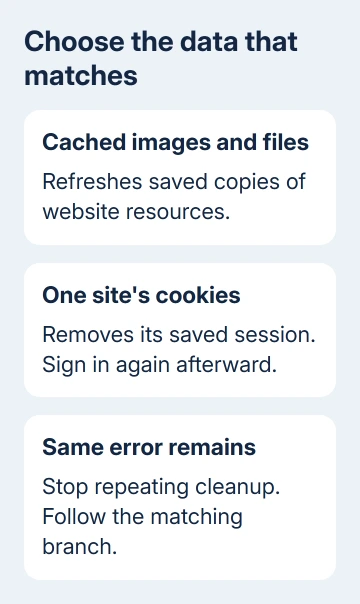
If the site works InPrivate but still fails normally with extensions off, consider removing that site's cookies. Open Settings, search for cookies, open the stored site-data list and find the affected site's domain.
Remove that site's entry, reopen the address and sign in again if needed. Cookie removal ends that site's saved session, so have your sign-in details available. It doesn't fix an account that's blocked by the service.
If the same error remains, stop repeating cleanup. Use the earlier browser comparison to decide between connection checks and an Edge update.
4. Restore the connection when other browsers fail too
When several home devices lose access, power-cycle your modem and router as their manufacturer directs. Allow the connection lights to settle, reconnect and try the site again.
Don't press a recessed Reset button. That can erase the router's configuration rather than simply restart it. On a shared workplace network, ask IT before restarting equipment used by other people.
On Windows 11, search Start for Get Help and launch it. Enter network and internet troubleshooter in that app. Run the offered troubleshooter and follow its prompts.
On Windows 10, use Settings > Network & Internet > Status > Network troubleshooter. Follow the advice it gives for your connection, then check whether both Edge and the other browser can open a page.
For a DNS-specific message, check whether Edge uses an encrypted DNS provider you selected manually. The Edge DNS settings explanation shows how that can differ from the computer's normal provider.
On a company connection, ask IT which DNS and VPN settings it requires, especially for internal addresses. Don't force a public DNS service onto a computer that needs the company's internal name service.
Disconnect a personal VPN briefly and try the failed page again, then reconnect the VPN. For a required work VPN, report the failed address to IT instead of bypassing the requirement.
5. Update Edge, then repair a persistent Edge-only fault
Enter edge://settings/help to check the installed browser release. Apply the update offered there, including its restart prompt, then reopen the failed address.
The browser recovery steps include checking another browser, updating and repairing Edge. Use repair if only Edge still fails after the smaller checks.
On Windows 11, open Settings > Apps > Installed apps, find Microsoft Edge and choose Modify > Repair. On Windows 10, select Edge under Apps > Apps & features, then Modify > Repair.
Close all users' Edge windows before starting repair. Connect to the internet and approve the administrator prompt. Repair should leave your settings and browsing data intact.
If Modify isn't offered, have your workplace administrator check the managed installation.
Where to get help with the remaining error
If one website fails in every browser, send its support team the complete address and error text. If several devices cannot reach any site, report the continuing outage to your internet provider, mentioning the router restart.
For Edge alone, choose Send feedback inside Help and feedback, or contact Microsoft Support. Include the version, error code, InPrivate result and second-browser comparison. Say which networks you tried.
The Short Version
Start by trying a second site and browser. Check extensions and stored page data for an Edge-only failure. Follow the connection branch when other browsers fail, and use repair for a persistent browser-specific problem.
Checked November 23, 2026.
 If you have any business, I can build it online






