

A held Shift key makes Chrome open a clicked link in a separate window. Release both Shift keys and try a normal click. If only search results do it, or windows appear without a click, check the site, extensions or pop-up settings next.
New tabs stay inside the same window. Separate windows have their own tab bars. That difference matters because a website can request a new tab without anything being wrong with your keyboard or Chrome.
In this guide
1. Release the keys that change a normal click
Click an ordinary text link with neither hand touching the keyboard. Then press and release each Shift key and try that same link again. Google says Shift-click opens another window in its Chrome shortcut list.
If links now stay put, Chrome was treating your click as Shift-click. Check whether a key is physically sticking, especially if typing also produces unexpected capital letters or symbols. A browser reset won't repair that key.
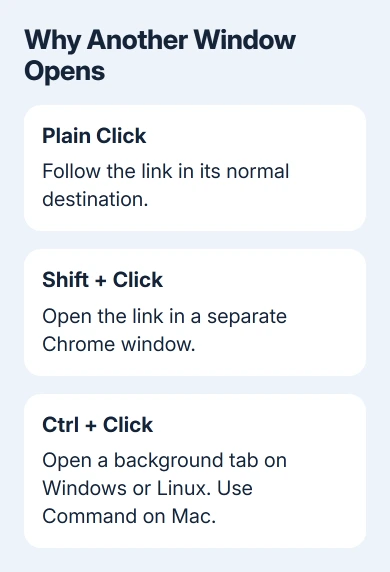
On Windows or Linux, Ctrl-click opens a background tab. On Mac, use Command-click. Clicking the mouse wheel can also open a background tab. These differ from Shift-click, though each leaves the original page open.
Try a second mouse or the laptop's touchpad if the behavior happens only with one pointing device. A mouse utility can assign extra actions to its buttons. Check its button assignments rather than changing Chrome settings at random.
I'd do this check before removing extensions. It takes seconds, and it explains the combination of odd typing and links opening in separate windows better than a website setting does.
2. Check whether one website controls the destination
Open another familiar website and follow one of its ordinary internal links. Compare that with the link that keeps creating a window. When only that site behaves this way, its page may be telling Chrome to open a window or tab.
A site opening its links in new tabs doesn't mean Chrome will do that for every link. The site's author can choose that behavior. Chrome's pop-up control also isn't a setting that forces every clicked link into the current tab.
To inspect a link without opening it, right-click it and choose Copy link address. Paste the address into the current tab's address bar and press Enter. On a Mac, use a two-finger trackpad click or Control-click to open that menu.
That lets you open the page in your current tab while you check the site. It doesn't rewrite the site's links. If the address leads to an unexpected search provider or advertising page, move to the extension check next.
For windows appearing only after a Google search, compare a link inside the result's website too. This shows whether the search page changes link behavior or other sites behave the same way. Keep the search tab for another comparison.
3. Switch off extensions that can change links
In desktop Chrome, open the three-dot menu and choose Extensions > Manage Extensions. Turn off extensions that alter search, redirect links, manage tabs or add shopping features. Keep the page open, then retry the same link in a fresh tab.
If you have lots of extensions and aren't sure what each does, switch them all off for now. Turn them back on individually, checking the link after each one. Remove or report the extension that makes extra windows return.
An extension's switch turns it off without uninstalling it. Remove deletes it from Chrome. Use the switch for the comparison first so you don't have to rebuild your usual setup just to learn whether extensions are involved.
Some extensions can run in Incognito, so switching them off yourself is a clearer check. If the same extension is still active in that separate window, it can cause the same behavior and give you a misleading result.
A workplace-managed extension may have locked controls. Ask the administrator to check its link-handling policy. For a different extension fault, such as a replacement page that never appears, check Chrome New Tab extensions.
4. Treat windows that appear without clicks as pop-ups
Open Settings > Privacy and security > Site settings > Pop-ups and redirects. Under the default behavior, select the option that doesn't allow sites to send pop-ups or use redirects. Review the sites allowed to bypass that setting.
Remove an exception for a site you don't want opening extra windows. Return to that site and reload it. A blocked-pop-up indicator in the address bar means Chrome stopped a request; it doesn't mean a download or virus scan has run.
Some legitimate sign-in and payment windows depend on pop-ups. Allow a trusted site individually when its required window is blocked, instead of allowing pop-ups everywhere. The permission then applies to that site alone.
Note what triggers the window: launching Chrome, clicking a notification, visiting one site or following any link. Those point to different settings. A notification opening a page isn't a website pop-up.
Chrome also has separate controls for pages restored at startup. When the extra tab appears only at launch, use the Chrome startup-page settings if that page matches your symptom.
5. Reset Chrome settings only after the narrower checks
With many sites affected and extensions disabled, open Settings > Reset settings. Choose Restore settings to their original defaults. Read the confirmation and select Reset settings. This resets settings, not the whole installation.
It resets several browser preferences and disables extensions. Saved bookmarks and passwords remain, but customized startup pages, search settings and site permissions can change. Make a note of work-specific settings before continuing.
Restart Chrome and repeat the plain-click comparison before enabling add-ons. If that works, restore your needed settings individually. Re-enabling everything immediately can bring the problem back without explaining its cause.
If it still fails, open Chrome's menu and choose Help > About Google Chrome, finish any available update and relaunch. For a managed browser, give IT the affected web addresses, Chrome version and what happened with extensions off.
On a personal browser, use Help > Report an issue and describe the click creating the window. Mention whether another mouse or typing is affected. Those details explain more than a report that Chrome opens things randomly.
The Short Version
Release Shift, compare another site, then disable extensions controlling search or links. Use pop-up settings for windows appearing without a normal link click. Reset Chrome only after narrowing the problem to its settings.
Checked November 13, 2026.
 If you have any business, I can build it online






