
Tab Session Manager downloads backups into Chrome's download folder, using TabSessionManager - Backup by default. Choose the subfolder in Backup > Save location. Sessions saved inside the extension are kept separately.
Before moving computers or removing the extension, check that you have a backup file. A session saved automatically inside the extension isn't necessarily a file you can copy from Downloads.
Find the folder used for downloaded backups
Open Chrome's three-dot menu and choose Settings > Downloads. Check Location for your current download folder. If you've changed it, backups may no longer be in the usual Downloads folder.
Google's download instructions explain how to choose that folder. Changing it affects your other Chrome downloads too, so check the current location before changing it for this extension.
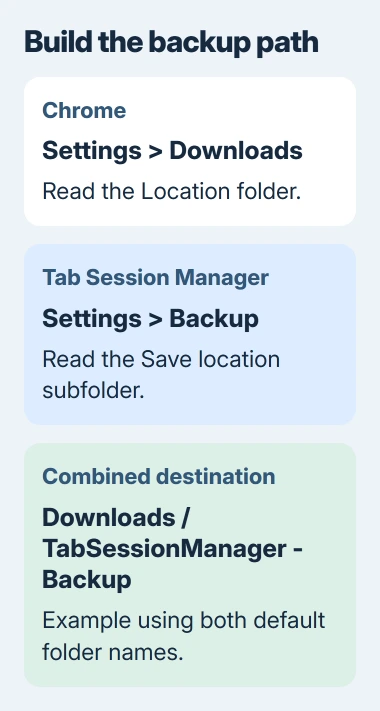
Open Tab Session Manager's options through the extension's settings control, or through chrome://extensions and its Details page. In Settings, locate Backup, then read Save location.
The default is TabSessionManager - Backup, inside Chrome's download Location. For example, if Chrome saves to Downloads, look in its TabSessionManager - Backup subfolder.
With Individual backup enabled, there may be more subfolders inside. Check those too, rather than looking for just one large file in the main backup folder.
Your full path depends on your Windows account or Mac home folder, and where you've told Chrome to save downloads. An example folder name alone won't give you that full path.
Separate Auto save from Save backup
Auto save keeps sessions inside Tab Session Manager. The separate Save backup option writes files to your download folder when the browser starts.
The developer's backup settings source lists these as separate options. A long list of saved sessions doesn't tell you whether backup files are being created.
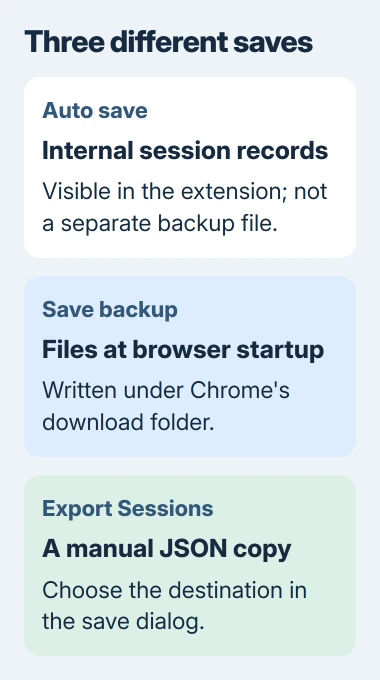
If Save backup is off, the extension can keep saving sessions without creating a backup folder. Turn it on if you want startup backups, then check the folder after you next start the browser normally.
If you need a backup now, use the manual export steps in the next section. Before resetting a profile or removing the extension, check that you have the file.
Downloaded session files end in .json. JSON stores information as text, including the details of your saved tabs. It doesn't contain copies of the webpages.
The file can restore your list of page addresses, but won't store each page's content or sign you into websites. Pages that need an account or internet access will still need them when you reopen the tabs.
Export a copy you can identify and import
Open the extension's options and select Sessions. Find Export Sessions, then choose Export. The browser opens a save dialog so you can choose where to put the exported sessions.
Choose a folder you'll recognize and keep the .json extension. The filename can include session names, dates or a session count, so there isn't one fixed name to search for.
Manual exports use a save dialog so you can choose a destination. Automatic backups go to the backup folder, so the two types of file can end up in different places.
To move your sessions, copy the exported file to the other computer. Open Tab Session Manager's Sessions options there, choose Import sessions > Browse…, select your file and finish the import.
Check that your session names and tab counts appear before you discard the original copy. Restore one session you need and check that it contains the addresses you meant to keep.
Use Export Sessions for your saved tabs. Export settings saves your preferences, so it won't replace a session export.
Bookmarks need their own backup. The Chrome bookmark export procedure creates an HTML file of saved links. That's separate from a JSON file of tab sessions.
Choose a different backup destination carefully
In Backup > Save location, enter a folder name such as Session Backups. This is a relative location: a folder inside Chrome's download folder, rather than anywhere on your computer.
The setting's description says the folder must be inside your browser's download folder. It doesn't ask for a full Windows drive path or Mac home-folder path.
To move all Chrome downloads elsewhere, change Downloads > Location in Chrome. To save just one session export somewhere else, choose its destination in the manual export dialog.
After changing the folder, start the browser normally and look for the files in the new location. Keep your old folder until the new one has the copies you need; the setting alone doesn't tell you that old backups moved.
I'd make a manual export before a computer reset even when automatic backup is enabled. You'll have a file you've found and checked, ready to copy to the next computer.
When the backup is missing or the session list is empty
First check which Chrome profile you're using and the extension's name. Profiles keep separate extension data. Your sessions can still be in the original profile even if another profile has an empty list.
If the backups aren't in Chrome's download history, look in the folder itself. The extension removes completed automatic backups from that history, but leaves the files on your computer.
If the extension still opens, export its sessions before trying a reinstall. If the session list is gone, keep your current profile and any JSON files, then ask the developer about recovery.
The older storage wiki's SQLite database replacement steps are for Firefox, so they don't apply to Chrome. In Chrome, the browser manages the extension's session database separately from your downloaded JSON files.
If the toolbar icon is missing, use the Chrome extension-status checks to see whether the icon is unpinned or the extension is disabled or damaged.
Tell the developer your browser version, extension version and profile. Say which part failed: the session list, exporting or the backup folder. That helps them check the right part.
The Short Version
Look inside Chrome's download folder for the extension's backup subfolder. Auto save keeps sessions inside the extension; Save backup writes files at startup. Use Export Sessions to make and check a JSON copy before a reset.
Checked November 5, 2026.

Isaac Smith is the founder and editor of PC Glance, a website that covers computers, laptops, and technology. He is a tech enthusiast and a computer geek who loves to share his insights and help his readers make smart choices when buying tech gadgets or laptops. He is always curious and updated about the latest tech trends.