

A Chromebook reboots from the clock panel: select the time, choose Power, then select Restart. Closing the lid usually puts it to sleep, so opening it again doesn't give ChromeOS the fresh start you're trying to get.
For a frozen screen, shut down using the power button, then start again. A hardware reset is a later option for persistent trouble; the reset uses different buttons and might remove files from Downloads.
Restart from the clock panel
Save the document or form you're working on before restarting. A browser tab returning afterward isn't a substitute for saving the text inside it.
Open the clock panel in the screen's lower-right corner. On the panel that opens, select Power, then choose Restart. Let the Chromebook shut down and start again before trying the original task.
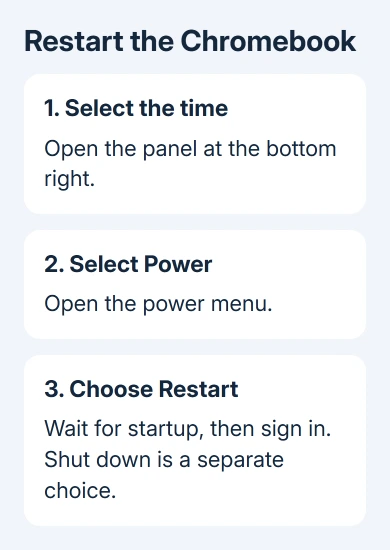
Google's restart instructions use this power-menu route. It's the normal way to reboot a working Chromebook, whether you want a fresh start or you're checking a temporary problem.
Wait until the sign-in screen loads, then enter your account. Seeing it start up and ask you to sign in tells you it restarted, rather than just woke from sleep.
If the menu opens but your version doesn't show Restart, select Shut down, wait for the Chromebook to turn off, then press its power button to start it. That turns it fully off and starts it again.
Try the task that prompted the restart once you're signed in. If only one tab remains stuck while the rest of the Chromebook works, the problem needs a browser or site check rather than repeated full restarts.
Use the power button when the menu isn't reachable
Press and hold the Power key for about 3 seconds to turn the Chromebook off. Some models show a menu with Power off or Sign out when you hold their power button; choose the power-off option if it appears.
Once the computer is off, start it with a normal Power press. Wait for sign-in to appear before pressing the button a second time.
Unsaved changes can disappear during a forced power-off, so use the normal menu when the screen still responds. Use the power button when you can't open the menu or the screen won't respond.
Notice when it freezes again. A freeze before sign-in, a freeze after opening one app and an unresponsive website aren't the same situation. Note the point at which the Chromebook stops responding before trying a deeper reset.
If the screen stays dark, connect the correct charger and check the device's charging behavior. Repeatedly pressing Power won't fix an empty battery or a failed charging connection.
I'd try the normal shutdown and startup before a hardware reset. It's a smaller step, and you can tell immediately whether the Chromebook reaches its sign-in screen again.
Finish an update with its own Restart button
A downloaded ChromeOS update can show an Update available notification beside the time. Select Restart in that notification to restart and apply the downloaded update.
To check manually, open Settings > About ChromeOS, then select Check for updates when available. If an update downloads and asks for a restart, save your work and use the offered button.
After startup, check About ChromeOS again if you're confirming an update. A successful reboot doesn't always mean a new update was waiting to install; check the installed version to see whether it changed.
The Chromebook update guide covers download failures and managed devices. A school or work computer may have update timing controlled by its administrator.
Leave the computer connected to power while completing an update. If it stops repeatedly at the same startup stage, record the message and ask the administrator or maker for help with that specific failure.
Reset the hardware only when ordinary restarting fails
A hardware reset restarts components including its touchpad and keyboard. It isn't the regular Restart command. Google recommends it after other attempts to fix the problem have failed.
Back up important local files first if the Chromebook is usable, because a hardware reset might delete some files in Downloads. Don't assume every reset option preserves the same data.
For most Chromebook laptops, shut the computer down. Hold Refresh, tap Power, then let go of Refresh once startup begins. Use the Refresh key marked with the circular refresh symbol on the built-in keyboard.
For a Chromebook tablet, hold Volume Up and Power together. Keep holding for 10 seconds or longer, then release both. Use these buttons on a tablet; Refresh and Power is the laptop method.
Some older machines have their own reset method. The official hardware reset page lists exceptions including selected Samsung models, the ThinkPad X131e and Chromebox devices.
Use the procedure for the exact model if it's listed there. Avoid opening a sealed case or probing an unidentified hole with a paperclip to copy another model's reset.
After startup, try the affected keyboard, touchpad or task. If the fault returns, another hardware reset adds little useful information. Tell the manufacturer or school administrator your model number and what still isn't working.
Restore your session, or leave it closed for a check
ChromeOS can offer to restore your previous apps and tabs after sign-in. Select Open to resume them or No thanks to continue without reopening that session.
Session behavior is controlled in Settings > System preferences, under Startup. Options include Ask every time, Always restore and Off. Seeing an old tab again can simply mean ChromeOS restored it after the reboot.
If you're checking a freeze, starting without the previous session helps you see whether the problem returns before the same apps reopen. Then open the needed app or site and compare its behavior.
For a tab that didn't return, the closed-tab recovery steps explain the browser's recovery choices. They don't recover unsaved changes that a site never stored.
A reboot is complete when the device starts and lets you sign in. Powerwash and ChromeOS recovery are separate, more disruptive procedures. If the problem keeps coming back, ask the maker or administrator whether either procedure is needed.
The Short Version
Reboot through the clock panel's Power menu. Shut down and start again if Restart is missing. Save Refresh plus Power for persistent hardware trouble, then check sign-in, the update version or the task that failed.
Checked November 8, 2026.

Isaac Smith is the founder and editor of PC Glance, a website that covers computers, laptops, and technology. He is a tech enthusiast and a computer geek who loves to share his insights and help his readers make smart choices when buying tech gadgets or laptops. He is always curious and updated about the latest tech trends.