
To change your Chromebook's menus to another language, change Device language and select Confirm and restart. If the keys type unexpected characters, change the keyboard layout in Input settings instead.
Websites have another language preference of their own. Choose the setting for the part you want to change. Switching the keyboard layout won't change English menus into another language.
Choose menus, typing or website language first
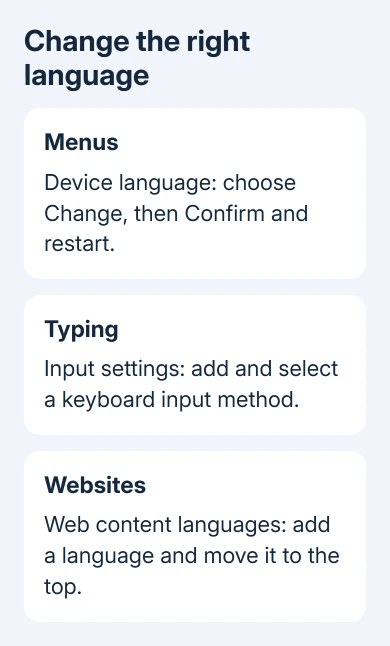
Device language controls ChromeOS features such as Settings and menus. Input methods control typing. Web content languages tell supported websites which languages you prefer.
Each setting works separately. A Chromebook can show English menus while typing Spanish characters, for example. Changing the typing layout doesn't require making every system menu Spanish too.
Start by opening Settings from the panel beside the clock. Google's Chromebook language instructions describe the device and website choices separately from keyboard input.
Settings layouts differ across ChromeOS versions. If the navigation doesn't match a path in this guide, find the named control through Settings' search field. Search for language for menus or input for typing.
That search stays inside Chromebook Settings. Typing the same word in Chrome's address bar opens a web search instead and won't take you directly to your device's language controls.
Change the device language and restart
Save your work first, because applying a new device language restarts the Chromebook. Finish any unsaved form or document before selecting the final confirmation.
- Select the clock beside the shelf, then open Settings.
- Find Languages. In the older Settings layout, open Advanced > Languages and inputs > Languages; use Settings search when that navigation isn't present.
- Beside Device language, select Change.
- Search for the language you want or choose it from the list.
- Select Confirm and restart.
Allow the restart to finish, then sign in again. Open a system menu such as Settings and see whether it uses your chosen language. A single website staying in its old language doesn't mean this change failed.
Your Google Account or an individual website can use a different language from ChromeOS. Use Device language for the menus, then follow the website steps if pages in your browser still need changing.
If you need to return to the previous language, reopen the same Device language control and choose it again. Keep a note of the language name you selected if you're switching to one you can't comfortably read yet.
If you're also updating ChromeOS, complete the update's restart before checking the installed version and menu language again.
Add a keyboard layout when the keys type differently
Open Settings > Device > Keyboard and inputs > Input settings. Under Input methods, select Add input methods, choose the keyboard language you need, then select Add.
Select the new keyboard from the list to make it active. The current choice is marked Enabled. If the keyboard section is labeled differently on your version, search Settings for Input settings.
Type a short sample in a document or search field. Try letters and punctuation that differ between layouts, especially if symbols have moved from their familiar keys.
The labels on your physical keys stay the same when you select another layout. The setting changes what the keys produce, so a mismatch between a symbol on a key and the typed character can be a layout choice rather than broken hardware.
I'd add the intended layout and test it before removing the old one. Keeping both briefly gives you a simple way back if a familiar password or punctuation mark becomes awkward to enter.
Google's keyboard input instructions list input methods and their switching controls. Those controls change typing; they don't apply a new ChromeOS display language.
Put the keyboard switch beside the clock
In Input settings, turn on Show input options in the shelf. Your active keyboard's language code appears beside the date or time. Select that code to open the input-method list and choose another layout.
This is useful on a shared computer or when you write in more than one language. If punctuation suddenly changes, check that code to see which layout is active before changing other keyboard settings.
For keyboard switching, press Ctrl + Shift + Space until the intended language is selected. Ctrl + Space switches back. These shortcuts work with the keyboard languages you've already added.
If the shortcut doesn't offer your language, return to Input methods and check that it was added. Choosing a device language alone doesn't replace the separate step of adding a typing layout.
For unrelated keys or navigation shortcuts, the Chromebook keyboard reference separates those actions from language switching.
Set the language preference for websites
Open the Languages settings page and find Web content languages. Select Add languages, choose the languages you can read, then select Add.
Open More beside your preferred language and select Move to the top. That tells websites which language you prefer when they offer it. It doesn't force every website to provide a translation.
Use Remove beside a language when you don't want it in the preference list. Keep languages you actually read in the order you prefer, rather than adding several and expecting every page to switch the same way.
For translation prompts, use Translation suggestion on the Languages page. When it's enabled, the language's menu can include Offer to translate pages in this language.
A site's own account language may still need changing inside that site. If ChromeOS menus and typing are correct, check that website's language selector instead of changing the device language again.
On a managed Chromebook, ask the administrator about locked language and input controls. Name the missing setting and the language you need. You don't need to erase the device to request a language change.
The Short Version
Use Device language and Confirm and restart for menus, Input settings for typing, and Web content languages for website preferences. Add and test a keyboard layout before removing a familiar one, then use its shelf code to switch.
Checked November 8, 2026.

Isaac Smith is the founder and editor of PC Glance, a website that covers computers, laptops, and technology. He is a tech enthusiast and a computer geek who loves to share his insights and help his readers make smart choices when buying tech gadgets or laptops. He is always curious and updated about the latest tech trends.