
A sideways Chromebook screen can be turned back in Settings > Device > Displays > Orientation. Select the affected display first, especially when an external monitor is connected.
Rotation changes which edge is at the top. It does not repair flicker, enlarge text or move a window between screens, so choose the setting that matches the actual problem.
Set the orientation for the affected screen
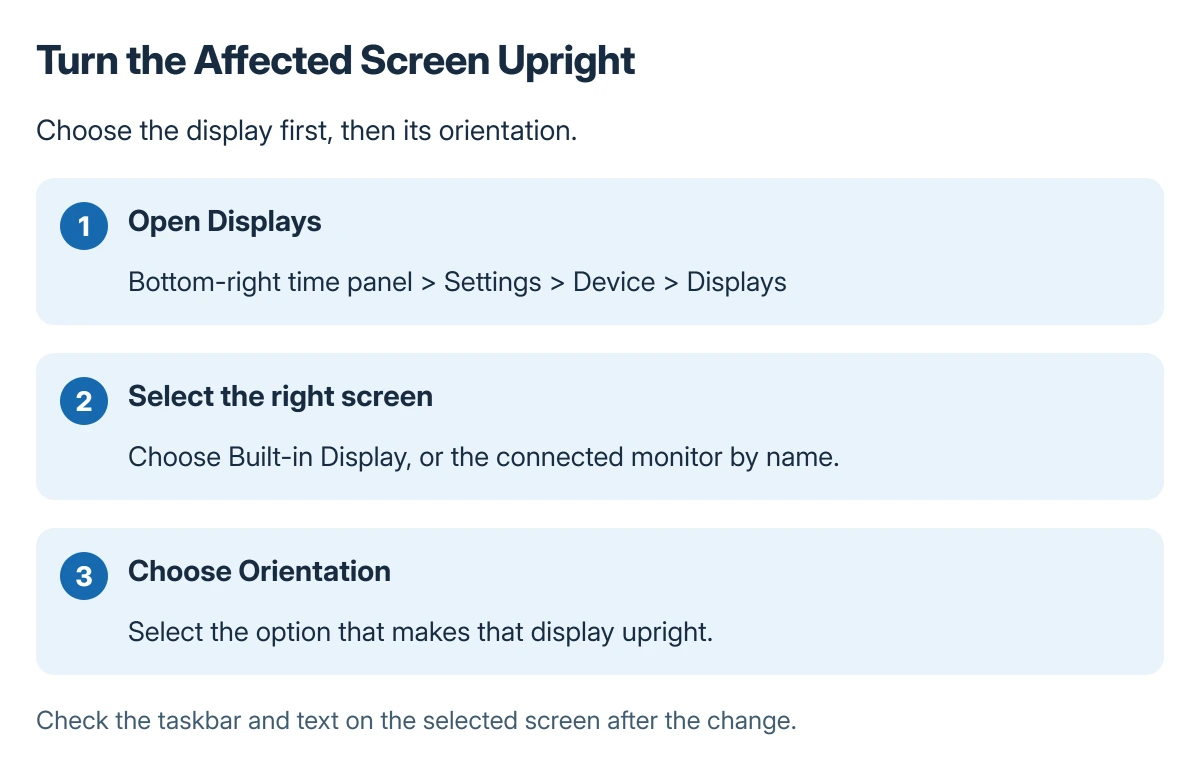
Open the bottom-right time panel, enter Settings, then choose Device > Displays. Select Built-in Display for the laptop panel or the monitor's name for an external screen.
Google says to select the display in its monitor setup instructions. Under Orientation, choose the option that makes the screen upright.
Status: Google's ChromeOS display controls and rotation shortcut reviewed 22 October 2026. Rotation is selected per display; no Chromebook settings were changed.
Check the taskbar, text and pointer on that same display. When two screens are attached, looking only at the laptop can make a change to the monitor appear to have done nothing.
Use the rotation shortcut when the screen is awkward
Google states that Ctrl + Shift + Refresh is the shortcut for rotating the screen 90 degrees. Its shortcut table represents the final key with a circular-arrow icon.
On keyboards using the familiar top-row layout, look for that circular-arrow key rather than a letter key. Keep the settings route available if the keyboard differs or the shortcut does not affect the intended display.
Google adds that Ctrl + Shift + 0 resets screen resolution. That is a separate command: use Orientation when the entire desktop is sideways, rather than trying resolution shortcuts at random.
Keep rotation separate from size and display faults
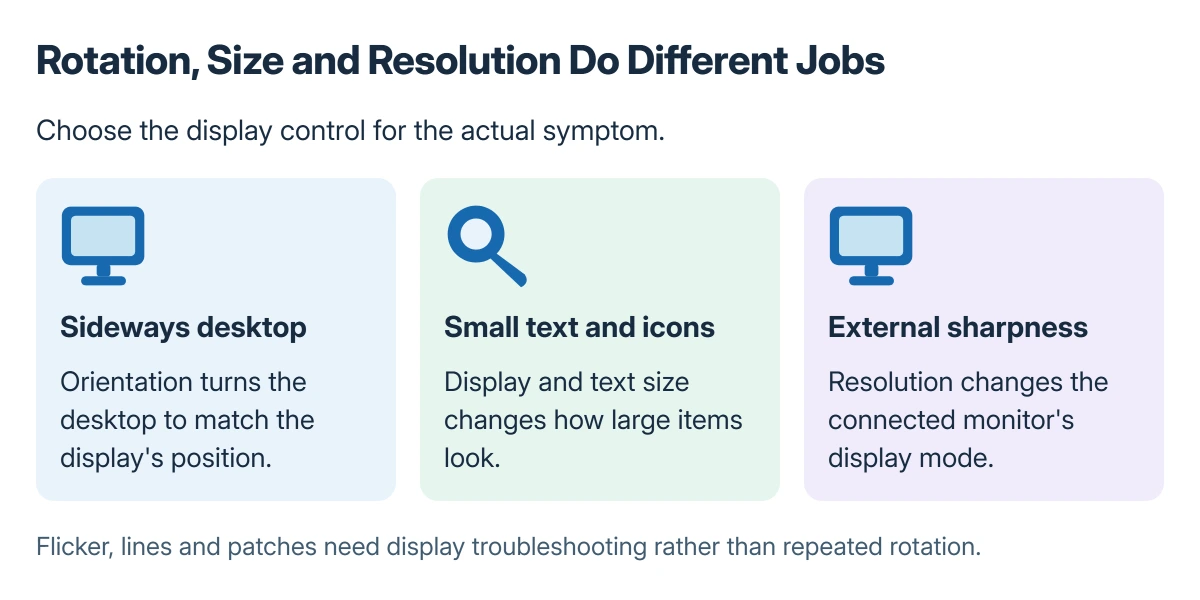
For text that is upright but too small, adjust Display and text size. Google states that a connected monitor also has its own Resolution setting; those controls change the presentation without choosing an orientation.
Arrange two apps with ChromeOS window layouts when the goal is side-by-side work rather than rotating the display.
Persistent lines, flicker or patches need the Chromebook screen troubleshooting checks. Changing orientation cannot establish whether a panel or connection is damaged.
After setting the screen correctly, a Chromebook screenshot can capture the page or error message needed for support.
On a school or work device, ask the administrator when the relevant control is unavailable. For a personal Chromebook whose display remains unusable after selecting the correct screen, contact its manufacturer with the model and symptoms.
The Short Version
Open Settings > Device > Displays, select the laptop panel or named monitor, and change Orientation. Use the rotation shortcut for a quick quarter-turn; size and resolution settings serve different purposes.
Where to Next
Check both screens before finishing a multi-monitor setup. Keep the orientation that suits the monitor's physical position and the work displayed on it.

Isaac Smith is the founder and editor of PC Glance, a website that covers computers, laptops, and technology. He is a tech enthusiast and a computer geek who loves to share his insights and help his readers make smart choices when buying tech gadgets or laptops. He is always curious and updated about the latest tech trends.