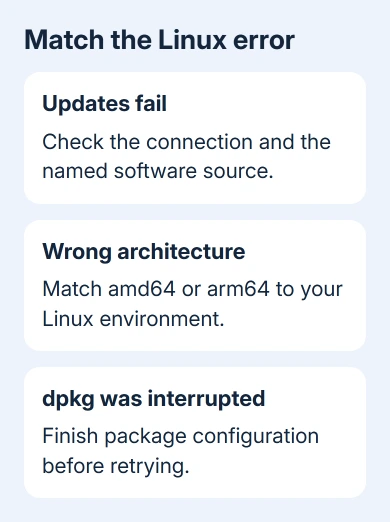
An error installing a Linux application on a Chromebook can mean its package list is outdated, the download doesn't match the processor, or an earlier installation hasn't finished. Begin with a Chromebook restart and Linux package updates.
If it still fails, read the full error in Terminal before changing anything else.
Linux failing to start needs different repairs from a failed app installation inside a working environment. Work out whether Linux starts before removing your Linux files.
In this guide
1. Restart, then update Linux's package list
Restart the Chromebook from its power controls, then open Terminal from the Launcher. Choose the Linux connection, usually named penguin, if Terminal first shows a connections page. Wait until the command prompt appears.
Google's Linux troubleshooting steps recommend restarting and updating packages. Run this command in Terminal:
sudo apt-get update && sudo apt-get dist-upgradeThe first part refreshes the list of available packages. The second brings installed packages up to date, but runs only if the first part succeeds.
Review the changes it proposes, including anything it plans to remove, before you approve them.
Retry the app installation once the command finishes and Terminal displays its prompt. Linux can need another Chromebook restart after package changes.
If the app installs after the update, outdated package information or software was the problem.
If Terminal never reaches a prompt, use the Terminal startup fixes. These commands need a working Linux environment before they can help.
2. Check that the file is a compatible Debian package
ChromeOS supports installing .deb files from Files by double-clicking them and choosing Install. A Windows .exe, macOS .dmg, or Linux .rpm file isn't the same package format. Renaming its extension won't convert it.
Processor type matters too. Open Terminal and enter:
dpkg --print-architectureAn amd64 result means the Linux environment uses the 64-bit Intel/AMD package family. arm64 needs an ARM64 build. The amd64 name doesn't mean the computer must contain an AMD processor.
Compare that result with the download's label and the app developer's supported systems. An Intel-only app won't become compatible with an ARM Chromebook because both devices can run Linux.
Download the matching Debian package from the developer again if the original was incomplete or for another processor. Save the complete error when even the correct build fails.
Even with the right processor build, the app might need software your Linux environment doesn't have.
3. Run the local installer in Terminal to see the error
The Files installation notification can hide the useful detail. Copy the downloaded .deb into Linux files in the Files app, then open Terminal. That puts the file where Linux can reach it easily.
Enter ls to list the current folder and confirm the package filename. Use this command, replacing the example filename with your file's full name:
sudo apt install ./downloaded-app.debAPT is Debian's package installer. The ./ points it to the local package you've placed in this folder. APT can also download required packages from its configured software sources. It can't supply a dependency those sources don't contain.
Watch the final error rather than only the last success message. A missing filename means the path needs correcting. An architecture mismatch sends you back to the download choice.
If it names a missing dependency, the app needs another package. Follow the checks in the next section.
Install only packages you trust. Linux apps share the same Linux environment, so an installer can affect other Linux apps and files available to that environment.
4. Repair an interrupted package operation
An interrupted installation can leave Debian waiting to finish configuring packages. If Terminal says dpkg was interrupted and directs you to finish configuration, run:
sudo dpkg --configure -aWait for it to complete before retrying the app. This finishes setting up packages that have already been unpacked. It won't download a different processor build or fix your internet connection.
For an error about broken dependencies, use:
sudo apt --fix-broken installRead the proposed changes before approving them. The repair can involve removing a package whose requirements can't be satisfied.
If the package you want would be removed, note the missing requirement and check the developer's installation instructions.
A lock error can mean another installer or update is still running. Let that operation finish rather than deleting lock files. If it seems stuck, restart the Chromebook before attempting another package operation.
I'd keep the first complete error message. After several repair attempts, the original explanation can disappear into a long Terminal history. That's especially unhelpful when the package needs a newer Debian release.
5. Check storage and failed downloads
Open Settings > Device > Storage management to check Chromebook storage. Linux also has its own disk allocation. Search Settings for Linux development environment and inspect its disk-size control if space is available to increase it.
Inside Terminal, df -h displays filesystem space in readable units. For an out-of-space error, check the filesystem it names. Free space elsewhere doesn't automatically fix a full Linux disk.
Remove your own unwanted files or enlarge the Linux allocation if its settings permit that. Don't remove system folders to make an installer fit. Retry the installation after space is available.
If updates report download failures, check that a regular website loads and complete any network sign-in in Chrome. Record the repository address in the error.
Check whether just that software source is unavailable or your Chromebook has lost its connection.
6. Keep the environment when only one app fails
If other Linux apps install, ask the failing app's developer which Debian release and processor builds they support. Include the package filename, architecture result and full dependency error.
Resetting Linux won't make an unsupported app compatible.
The Linux setup guide explains the normal install and file-sharing controls. For managed Chromebooks, ask the administrator whether Linux apps or the necessary network downloads are restricted.
Before any proposed rebuild, use Linux development environment > Back up and restore > Back up and save important files separately. Removing Linux deletes its apps and data.
Keep a rebuild for trouble with Linux itself, rather than a failure to install just one app.
The Short Version
Restart and update Linux, check the .deb file's processor type, and run its installation in Terminal for the full error. Finish interrupted package setup or repair dependencies only when the message calls for it.
Preserve Linux files before rebuilding anything.
Checked November 13, 2026.