
Linux runs alongside ChromeOS through Settings > About ChromeOS > Developers > Linux development environment > Set up. Follow the setup prompts, then use the Terminal window that opens to run Linux commands and install apps.
This sets up Debian, a version of Linux, alongside ChromeOS. It doesn't need Developer Mode, the separate setting for deeper system changes. Linux apps still need file access; they can't automatically see every Chromebook folder.
In this guide
Turn on the built-in Linux environment
Open Settings from the clock panel, then choose About ChromeOS > Developers. Beside Linux development environment, select Set up and complete the username and storage prompts.
On older ChromeOS layouts, Developers appears under Advanced. Search within Chromebook Settings for Linux development environment when the sidebar doesn't match. The setting name matters more than its position in the sidebar.
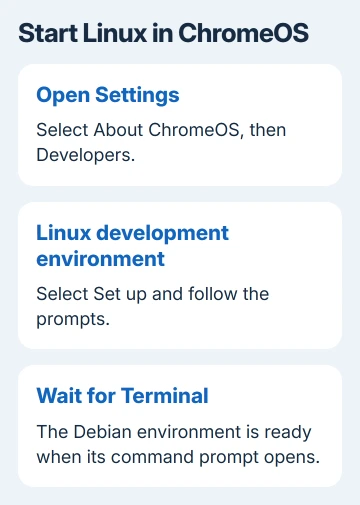
Google says Linux setup can take 10 minutes or more. Keep an internet connection while ChromeOS downloads the required files. Completion opens Terminal with a Debian command prompt.
If your work or school Chromebook has no Linux option, ask the administrator whether you can use it. Your model also needs to support Linux. Don't turn on Developer Mode just because the normal Set up control is missing.
Once setup finishes, open Terminal from the Launcher whenever you need it. Pin it to the shelf to make it easier to open again. Closing its window doesn't uninstall Linux or remove your saved files.
Get familiar with Terminal before installing an app
Terminal accepts typed commands. Enter a command and press Enter to run it. Wait for the prompt to return before entering the next one; the output between prompts tells you what the previous command did.
Run these two commands separately:
pwd
ls
The first prints the folder you're currently in. The second lists its contents. It's normal for a new Linux home folder to have few files. These commands show what's in Linux, rather than every file stored elsewhere in ChromeOS.
Update the available-package list before adding software:
sudo apt updateAPT is Debian's tool for installing and updating software in bundles called packages. This command refreshes the available-version list; it doesn't install every update by itself. Let it finish and check for errors before continuing.
The word sudo gives a command permission to make system changes inside Linux. Use it for the package commands that need it, rather than adding it to every command you type. Ordinary folder checks don't require it.
Install a Linux program and check the result
The Linux setup instructions describe installing packages with sudo apt install. As a practical example, install Git, a tool for keeping a history of changes to code:
sudo apt install gitRead the package summary and confirm when asked. After the prompt returns, check that the program opens:
git --versionA version number shows that Git is available in this environment. Git runs in Terminal, so installing it doesn't give you a normal editing window. Choose a Linux app with its own window when that's what you need.
Linux apps with their own windows can appear in the Chromebook Launcher after installation. A missing menu icon isn't automatically an installation failure; command-line tools are meant to run from the prompt.
Programs must support your Chromebook's processor type. Intel- or AMD-only apps won't run directly on an ARM processor just because the Chromebook uses Linux. Check the developer's supported systems before choosing a package.
Give Linux access to the files it needs
Open the Chromebook Files app and look for Linux files. Copy a document or project folder there when you want a separate copy available to Linux. The original can stay in its ChromeOS location.
To use an existing folder without copying it, right-click it in Files and select Share with Linux. The two-finger right-click gesture opens that menu on a touchpad.
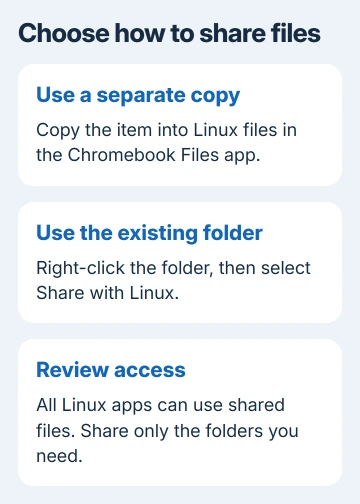
Inside Linux, shared folders appear under /mnt/chromeos. In Terminal, enter cd /mnt/chromeos, then ls to inspect the folders available there. Your original Downloads folder isn't automatically the Linux home folder.
An already shared folder can show Manage Linux sharing instead. Use Manage shared folders in the Linux settings to review access after finishing with a folder. Share the project folder rather than unrelated personal folders.
All Linux apps use the same Linux environment and can access files shared with it. Sharing a folder with Linux gives all those apps access, not just the app you had open at the time.
Restart Linux when an app stops responding
Save open work, then right-click the Terminal icon on the shelf and choose Shut down Linux. Open a Linux app or Terminal again to start the environment. This restarts Linux without requiring a full Chromebook restart.
For a window stuck before its prompt appears, follow the Terminal startup checks before rebuilding Linux.
If problems continue, restart the Chromebook and update Linux packages. The recommended troubleshooting command is:
sudo apt-get update && sudo apt-get dist-upgradeThe first part refreshes the package list; the second applies upgrades. Read any proposed package changes before accepting. If a command reports an error, keep its exact wording instead of entering unrelated repair commands.
An app that uses your camera or other hardware can need permissions that a text editor doesn't. Check its Linux support and Chromebook permissions before expecting a camera, microphone or USB accessory to work as it does in ChromeOS.
Back up Linux before removing it
Open the Linux development environment settings and find Back up and restore. Select Back up, choose a destination in Files, name the backup and save it. Wait for the completion notification.
The Linux backup instructions cover restoring the .tini file. Restore replaces current Linux apps and data, so check the backup you choose.
I'd save a backup after setting up the apps and projects you want to keep. You can restore them from it after a major change. Keep important copies somewhere that will survive a device failure, rather than only inside Linux.
To remove the whole environment, open its settings and use Remove Linux development environment > Remove. For an ordinary unwanted Chromebook app, the app removal guide covers the separate Launcher controls.
If Linux won't start after the restart and package checks, ask Chromebook Help or your administrator with the model, ChromeOS version and exact error. Don't remove the environment while your work exists only inside it.
The Short Version
Enable Linux development environment, use Terminal to install packages, and copy or share the files an app needs. Restart Linux separately when necessary and make a backup before removing or replacing its apps and data.
Checked November 11, 2026.





