
Yes, Microsoft Office works on a Chromebook through the web versions of Word, Excel and PowerPoint. Open Microsoft 365 in Chrome and sign in; a free Microsoft account supports basic editing, while a subscription adds features.
The main limit is which version you can run. A Chromebook can't install the Windows or Mac desktop Office suite, and Microsoft's Android Office apps aren't supported on ChromeOS.
For an existing document, the Chromebook's Files app can connect to OneDrive and open it in Microsoft 365.
In this guide
Start Office in Chrome with the right account
Open Microsoft 365 in Chrome. Choose the sign-in option and use your personal Microsoft account, or your subscription's work or school account.
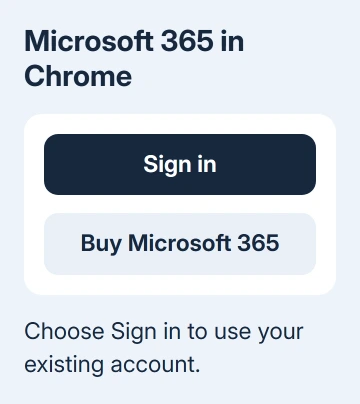
Once signed in, open Word, Excel or PowerPoint from the available apps. Create a blank document or open an existing file. The editor runs in your browser, so there isn't a Windows installer to download first.
Check which account is active before uploading work. A personal OneDrive and a school's OneDrive are separate storage locations, even when both accounts belong to you. A file saved to one won't automatically appear in the other.
Microsoft says its Chromebook Office access instructions support viewing and basic editing with a free account.
Paid features depend on the subscription linked to the account you used.
I'd open a document you normally work with before paying for anything. Try the formatting, tables and features you need. A subscription can add browser features, but it doesn't make the Windows application install on ChromeOS.
If sign-in fails, first check the account type you selected and try signing in directly in Chrome. A school or employer can control account access. Give its IT team the error message if the account is managed.
Connect the Files app to OneDrive
For documents stored on your Chromebook, connect Files to OneDrive so you don't have to keep uploading copies. Google's Office file instructions describe two ways to start it.
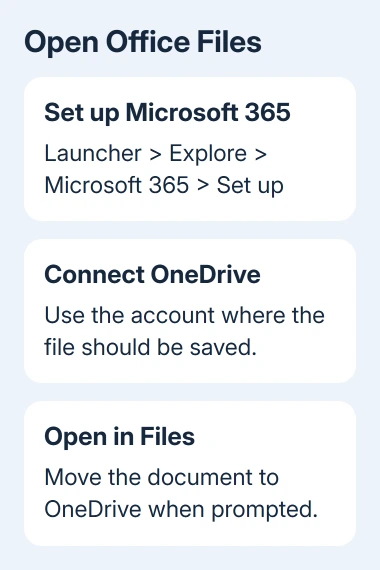
- Open Launcher, then Explore.
- Find Microsoft 365 and choose Set up.
- Follow the prompts to connect the Files app to Microsoft OneDrive.
- Sign in with the account where you want the documents saved.
After setup, Microsoft 365 appears in Launcher and Microsoft OneDrive appears in Files. Those are the two visible signs that the connection is ready.
Another route starts with the document. Open Launcher > Files, open a Word, Excel or PowerPoint file, then select Microsoft 365 when ChromeOS asks which app to use. Complete the OneDrive connection prompts.
The Microsoft 365 app you set up this way opens the web tools. Seeing its icon in Launcher doesn't mean the full desktop Office suite has been installed.
On a school Chromebook, some setup choices may be controlled by the administrator. If Microsoft 365 isn't offered or OneDrive connection is blocked, ask whether your device and account permit that integration.
Open a local document and check where it moves
After setup, open Files and select your document. When the file isn't already in OneDrive, ChromeOS prompts you to move it there before editing in Microsoft 365. Read that prompt before continuing.
Once moved, the document opens in the appropriate web app. Its edited copy lives in the Microsoft OneDrive section of Files, and changes are saved there. Return to that location when you need the updated version.
Keep a separate copy before moving an important original, especially when several people already have copies. That gives you a clear starting file if you later need to compare formatting or undo an unwanted change.
Try this with one ordinary document first. Add a small edit, let it save, close the document and reopen it from OneDrive. Seeing the edit again checks that you're opening the saved file rather than an older local copy.
If you need to pass the document to someone else, use its sharing or download options as appropriate. A link to an account-controlled file and an attached document behave differently for the recipient.
For collaboration, our guide to sharing a Word document explains the access choices. Check that the other person can open the file after you send the link.
Check the features that need desktop Office
Ordinary writing and many spreadsheets work in the browser, but feature support isn't identical to desktop Office.
Check the features your document uses. Two files with the same extension can need different tools.
For example, a workbook with macros can open in browser Excel, but those macros can't run there. Macros are code that automates tasks, often written in VBA. The browser can't run that desktop automation.
A workbook can look right even when its automated tasks don't work. Test the button or operation you need, rather than checking only whether its cells display correctly.
If a required feature needs desktop Excel, Word or PowerPoint, switch to the appropriate installed app on Windows or macOS. Buying a desktop Office license alone won't give your Chromebook the ability to run that app.
Our Microsoft 365 subscription guide can help with the purchase decision.
Choose according to the features and storage you need, after checking that those features are available on your platform.
Plan for internet access and the Google apps alternative
Treat the Microsoft 365 browser workflow as online work. Don't assume that adding an app shortcut provides the same offline editing as desktop Office. Before a trip, decide which documents must be usable without a connection.
ChromeOS also offers Google Docs, Sheets and Slides when opening Office files. Those apps use Google Drive rather than OneDrive for the file-opening steps described in Google's instructions.
Open the file from Files and select the Google app offered for that document type. Complete any prompt to move it to Google Drive. Then check the document's layout and features before replacing your working copy.
If a document needs to work exactly as it does in Office, return to Microsoft 365 or a computer with desktop Office. Switching editors is a practical choice for compatible files, rather than a way to add missing desktop features.
If setup still fails, give the Chromebook administrator or Microsoft Support the account type, file extension and exact failing step. Say whether browser sign-in works and whether OneDrive appears in Files.
Those details help them distinguish an account problem from trouble opening the file.
The Short Version
Use Microsoft Office on a Chromebook through Microsoft 365 in Chrome. Connect Files to OneDrive for local documents, check where edited files are saved, and test essential features before buying a subscription.
Checked November 13, 2026.





