A Chromebook's app store can reject authentication even while Chrome is signed in. Google Play runs through the Chromebook's Android app system. Sign out of the Chromebook, then use your Android apps' account to sign in again.
A message appearing only during a purchase can be a normal verification request instead. A store that won't open or download free apps needs different checks from a purchase asking for your password.
In this guide
1. Start the Chromebook session with the right account
Save your work, select the clock area, and choose Sign out. At the sign-in screen, choose your Android apps' account. Enter that account's current password.
Adding another account to a Chrome tab doesn't change the account that started your Chromebook session. Google Play and its downloaded Android apps use the first account you signed in with for that session.

Find Play Store in the Launcher and check the profile picture inside the app. Try opening an app's store page, then downloading a free compatible app. That checks store access without making a purchase.
On a managed Chromebook, ask the administrator to review Android app permissions for your account. A policy restriction needs an administrator's change; entering the same password repeatedly won't lift it.
If there isn't a Play Store app at all, use the missing Play Store checks. Authentication troubleshooting assumes that the store exists and is failing when you open or use it.
2. Check the connection and complete ChromeOS updates
Open an ordinary page in Chrome to check internet access on the Chromebook. On hotel, school, or public Wi-Fi, complete any network sign-in prompt before retrying the store.
A working web page doesn't rule out every Play Store connection problem. If the page won't load, though, fix the internet connection first. If possible, try a Wi-Fi connection you know works before changing Android settings.
Open Settings > About ChromeOS, then choose Check for updates. Install anything offered and choose Restart when prompted. Updating Chrome in a browser menu isn't the same as completing a ChromeOS system update.
After the restart, repeat the same free-app check. If Play Store now loads and installs, the problem was cleared without removing your Android apps or their local information.
Read the exact error if it still fails. An incompatible-app notice means the listing doesn't support your setup; it isn't an account sign-in failure. Not every Android app supports every Chromebook, even when Play Store itself works.
3. Clear the Play Store cache before its storage
Open Settings > Apps > Manage Google Play preferences > Android settings. Depending on ChromeOS version, the entry can instead be labeled Google Play Store or Manage Android preferences.
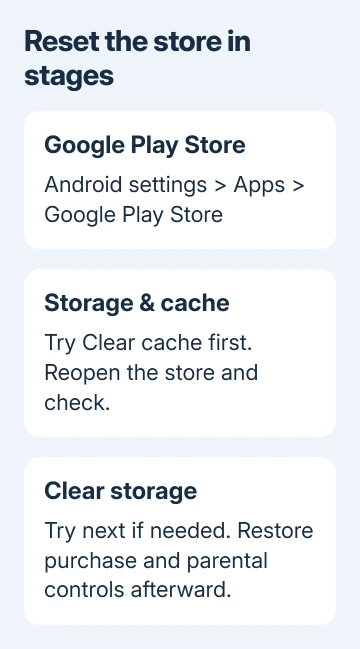
In Android settings, open Apps or Apps & notifications, then the list of all apps. Select Google Play Store, open Storage & cache, and choose Clear cache. Older layouts can call that page Storage.
Cache means temporary app files. Clearing it gives the store a chance to rebuild those files without removing the Chromebook's whole Android setup. Close Play Store, reopen it, and retry the failed download.
If that doesn't help, reopen that storage page and choose Clear storage or Clear data, then confirm. This resets Play Store settings, including purchase protection and parental controls, so restore those controls once access returns.
The Play Store repair instructions recommend cache clearing for download problems. Cache clearing is a smaller reset than removing the entire Android environment. Check its effect before taking that larger step.
I'd stop here to check the result before touching Google Play services. It stores more than the Play Store's temporary files. Deleting several kinds of data in one attempt makes the result harder to explain.
4. Treat purchase verification as a separate request
If free apps download and the store opens normally, an authentication prompt during a paid purchase doesn't mean the whole store is broken. Follow the verification prompt for the account making that purchase.
Check the profile picture before entering a password. Purchase permissions can differ between personal use and a school-managed account. On a child's account, an approval request may need the parent's action rather than a store reset.
Don't turn off purchase protection as a repair for a store that won't sign in. That changes how purchases are approved; it doesn't repair the underlying account session.
Resolve a rejected password through the account's sign-in help. If verification succeeds but payment fails, save that payment error for support; it needs payment troubleshooting rather than another store reset.
5. Rebuild Android apps only after saving their data
Removing Google Play from a Chromebook is a larger reset. It deletes the information and settings your Android apps store on that Chromebook. First export local documents and check each important app's own backup or account-sync controls.
ChromeOS supports Android app backup, but restoration varies by app. Before you continue, make sure your important information is accessible outside the Android apps you're about to remove.
Go to Settings > Apps > Manage Google Play preferences and look for the control to remove Google Play. Older layouts place Remove beside Google Play Store in Apps. Confirm only after the data check is finished.
Restart the Chromebook, return to the Apps settings, and enable Google Play again. Accept the setup terms using the intended account, then test the store before reinstalling your full app collection.
Google explains the data loss in its Chromebook Android app instructions. This route rebuilds the Android app environment; it doesn't require erasing the entire Chromebook with Powerwash.
For a store problem on a separate Android phone, the Android Play Store restoration guide covers that device's controls. Don't use a phone's account-removal steps to change the account signed in on your Chromebook.
6. Report the failed stage instead of repeating resets
If a rebuilt Android setup still reports authentication required, record the Chromebook model, ChromeOS version, account type, and exact message. Note whether another permitted account works and whether free downloads fail too.
Ask the administrator to check Google Play availability for the affected user on a managed device. For a personal Chromebook, include those details in a Chromebook Help Community request.
Press Alt+Shift+I to report the visible failure to ChromeOS. Exclude passwords, recovery codes, and private files. If the same error keeps returning after these checks, get help with the account or ChromeOS rather than deleting more data.
The Short Version
Use the intended Chromebook account, working internet, and current ChromeOS. Clear store cache, then storage if needed. Save Android app data before rebuilding Google Play. Purchase verification needs separate checks.
Checked November 13, 2026.