A Word document can be shared as a link to one live file or sent as a separate attachment. Use Share for people who need to read or edit the same current document; send a copy for a recipient who needs an independent file.
For a shared link, save it in OneDrive or SharePoint, then set the recipients before sending. You also need to give them access. Copying the browser address or a local file path doesn't do that automatically.
In this guide
Choose a shared file or a separate copy
A sharing link points people to your cloud document. When you update that document, people opening the link see its current content. With editing permission, they can also work on the same file rather than returning separate attachments.
An attachment is a copy taken at the time you send it. Later edits to your original won't change that attachment. Send a Word file when the recipient needs to edit their own copy, or a PDF when you want the page layout to stay fixed.
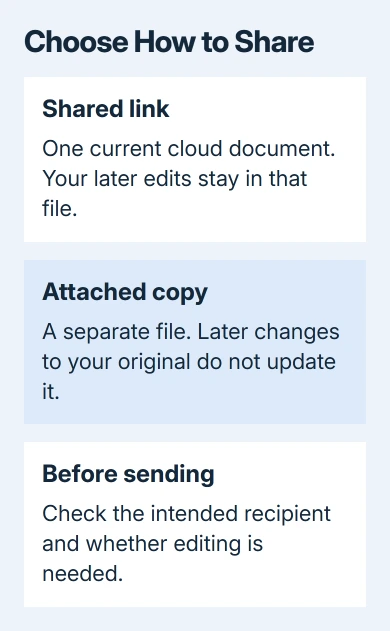
Choose the method that fits what you need before clicking Share. A team draft benefits from one shared version; a completed application form may need an attached file because the receiving system asks for an upload.
I'd name the recipient and choose viewing permission when all they need is a readable document. You don't have to allow editing just because that's the first choice in the sharing dialog.
Share from Word on Windows or Mac
On Windows, select Share from Word's top-right corner while the file is open. If the document is saved only on your computer, follow the prompt to save or upload it to OneDrive before creating the shared link.
Check the destination account during that upload. A personal OneDrive and your employer's storage are different locations. Use the account appropriate for the document and the people who need it.
Enter the recipient's name or email address, then inspect the permission beside the address or in the link settings. Choose viewing or editing as needed. The layout varies, but you can choose the permission in this sharing dialog.
Add a message if it helps explain what you need from the recipient, then select Send. They receive an invitation containing a link to the file. They'll open your shared document, rather than a separate attached copy.
On Mac, Microsoft says to use Share in the upper corner, accept the OneDrive upload prompt if needed, then name recipients and choose their permissions before sending.
If the original needs protecting from later edits, save a separate Word copy first and share that copy. Giving someone editing permission allows changes to the shared document itself.
Set who the link works for
Open Link settings from the sharing dialog when that option is available. Choose Specific people when access should belong to the people you name. Who can open the link can differ from who receives your email.
An Anyone link can work when forwarded, with the permission you chose. Choose this option only if wider access suits your document. Work and school accounts may hide this option because the organization doesn't allow public sharing.
People with existing access doesn't grant new permission. It gives you a link for people who already have access. Choosing it for a new recipient can leave them facing an access request instead of the document.
Select Can view for reading, or Can edit for direct changes. Some Word sharing layouts also offer Can review for comments and suggestions. Use the choices actually offered by your account and file.
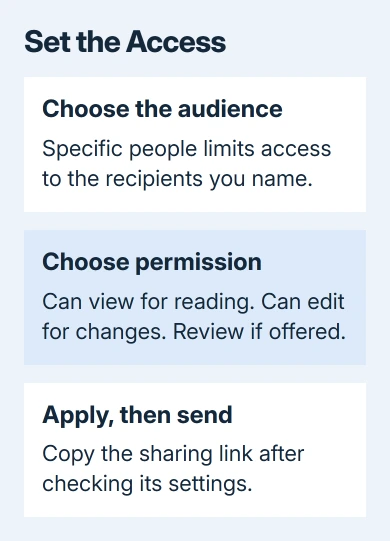
Apply the link settings, then choose Copy link if you want to send it through your own email or messaging app. Paste the copied sharing link into the message, check the recipient, and send it.
For a restricted link, the recipient needs to use the email address or account you invited. If they see an access error, compare the invited email address with the account they're using before repeatedly generating another link.
Share through the web editor and mobile apps
In Word for the web, open your document and select Share at the top right. Enter the person or choose Copy link, then set its audience and access level using the available controls.
An online document isn't automatically public. Use its sharing control to check access before sending a browser link. Copying the address while you're signed in and editing doesn't give another person access.
In the iPhone or iPad app, tap Share with the file open. Enter the recipient's email and choose whether they can edit, then send the invitation. To use another messaging app, choose Copy Link and paste the link there.
On Android, open the document and tap Share. Use the settings control beside Copy link to check the available access and permission choices. Copy the link only after those choices match what you intend to share.
These mobile link options need a cloud-saved file. If the document is stored only on the phone, save it to the appropriate cloud location first, or use the separate-copy method instead.
Send an attachment when a link isn't wanted
On a computer, save the current Word file, open your email app, and attach the actual .docx file. Check the attachment name before sending, especially if Downloads contains several versions with similar names.
For mobile attachments, use Send a Copy from Word's sharing or three-dot options. The Word email instructions give the iPhone, iPad, and Android steps, including the document-format choice.
Check that the outgoing message contains the actual file, rather than a OneDrive link card. If an email app offers Attach as copy, that's the separate-file choice. The recipient can then keep their own version.
Check access and stop sharing when needed
Ask the recipient to open it and check that they can read or edit it as you intended. Checking the link yourself while signed in as the owner won't tell you what a new recipient can do.
To change ongoing access, open Share > Manage access where available, or manage access from the file's OneDrive entry. Check both direct access and sharing links. Someone may be able to open the file through more than one route.
Removing a sharing link stops people from using that link to open the live document. It can't take back an attachment or a separate copy someone already saved. Choose the initial sharing method with that limit in mind.
If your organization blocks external sharing, ask IT to check that file's OneDrive or SharePoint sharing policy. Give them the recipient's domain and the exact error. A different link won't override the organization's restriction.
The Short Version
Use Share for one current cloud document, choose the recipients and permissions, then send or copy the sharing link. Use Send a copy or an email attachment for a separate file. Confirm the recipient can open it with the access you intended.
Checked November 13, 2026.