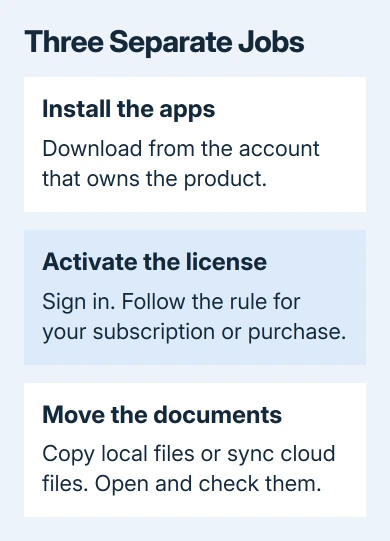
Moving Microsoft Office starts with the license and the account that owns it. Install Office on the new computer from that account, then activate it; copying the old program folder won't transfer the installation or its license.
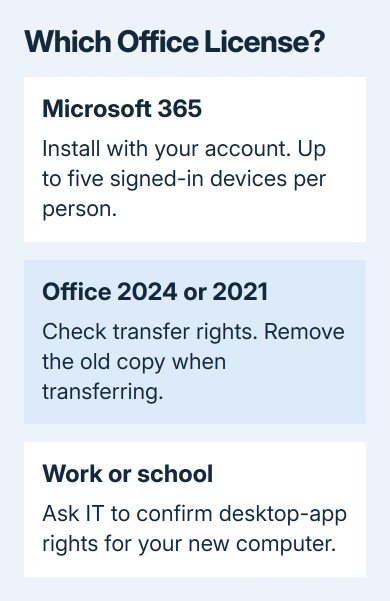
A Microsoft 365 subscription can cover several devices. A transferable Office 2024 or 2021 purchase covers one computer at a time. Your documents need moving separately from either type of installation.
In this guide
Identify the license before removing Office
On the old Windows PC, open Word and choose File > Account. Read Product Information and note the signed-in account. A Microsoft 365 subscription isn't the same purchase as Office Home 2024 or Office Home & Student 2021.
On a Mac, check the signed-in account in the Office app and compare it with the product listed in your Microsoft account. Use the account you used to redeem or buy Office. Your Windows sign-in may use a different account.
Sign in to your Microsoft account's Services & subscriptions page and check that the product appears. The old installation alone won't identify the account you need for another download.
If Office came through work or school, use that organization's account. Ask IT whether your license covers the desktop apps on this device. A work email address doesn't automatically include a license to install Word and Excel.
I'd settle the account question while the old PC still works. Seeing the subscription or purchase in the correct account is much more useful than removing a working installation and discovering you can't download its replacement.
Choose the right transfer route
With Microsoft 365 Personal or Family, install the apps and sign in with your subscription's personal account. Each person can be signed in on five devices at once. Exceeding that limit can sign other devices out automatically.
Family members should accept subscription sharing, then use their own accounts for a separate Office setup and personal files. Keep the purchaser's password private.
For Office 2024 or Office 2021, Microsoft says its license-transfer rules allow a transfer to another computer you own, generally no more than once every 90 days. Hardware failure allows an earlier transfer.
For that transfer, you must remove Office from the previous computer and keep no copy there. A single-computer purchase doesn't let you use Office on both computers at once.
For an older product, a preinstalled license, or a volume-license edition, check its particular license terms before uninstalling. The transfer rules for Office 2024 and 2021 don't cover every older edition.
Before moving between Windows and Mac, check which platform your purchase covers. Look at the installation choices in the account that owns it. Ask licensing support if it doesn't offer a version for the new computer.
Install the apps on the new Windows PC or Mac
On the new computer, open m365.cloud.microsoft/apps in a browser. Use the account you just checked, then choose Install apps. Follow the account's installation choices for the product you own.
For work or school accounts, the installation option can appear under Apps, then Install apps. A missing button can mean no desktop-app license is assigned or IT controls installation. Ask IT to check your license.
On Windows, open the downloaded setup file and approve the permission prompt if it's the installer you requested. Let installation finish, then launch Word using Start. Complete any activation or account prompts.
On Mac, open the downloaded installer package and follow its installation screens. Open Word from Applications, then use your licensed account at the sign-in prompt. You'll still need to activate the apps after installing them.
For a one-time Mac license, use the installer supplied through your purchase or account. The Word, Excel, and PowerPoint versions from the Mac App Store need subscription access to create or edit documents.
That distinction matters when an app opens but keeps asking for a subscription. Entering your one-time purchase's key again won't make the Mac App Store version accept that license.
Retire the old installation correctly
For a Microsoft 365 subscription, sign out of Office on the old device when you no longer plan to use it. This stops that installation from using your signed-in account. It doesn't cancel the subscription or erase your documents.
Without access to the old machine, open the Microsoft account's Installs page. Under Devices, choose Sign out of Office beside that machine. Remote sign-out can take up to 72 hours to reach Office.
Business subscribers can use their work account page: Office apps & devices > View apps and devices > Devices, then Sign out beside the old computer. Your organization can manage these choices differently.
With a one-time Office purchase, you can't turn off the old installation remotely in the same way. Remove the old installation as its transfer rules require, then install and activate the purchased version on the replacement computer.
The Windows Office uninstall steps cover removing its apps. Keep the old computer's documents backed up before handing it to someone else, even though uninstalling Office and deleting documents are different actions.
Move your files and check activation
Open an existing document on the new device and confirm you can edit and save it. If you can only view or print, the apps aren't ready for you to work in yet. Read any activation message before changing accounts again.
For OneDrive files, sign in to the same storage account and open a known document. Check that recent changes finished syncing on the old PC. Office activation doesn't confirm that your files have arrived.
Transfer copies of documents stored only on the old machine. Open the transferred documents and inspect them before discarding the originals. Installing Office won't collect documents from the old Downloads folder.
Use the Word document download steps when a browser copy needs saving locally. Make sure you've saved the document itself, rather than a shortcut or link that opens it online.
If activation fails, use Contact Support on the license-transfer page. Include the product, purchase account, error, and any hardware failure that forced an early move. Share keys and purchase evidence privately with support.
The Short Version
Begin with the license account, then install and activate the matching Office product on the new computer. Microsoft 365 uses device sign-ins; one-time transfers require removing the old copy. Move and verify your documents separately.
Checked November 13, 2026.