Google Docs can reject menu-based paste even when your Mac's clipboard works. Select the source text and press Command + C, then click inside the document and press Command + V before changing any Mac settings.
If the document won't accept ordinary typing either, check editing access instead. A blocked paste menu, a read-only document and a browser editor that has stopped responding need different next steps.
In this guide
1. Use Command shortcuts inside the document
Select a few words of ordinary text, then hold Command while pressing C. Click where you want the text in the Google document so the text cursor appears, then press Command + V.
Use Command rather than Control on a Mac keyboard. Control-click opens a shortcut menu; it isn't the Mac equivalent of the Windows copy shortcut. Test with a small piece of text before trying a large selection or an image.
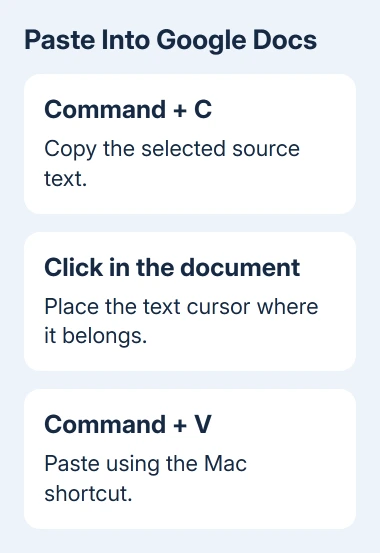
If the text appears, the shortcut is working with your clipboard. Keep working that way; you don't need to change Mac settings or clear browser data for a menu-only problem.
Google's copy and paste instructions explain that browser security can restrict a web editor's clipboard menus. In Chrome, using those menu options requires the Google Docs Offline extension.
Keep using keyboard shortcuts if they solve the immediate task. If you want the menu controls too, check the separate Google Docs Offline setup rather than installing an unrelated clipboard utility.
If Command + V also fails, check whether the document accepts typing. That helps you tell a paste problem from a document you can't edit at all.
2. Check whether you can edit this file
Click inside a normal paragraph and type one harmless character, then remove it. If even that doesn't appear, check your editing access and the document's mode before trying another way to paste.
A View only label means your current account can't edit the file. Select Request edit access if offered, or ask its owner to give your account Editor access. Trying to paste again won't give your account editing access.
Check your account picture in the upper corner and confirm the email address. A work account and a personal account can have different access to the same document, even when both are signed in on the Mac.
If you're using the wrong account, reopen the document under the account that received access. For workplace or school documents, have the owner check the full email address you use, rather than a similar-looking one.
In Suggesting mode, edits appear as suggestions rather than ordinary changes. Switch to Editing if that choice is available and normal editing is what you need. An owner can limit which modes your account is allowed to use.
If typing works normally but paste doesn't, keep the file permissions as they are. Compare copying and pasting in TextEdit next. You don't need the owner to change access when you can already edit.
3. Compare a local copy with the browser clipboard
Open TextEdit on the Mac and create a blank document. Type a short line there, select it, copy it, and paste it into another place in that TextEdit document.
If that works, copy the same selection again and paste it into Google Docs with Command + V. Now you're trying text copied on the Mac itself, without another device or a remote app involved.
If text pastes in TextEdit but not Docs, the problem points toward the browser, the file or its editor. If it won't paste in TextEdit either, the problem isn't limited to Docs. Quit TextEdit and open it again before returning to Docs.
Check that the source is still selected when you copy. A dimmed Copy command can mean that the current app or selected item doesn't support copying in that location, rather than a clipboard failure.
For text arriving from an iPhone or iPad, first repeat the check with the local TextEdit line. If that works, deal with the device-to-device transfer separately. You don't need that connection to paste text copied on the Mac itself.
For an uploaded Word file, confirm you're in its editor rather than a Drive preview. The Word-to-Google-Docs opening steps show where editing and conversion happen.
4. Reopen the editor after saving your changes
Check the document's save status before refreshing the tab. If edits haven't synced, keep a separate copy of text you can still select before closing anything.
When the document reports that changes are saved, reload its tab and try pasting the short text again. Reloading can get a stalled editor responding again without changing your account or editing access.
If an error asks you to reload or try later, wait five minutes before reloading. Keep the exact error text if it returns. That message helps you tell an editor error from a paste command the browser won't allow.
Also test another document you own. If paste works there, focus on the first file. Ask its owner to compare the same operation and confirm your access rather than resetting the entire browser immediately.
5. Compare another browser and review extensions
Open the same file in another browser supported by Google Docs, use the same Google account there and test Command + V. On a Mac, this can mean comparing Chrome with Safari.
Use the same text and document for that comparison. If paste works in one browser, check the other browser and its settings rather than changing anything on the Mac keyboard.
Open More > Extensions > Manage extensions in Chrome. Disable one extension that changes page content, reload Docs, and try pasting. If nothing changes, switch it back and repeat with the next extension.
In Safari, open Safari > Settings > Extensions to review enabled extensions. Older macOS versions call Settings Preferences. Turn an extension back on if disabling it makes no difference.
If the failure continues in both browsers, use the document's Help > Help us improve feedback option or your organization's Google Workspace support route. Include the browser versions, permission level and TextEdit comparison.
The Short Version
Try Command + C and Command + V first. Check editing permission when typing also fails, then compare TextEdit, another document and another browser. A menu-only restriction doesn't require a Mac reset.
Checked November 13, 2026.