
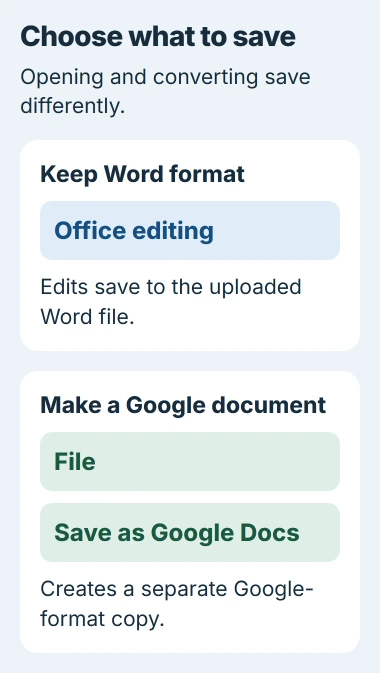
Google Docs can open a Word document after you upload it to Google Drive. Open it with Google Docs to edit the Word file, or choose File > Save as Google Docs if you want a separate Google document.
Those choices save differently. Editing the uploaded Word file updates your Drive copy and keeps its Word format. Converting creates another file, so decide which copy you want to work on before making changes.
Upload the Word file to the right Drive account
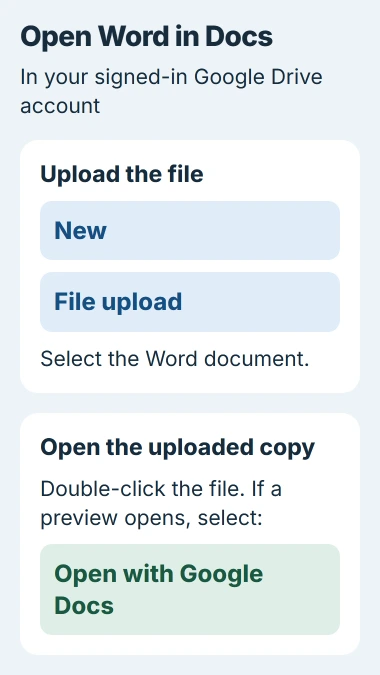
Open Google Drive on your computer. Sign into the account you want to use for this document, then choose New > File upload and select your Word file.
Let Drive finish uploading before you open the file. Check its name and your account, especially if you're signed into both work and personal accounts. Uploading to one account won't make the file appear in the other's Drive.
The Drive upload instructions also show how to drag files into Drive. The upload is a separate copy; editing it won't change your original in Downloads.
To preserve the original, make a separate Word copy first. Give your working copy a name you'll recognize when choosing it for upload.
For work files, use the account and storage your organization approves. If you can't upload or edit, tell IT what happens and ask them to check the policy before trying another account.
Open it in the editor and keep Word format if needed
Double-click the uploaded document in Drive. It may open straight in the editor or show a preview with Open with Google Docs at the top. If you see the preview, select that command.
Look for the document editor's controls before trying to type. Clicking a page in Drive's preview won't give you the editing controls you'll find in Docs.
Office editing mode lets you edit without changing the file's Office format. Look for a .DOCX label beside the title to check that you're still working with a Word file.
Google says conversion creates a separate copy. Opening a file in the Docs editor doesn't automatically turn it into a Google document.
I'd keep the Word format if the next person needs a .docx file and you're making simple edits. Before closing the tab, check that Docs has finished saving, especially if your connection changed.
Your Drive copy is separate from the original on your computer. To send someone the edited Word version, download the updated file or share it through Drive with the access they need.
Save a separate Google document when conversion is wanted
With the Word file open in the editor, choose File > Save as Google Docs. This creates a Google document and keeps the Office original, so check which browser tab you're editing afterward.
Give the converted copy a clear name if you'll keep both versions in the same folder. A name such as Project draft - Docs helps you choose the right working file while keeping the Word original.
Convert when you need features that require a Google document. For ordinary text changes, you can stay in Office editing mode and start typing without converting.
Check the file type in Drive after converting. The two titles can look similar, so it's easy to reopen the Word file when you meant to edit the new Google document.
If you can't find Save as Google Docs, check whether you're still in a preview or have already opened a Google document. A converted file doesn't need that command again.
Compare the layout before sharing the edited document
Compare the headings, page breaks, tables and pictures with your Word original. A file can open successfully while some pages no longer have the layout you need.
For a long report, check the first page, a page with a table and any page with an important image. Check headers, footers and numbering too, especially if the recipient will print it.
Some Office features won't carry across. Macros, which automate tasks, aren't supported here. Charts and videos embedded in Word files can become images, so seeing a thumbnail doesn't mean you can still use the original chart or video.
If the document needs one of those features, keep the Word original and ask the sender about another way to work on it. Converting the file again won't bring an unsupported feature back.
If the Word document itself won't let you edit, use the Word editing-permission checks. Uploading it elsewhere doesn't give you permission the owner hasn't granted.
Download a Word copy and handle an opening failure
From a Google document, choose File > Download > Microsoft Word (.docx) to download a Word copy. Open and check that copy if the recipient needs to use it in Word.
The download is another separate copy. Later edits in Google Docs won't update it, so download again after your final changes. That avoids sending an older version from your downloads list.
If the document won't open, note where it stops: during upload, in preview or after you choose the editor. Then you'll know whether the upload failed or Drive received a file it couldn't open.
Try a small, ordinary .docx file you own. If that opens but the original won't, ask the sender to check their document or send a fresh copy. One failing file doesn't mean you need to reset the browser.
A protected Office file may ask for its password. Editing a supported file can remove that file password for other users too, though Drive sharing still controls access. Read the preview and editing choices before continuing.
If access is denied, ask the owner for permission. If the editor still fails, tell Google Docs Help the file type, error and where it stops. Keep your local original while you sort out the opening problem.
The Short Version
Upload the Word file to Drive, then open it with Google Docs. Edit directly to retain Word format or use Save as Google Docs for a separate converted copy. Check formatting and download a fresh .docx when the recipient needs Word.
Checked November 5, 2026.

Isaac Smith is the founder and editor of PC Glance, a website that covers computers, laptops, and technology. He is a tech enthusiast and a computer geek who loves to share his insights and help his readers make smart choices when buying tech gadgets or laptops. He is always curious and updated about the latest tech trends.