Make a PDF fillable by opening All tools > Prepare a form in desktop Adobe Acrobat, selecting the file, and creating the form. Review its detected fields before saving: printed lines and typed annotations aren't reusable input fields.
Acrobat Reader can fill supported forms, but you'll need a tool that creates form fields to make your own reusable form. Keep an empty master ready for the next recipient, separate from your copy with test answers.
In this guide
Check whether the PDF already has fields
Open the PDF and click a space meant for an answer. If a text cursor appears inside a field, or a checkbox can be selected, the document may already be fillable. Try entering a short test response in a copy.
Press Tab to see whether the next answer field becomes active. This is a useful practical check, though a poorly arranged form can have fields in the wrong order. Look through the whole page rather than judging it by one working box.
If the page only has printed lines or empty squares, those shapes aren't necessarily form controls. Adding an answer with a text annotation fills your copy visually; it doesn't create an empty field for the next recipient.
For a one-off response, typing on a PDF in Chrome may be enough. Continue with form creation when you're preparing a reusable document for other people to complete.
Convert the document with Prepare a form
Use desktop Acrobat on Windows or Mac and keep the original file unchanged. Save the form under a new name to preserve the source layout while you correct any missed fields.
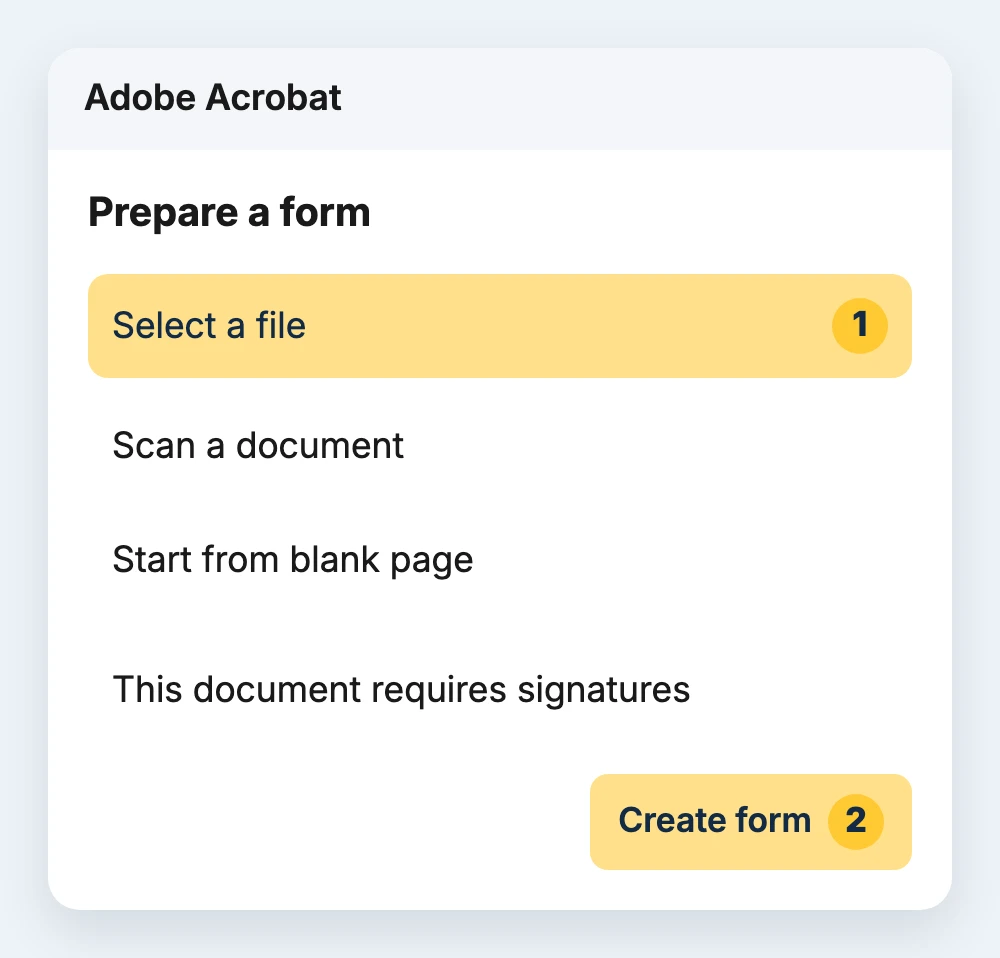
Adobe's form guide explains how to begin with All tools > Prepare a form. Choose Select a file for an existing document, or Scan a document for a paper form. Select the document you want to convert.
Choose This document requires signatures only when your form needs signatures, then select Create form. Acrobat opens the result for editing and tries to turn printed answer spaces into fields you can fill in.
Automatic detection is a starting point. Inspect names, addresses, dates, and any small boxes rather than distributing the first result immediately. A printed label can be mistaken for a field, while an intended answer area can be missed.
In an older Acrobat interface, the equivalent entry is Tools > Prepare Form. The free Reader app doesn't provide the same authoring workflow; a prompt to upgrade isn't a damaged PDF.
Review the detected fields and add missing controls
Look in the Fields pane to check the fields Acrobat created. Its options include Highlight existing fields, which helps you see the controls separately from the printed page underneath them.
Delete a mistaken field, move a misplaced one, and resize answer areas that don't line up with the printed labels. Leave room for an ordinary full-length answer, especially an email address or a longer name.
Use ADD FORM COMPONENTS in the Prepare a form pane to add missing controls. A Text field suits a typed answer. A Checkbox suits an independent yes-or-no choice. Radio button controls suit a group where only one option should be selected.
Don't use several unrelated checkboxes when the reader must pick exactly one answer. Choose a control that matches the question so the completed form doesn't contain contradictory selections.
Open a field's properties to review its name and behavior. Give separate answers distinct field names. Reusing a field name can make the same answer appear in more than one place, which is useful only when you want the same answer repeated.
Check optional and required answers carefully. Making every field required can prevent someone from completing a form when a question genuinely doesn't apply to them.
Start from a blank page when there is no source form
Acrobat can also build a form without an existing PDF. On Windows, choose Menu > Prepare a form; on Mac, choose File > Prepare a form. Select Start from blank page, then Create form.
In the editor, use Text under ADD CONTENT to place labels and instructions. Add the matching answer controls from ADD FORM COMPONENTS. Labels tell the reader what to enter; form controls hold the response.
Build one short section and preview it before laying out several pages. A long label, small answer field, or confusing choice is easier to fix while the form is still compact.
If your starting document is Word, finish the wording and page layout there first. Microsoft's Word form instructions cover Word's own answer fields, called content controls.
An interactive form made in Word keeps its answer controls in Word's format. After creating the PDF, check that its PDF fields work. Don't assume Word's controls became working PDF fields when you exported it.
Preview, save, and reopen a trial copy
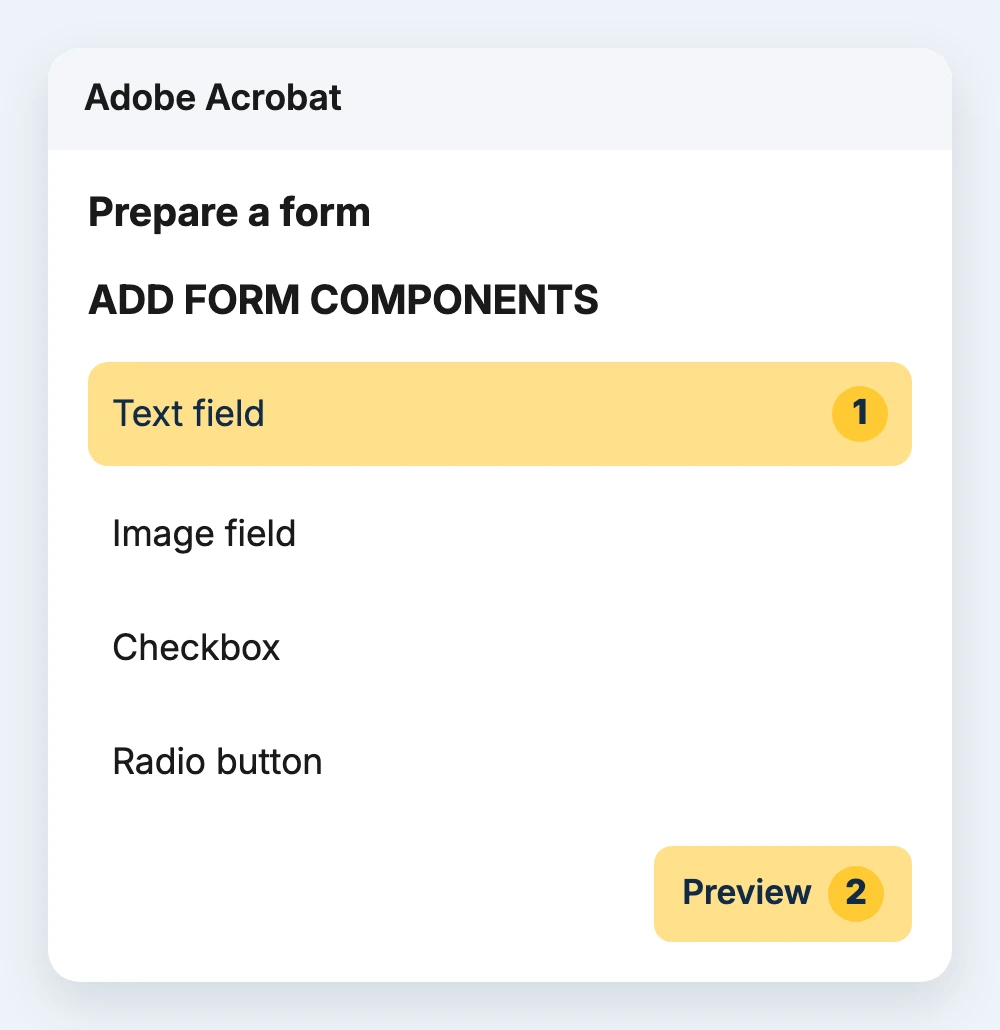
Choose Preview in the Prepare a form pane. Enter sample answers, try the checkboxes and choice groups, then use Tab to move through the fields. Follow the order a real recipient will use.
Test a longer answer as well as a short one. Check whether its text fits and whether important information stays visible. A box that accepts typing can still be too small to read comfortably when completed.
Save a trial copy containing those answers. Reopen the saved trial after closing it, then check that your answers are still there. That tells you they're saved in the file, rather than just showing in the editor.
Keep the blank master empty and distribute that file. Ask a colleague to fill out a copy in the PDF app your recipients actually use, especially when the form contains more than simple text fields and checkboxes.
Use the app's normal save command for the interactive copy. Printing to a new PDF can flatten the form, turning fields into page content that recipients can't fill in. Share the saved interactive file when recipients need to enter answers.
When fields still won't work
If typing adds a note anywhere on the page instead of filling a field, return to Prepare a form and check that you created a Text field. A text label and an input field serve different purposes even when they occupy the same space.
If several fields unexpectedly repeat the same response, inspect their names. If the document blocks editing, ask the owner to supply the editable source or grant editing access. Leave those restrictions in place until you have that access.
If it still won't work, contact Adobe support with your Acrobat edition, operating system, and a non-sensitive sample. Explain which action fails: creating fields, saving answers, or reopening the form.
The Short Version
Use Prepare a form to add real PDF input fields, review automatic detection, and add missing controls. Preview the result, save and reopen a completed trial, then share the empty master with its fields still interactive.
Checked November 29, 2026.
 If you have any business, I can build it online