
A fillable form in Word uses entry controls for typed answers, dates and choices. In desktop Word for Windows, add them from Developer, configure the fields and try a completed copy before distributing the blank form.
Rows of underscores only create writing space on paper. They do not provide a text field, date picker or list of permitted answers for someone completing the document electronically.
Prepare the document and show Developer
Start with a blank document or a separate copy of an existing Word file. Type the question labels first, leaving room after each one for its answer control.
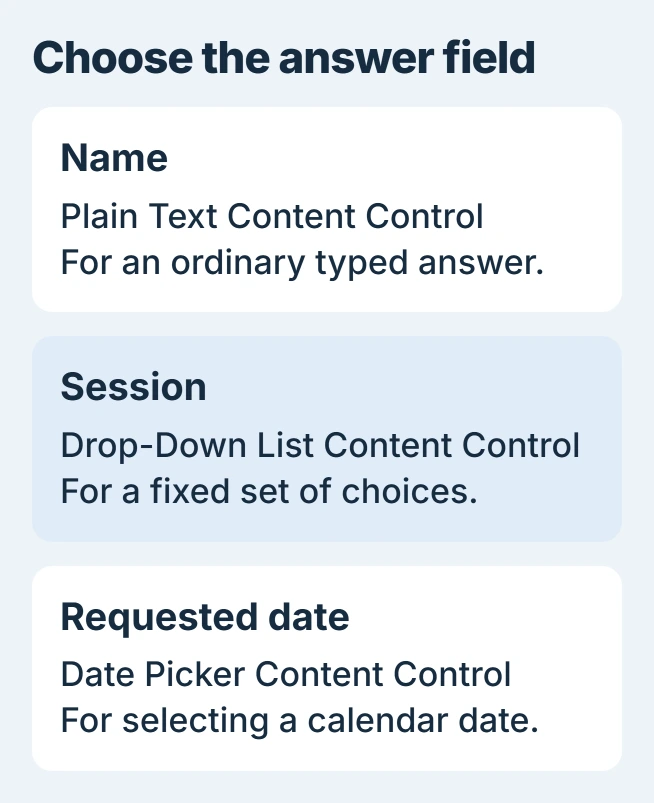
For a simple booking form, the labels could be Name, Session and Requested date. Keep the questions short and state which information is required in the document's instructions.
Status: Windows desktop Word form controls checked November 1, 2026, against Microsoft instructions. Mac controls differ; no document or recipient workflow was tested locally.
If Developer is missing, open File > Options > Customize Ribbon. Under Main Tabs, select Developer and confirm with OK. Microsoft documents this setup in its Developer-tab instructions.
The steps here use Windows desktop Word. Microsoft says creating fillable forms is unavailable in Word for the web; use the desktop app to build this document.
Insert a control where each answer belongs
Click after the first question label. In Developer > Controls, choose Plain Text Content Control for an ordinary answer. Use Rich Text Content Control when the response needs formatting or several paragraphs.
For a date, place the insertion point after that label and choose Date Picker Content Control. Microsoft's form-creation guide describes those control types.
Use Drop-Down List Content Control when the person must pick a supplied answer. A Combo Box Content Control also permits a typed answer, so it serves a different purpose.
For a selectable yes/no box, the Word checkbox procedure covers that control and its printed alternative. A picture of a box will not act like a selectable form field.
Supply the list choices and field properties
Select the inserted drop-down and choose Developer > Properties. In Drop-Down List Properties, select Add and enter a choice under Display Name. Repeat for the remaining choices.
For the example Session question, use Morning and Afternoon. Leave Contents cannot be edited unchecked for that choice control; Microsoft warns that enabling it prevents people from selecting an answer.
Other controls have their own properties, including the date display format. Microsoft states in its content-control reference that the selected field is configured through Properties.
Read every choice as a recipient would. Two similar labels can produce ambiguous answers even when the control works correctly. Keep the stored choices consistent with the information the form is intended to collect.
Apply editing limits only after the fields work
To keep the surrounding wording fixed, open Developer > Restrict Editing. Under Editing restrictions, enable the editing-type restriction and choose Filling in forms from its list.
Select Yes, Start Enforcing Protection and complete its password prompt. Keep an editable master and retain any protection password securely.
Editing restrictions control permitted changes. They are different from an opening password for a private Word document, which controls access to the file.
If protection accidentally blocks an answer, return to Review > Restrict Editing > Stop Protection with the password if required. Microsoft's protected-document instructions cover that authorized reversal.
Complete a trial copy before sharing the blank form
Save the master as a Word document, then make a trial copy. Enter a longer name, try every list choice and pick a date. Save, close and reopen that completed copy to check that the answers remain in the intended places.
Use the same Word edition that recipients will use when possible. A form that looks correct in a preview is not evidence that another editor supports its interactive fields.
For a paper version, inspect print preview too. Microsoft notes that content-control boundaries do not print, so the electronic field's visible frame is not a promised writing box on paper.
If a field still rejects input, ask Microsoft Support to examine a copy containing invented answers. Include the control type and Word edition; omit completed responses and personal details.
The Short Version
Add real Developer controls for text, choices and dates, then configure their properties. Preserve an editable master and complete a trial copy, including any editing protection, before sending out the blank form.

Isaac Smith is the founder and editor of PC Glance, a website that covers computers, laptops, and technology. He is a tech enthusiast and a computer geek who loves to share his insights and help his readers make smart choices when buying tech gadgets or laptops. He is always curious and updated about the latest tech trends.