
Word checkboxes can be clickable controls or printed symbols. For a clickable desktop checkbox, use the Developer tab's checkbox content control. For a checklist that will only be printed, use a box-shaped bullet instead.
Word for the web has a separate Home > Checklist feature. Choose the method for where the document will be completed, rather than expecting a printed symbol to act as a control.
Add a checkbox that can be selected in Word
In Word for Windows, enable Developer through File > Options > Customize Ribbon when that tab is absent. Select Developer in the main tabs and confirm with OK.
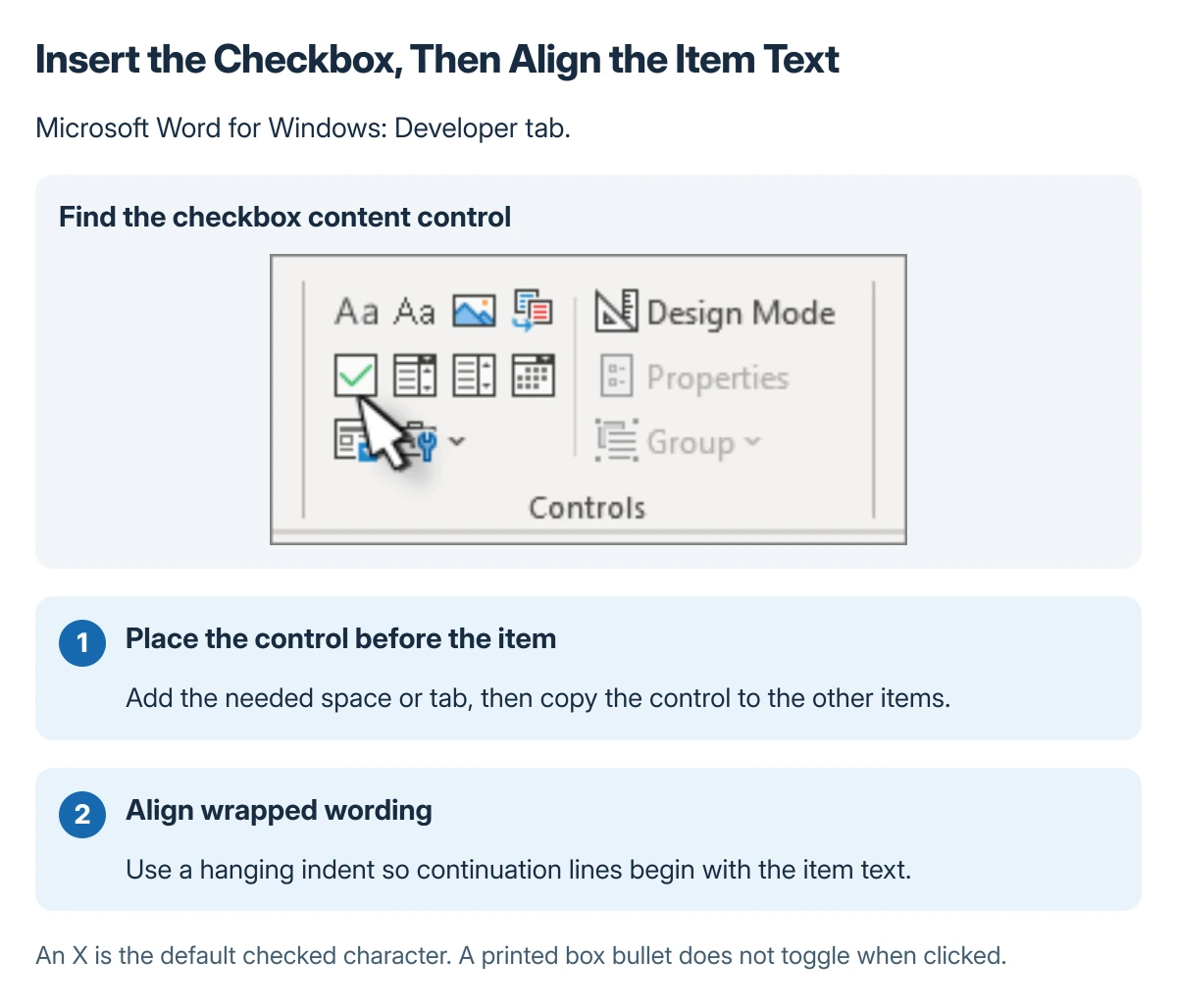
Position the text cursor before the list item's first word. Microsoft documents Developer > Check Box Content Control in its checklist instructions.
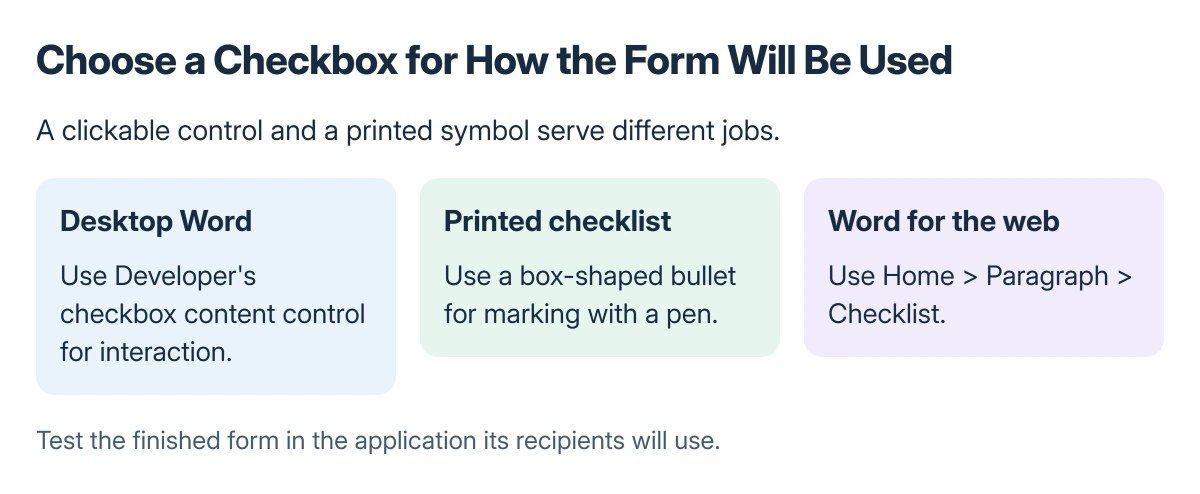
Status: Microsoft's Word checkbox and Developer-tab instructions checked 22 October 2026. Desktop controls, printed bullets and web checklists are separate methods; no document was edited.
Add a space or tab after the control, then type the item text. Copy the control with its spacing to the other list items and select a box to check that it changes state.
Microsoft says a desktop control can display an X by default. A visible X therefore does not mean the checkbox was inserted incorrectly.
Keep multi-line items aligned
Use a hanging indent when a long item wraps onto another line. That aligns the continuation with the item text rather than with the checkbox at the left.
Select the list and open the Paragraph settings. Microsoft describes setting a left indent and choosing Hanging; adjust the values for the document rather than padding each line with repeated spaces.
Used with permission from Microsoft.
For source notes in the same document, use Word's footnote feature. A checkbox list and a footnote use different document structures.
Make a checklist for printing
Select the list, then open Home > Bullets > Define New Bullet > Symbol in Word for Windows. Choose an empty box symbol, changing the symbol font when necessary, and confirm.
Microsoft states that this method produces a print-only list. The box is a bullet character, so clicking it does not toggle an electronic completion state.
Inspect print preview to check wrapping and indentation. If the form needs a handwritten signing area too, the Word signature guide distinguishes a signature picture from a signing line.
For separators between form sections, Word offers paragraph borders and drawn shapes, each with its own removal method.
In Word for the web, use Checklist
Open Home, find the Paragraph group and choose Checklist. Select the box beside an item to check or uncheck it.
On Mac, Microsoft's desktop checklist uses Developer > Check Box. Use that edition's ribbon settings to show Developer rather than looking for Windows-only File Options.
If the finished form must work in another editor, test a copy there before distribution. Ask the recipient which application will be used when interactive controls do not behave as expected.
The Short Version
Desktop Word uses a Developer checkbox control for clicking. A box-shaped bullet is for paper, while Word for the web has Home > Checklist. Use a hanging indent to keep wrapped item text aligned.
Where to Next
Check the final document in the way recipients will use it, including print preview for a paper form. Confirm both the box behavior and the spacing around each item.

Isaac Smith is the founder and editor of PC Glance, a website that covers computers, laptops, and technology. He is a tech enthusiast and a computer geek who loves to share his insights and help his readers make smart choices when buying tech gadgets or laptops. He is always curious and updated about the latest tech trends.