
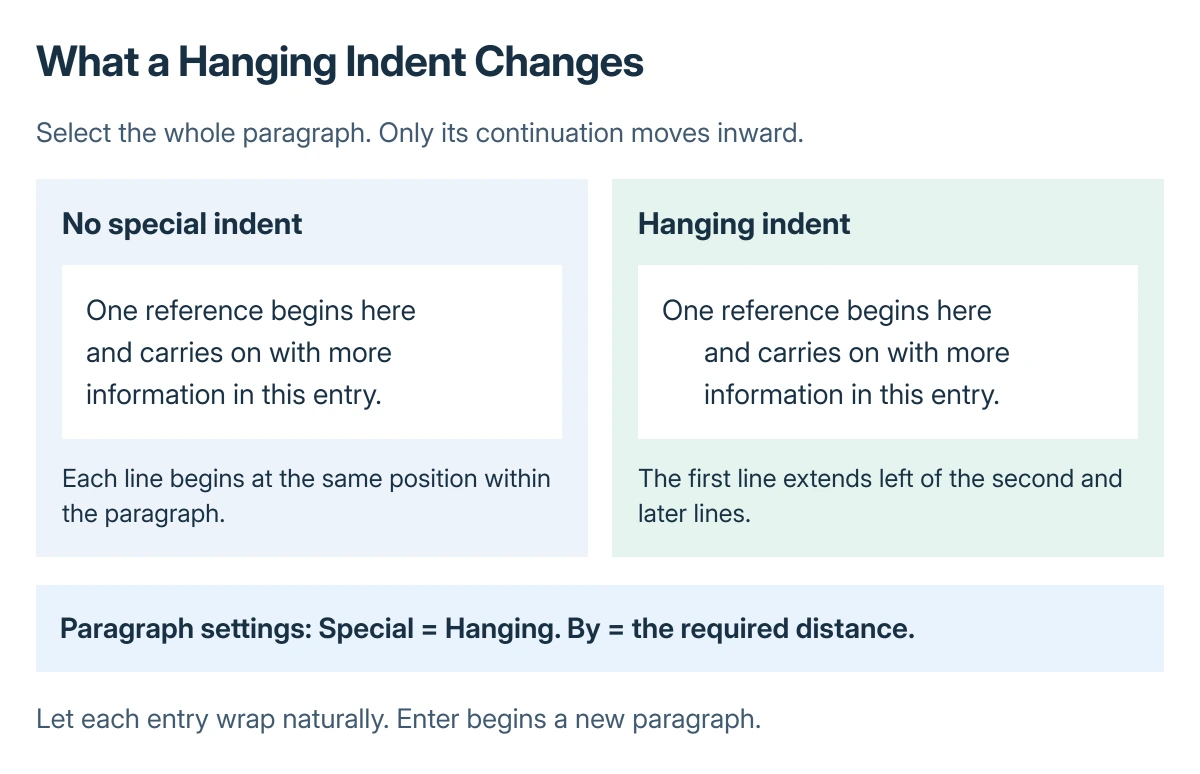
To create a hanging indent in Word, select the paragraphs, open Paragraph settings and choose Special > Hanging. Enter the required distance in By. The first line stays farther left while the remaining lines move inward.
Use the paragraph setting for a bibliography or reference list instead of inserting spaces at the beginning of each wrapped line. Windows, Mac and Word for the web open the same setting through different menus.
Set the hanging indent in Word for Windows
Select the complete reference paragraphs that need the format, including each entry's first line. Leave the bibliography heading out of the selection if it should keep its existing alignment.
Microsoft documents the hanging-indent procedure through the Paragraph dialog. Its By field sets the distance between the first line and the continuation lines.
Status: Microsoft Word instructions checked October 28, 2026 for Windows, Mac and the web. Paragraph breaks and desktop shortcuts verified in Microsoft help. No document was edited.
- Open Home and locate the Paragraph group.
- Click its small dialog-launcher arrow to open Paragraph Settings.
- Open Indents and Spacing and set Special to Hanging.
- Enter the required amount in By, then choose OK.
For a half-inch requirement, enter 0.5 inches, or 1.27 cm when the document uses centimeters. This is an example distance, not a requirement for every document. Use the measurement requested by the recipient.
Check an entry long enough to wrap onto another line. Its opening line should extend farther left than its continuation. A one-line entry cannot show the difference until its text wraps.
Apply it on a Mac or in Word for the web
In Word for Mac, select the paragraphs and open Format > Paragraph from the menu bar. Choose Hanging under Special, enter the distance in By, and confirm with OK.
In Word for the web, select the paragraphs and open Home > Paragraph using the dialog launcher. Select Hanging in Special, adjust By, and choose OK.
Use the controls for the app currently displaying the document. A Word file open in a browser uses the web interface even when the computer itself is a Mac.
Use a desktop shortcut for an existing paragraph
Microsoft's Word keyboard reference lists these commands for desktop Word. Click within the intended paragraph, or select several paragraphs first.
| Desktop app | Apply hanging indent | Remove hanging indent |
|---|---|---|
| Word for Windows | Ctrl+T | Ctrl+Shift+T |
| Word for Mac | Command+T | Command+Shift+T |
Use Paragraph settings when a precise measurement matters. In a browser, use the menu procedure; Ctrl+T can open another browser tab instead of formatting the document.
Correct text that still refuses to hang
Check for a paragraph break at the end of every visible line. Microsoft states in its second-line indent explanation that Enter restarts the format with a new paragraph.
In desktop Word, turn on Home > Show/Hide to display paragraph marks, spaces and tabs. If each short line ends with a paragraph mark, Word is formatting several separate paragraphs rather than one wrapped entry.
Remove unintended paragraph breaks inside an entry, keeping a space between words where needed. Retain the break between references. Let Word wrap the text; Shift+Enter creates a line break inside the same paragraph.
If the whole paragraph has shifted right, inspect its existing left indent as well as Special. Remove manually typed leading tabs or spaces only when they are unwanted; changing the indent does not delete those characters.
Line gaps need their own adjustment. Set Word's line and paragraph spacing to match the required format after the horizontal alignment is correct.
For a form with boxes beside each item, use the Word checklist procedure. That layout also has to account for the space occupied by each checkbox.
Remove the format or check a persistent problem
Select the affected paragraphs, reopen Paragraph, change Special to None, and select OK. This removes the special indent; existing paragraph indentation and typed whitespace still need separate attention.
Compare an affected paragraph with a plain paragraph in a separate document. That comparison is ours; it checks whether the problem follows the original formatting while keeping the existing file intact.
For controls that remain unavailable, ask the document owner about editing restrictions.
If an editable file still behaves differently from Microsoft's instructions, give Microsoft Support the Word version and a nonprivate sample of the affected paragraph.
The Short Version
Select whole paragraphs and choose Special > Hanging in Paragraph settings. Use By for the requested depth. Check paragraph marks when every line acts like a new first line, and choose None to remove the special indent.

Isaac Smith is the founder and editor of PC Glance, a website that covers computers, laptops, and technology. He is a tech enthusiast and a computer geek who loves to share his insights and help his readers make smart choices when buying tech gadgets or laptops. He is always curious and updated about the latest tech trends.