
Double spacing in Word comes from a paragraph setting, not from pressing Enter twice. Select the text, open Home > Line and Paragraph Spacing, then choose 2.0.
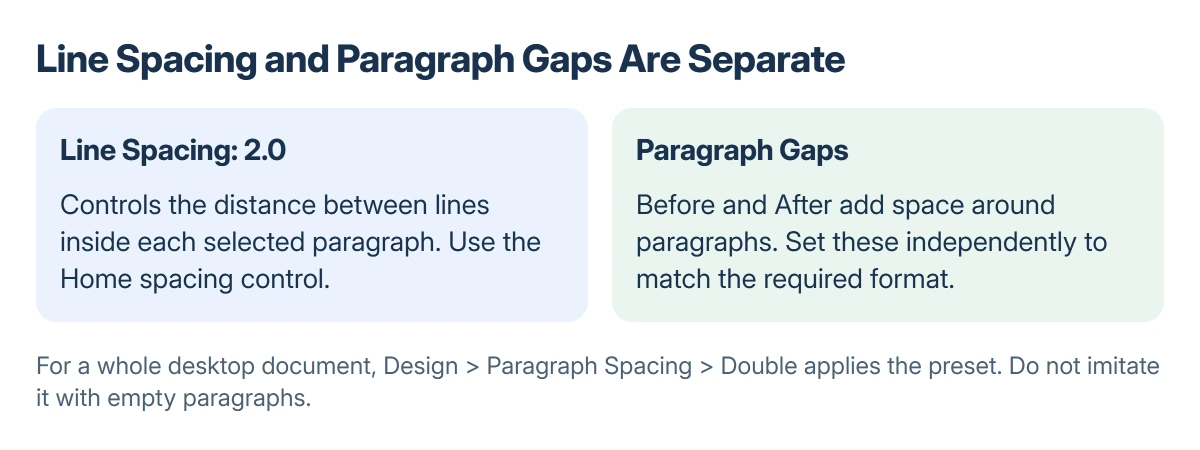
For a whole document in desktop Word, Design > Paragraph Spacing > Double applies the document-wide preset. Check paragraph gaps separately when a school or publisher requires double spacing with no extra space between paragraphs.
Apply double spacing to the text you mean
Select the paragraphs that need changing. To format everything in Word for Windows, press Ctrl + A before choosing the spacing control.
Open Home > Line and Paragraph Spacing, then select 2.0. Lines within a paragraph should now have double spacing, without inserting additional paragraph marks.
Status: Windows, Mac and web spacing controls verified in Microsoft help on 22 October 2026. No Word file was edited.
Microsoft documents both the whole-document preset and the selected-text route in its double-spacing instructions.
Selection matters. A change applied to one paragraph does not prove that a pasted quotation, heading or later section uses the same setting. Click in those paragraphs and inspect their spacing when consistency matters.
Use the document preset for a complete draft
In desktop Word, open Design > Paragraph Spacing > Double. This is the direct route when the entire document should use Word's double-spacing preset.
The preset affects the document's paragraph formatting. For a file that must preserve distinct headings, captions or a separately formatted bibliography, inspect those parts after applying it.
Microsoft says the document's original style-set spacing can be restored from Design > Paragraph Spacing, under Style Set. The entry can be Default or the name of the current style set.
Keep a separate copy before making broad formatting changes to a submission that already has detailed layout requirements.
For citations, insert actual Word footnotes instead of placing numbered text manually at the page edge.
Why is there still a large gap after each paragraph?
Line spacing and paragraph spacing are independent. A paragraph can be double-spaced internally and still have additional space before or after it.
Select the affected paragraphs, then open Home > Line and Paragraph Spacing > Line Spacing Options. Check Before and After, as well as Line spacing.
Use 0 pt for Before and After only when the required format calls for no additional paragraph gaps. Keep double line spacing selected, then confirm with OK.
Microsoft states that these settings work separately in its line and paragraph spacing guide. Changing one is not a substitute for checking the other.
Do not add empty paragraphs to imitate double spacing. They become extra content and can contribute to a blank Word page that will not disappear.
Word for Mac and the browser
On Mac, select the paragraphs and use Home > Line and Paragraph Spacing. Choose the required number, or open Line Spacing Options to inspect paragraph spacing too.
In Word for the web, Microsoft's current route is Home > Line Spacing. Select the text first and choose the double-spacing value. Its spacing options also let you change the gaps before and after paragraphs.
For a shared review, check Word's Track Changes controls before editing someone else's formatting. A document's review arrangement can matter as much as the spacing itself.
If the menu is unavailable because the file is read-only, ask its owner for editing access or an editable copy. Repeatedly clicking a spacing option cannot change the file's permission.
The Short Version
Select the paragraphs and choose 2.0 from the Home spacing control. Desktop Word also offers Design > Paragraph Spacing > Double for the whole document.
Check Before and After independently. Empty paragraphs are not double line spacing.
Where to Next
Review the document in print preview before submitting it. If the required spacing still looks wrong, compare the affected paragraph's line spacing and paragraph gaps against the actual submission rules.

Isaac Smith is the founder and editor of PC Glance, a website that covers computers, laptops, and technology. He is a tech enthusiast and a computer geek who loves to share his insights and help his readers make smart choices when buying tech gadgets or laptops. He is always curious and updated about the latest tech trends.