
Track Changes is the Word switch that shows the person reviewing your document what you edited, and it lives on the Review tab.
I'll help you switch it on in Word for Windows or your browser, then check the editing marks before you send the document to someone else.
Start tracking before you edit
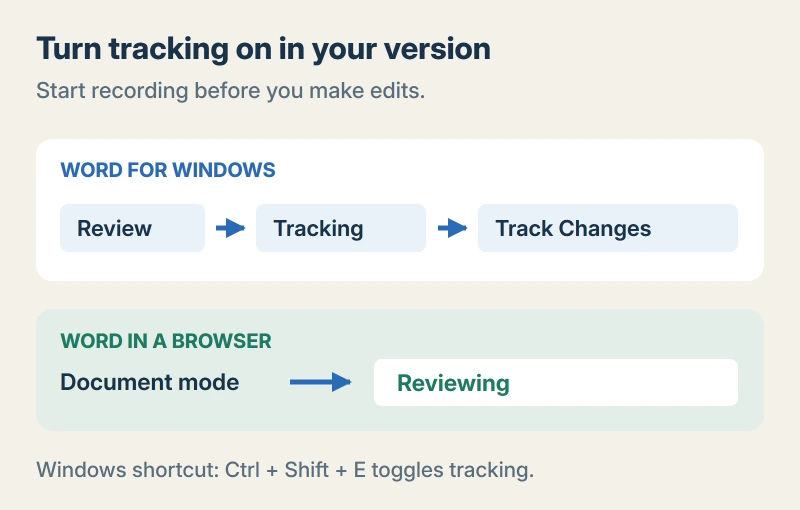
In Word for Windows, open your document and select Review. Find the Tracking group, then select Track Changes. Microsoft documents that route in its tracking guide.
The control becomes highlighted when tracking starts. If your menu offers a choice of reviewers, select whether you want to record all contributors' edits or only your own.
Status: Windows desktop and browser instructions checked against Microsoft's current Word help on 17 October 2026. No document was edited for this guide.
Prefer your keyboard? Microsoft lists Ctrl+Shift+E for Windows in its accessible reviewing instructions. Pressing it again switches tracking off.
I would check the highlighted control after using the shortcut, so you know whether that key press turned tracking on or off.
Using Word in your browser?
Look at the mode menu near the top of the document and choose Reviewing. Microsoft's Word for the web instructions identify that as the mode that records your edits.
Viewing lets you read the file without editing. Reviewing lets you suggest changes, while Editing is the normal editing mode.
Your shared document might already open in Reviewing. In that case, you can begin suggesting edits without hunting for another switch.
The browser supports the main reviewing jobs, but you can use Open in Desktop for additional options if the Word app is installed on your computer.
See the marks in Word for Windows
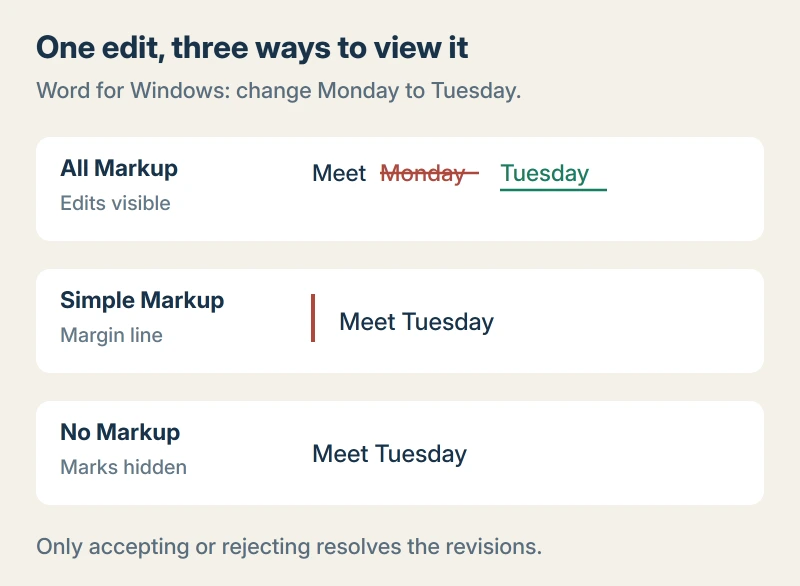
In the Windows app, make one intended word change. Then choose All Markup from the markup menu on Review, so you can see the suggested change.
Microsoft says All Markup shows revisions with colors and lines. Simple Markup gives you a cleaner page with a line in the margin instead.
No Markup hides the editing marks. Your changes are still recorded, so a tidy-looking page does not prove the document is ready to send as a final copy.
For example, replacing Monday with Tuesday can leave Monday crossed out and Tuesday underlined. Your display settings control the appearance.
If you only want to ask about a sentence, add a comment instead. Microsoft's feedback instructions explain that comments let you discuss text without replacing it.
Select the words you mean, open Review, and choose New Comment to keep your question attached to the right part of the document.
Stop tracking, then decide what to keep
Finished suggesting edits? Select Track Changes again in the Windows app to stop recording new ones.
Existing marks stay there. Microsoft states that you must accept or reject those revisions to remove them in its guide to accepting changes.
Keep a separate review copy first if you need to preserve the editing history for another discussion with the person who sent it. Then start at the beginning and use Next on Review to visit a change.
Choose Accept to keep that edit or Reject to discard it. Work through the remaining changes until you have checked the whole document.
I prefer reviewing them individually when several people have edited a file, because I want to understand what each person suggested before keeping it. A small deletion can matter, especially in a date, price or instruction.
When reviewing citations, use Word's linked footnote references. A typed superscript number does not create a note.
For a formatting review, check double line spacing separately from paragraph gaps so the marked change matches the required document style.
The Accept and Reject menus also offer options for handling every change together. Use those when you have already checked the revisions and know which result you want.
Comments need their own cleanup. Open a finished comment's menu and choose Delete comment if it should not travel with your final file.
To clear a longer discussion, compare Word's comment deletion choices for one reply, an entire thread or every comment.
A PDF also needs its markup export choice reviewed so the output matches the intended review state.
Tracking stays on in a shared document
A file shared for review can prevent you from turning tracking off. Microsoft advises asking the sender for a version with review mode disabled, or saving a separate copy.
That is different from a document that refuses to save at all. If Save keeps reopening its dialog, our Word save-loop guide follows that problem.
And if Word closed before you saved your edits, go to recovering an unsaved Word file before continuing your review.
The Short Version
- Windows: Review, Tracking, Track Changes, or press Ctrl+Shift+E.
- Browser: choose Reviewing from the document's mode menu.
- All Markup makes the recorded edits easier to inspect.
- Turning tracking off stops future marks; accepting or rejecting resolves existing revisions.
- Review comments separately before sending your finished copy.
Where to Next
Does your document open in a browser? Tell me which control you cannot find, and whether the document came from someone else for review.

Isaac Smith is the founder and editor of PC Glance, a website that covers computers, laptops, and technology. He is a tech enthusiast and a computer geek who loves to share his insights and help his readers make smart choices when buying tech gadgets or laptops. He is always curious and updated about the latest tech trends.