

You click Save in Word and the Save As box opens, then you click Save in that box and it opens again. The document never saves. I would get a copy out in another format first, so your work is safe before you hunt for the cause.
The Super User question called Endless save loop in Microsoft Word has 405,490 views since June 2013. Owners kept adding causes to it until 2021, and the same loop on Microsoft Q&A is marked 40+.
One file or every file?
The answer splits here. Does only one document loop? Then something inside it breaks the save as a .docx. The asker of that question spotted the clue: "any other format works just fine".
Does every document open Save As when you press Save? Then the cause sits in a Word setting or the folder, and step 3 is yours.
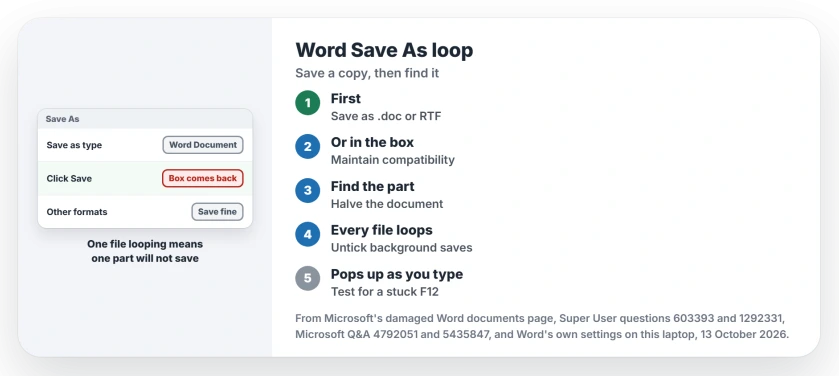
Status: Word for Microsoft 365 on Windows 11 25H2, compared 13 October 2026. One looping file: save another format, then find the bad part. Every file: background saves.
1. Get your work out: save another format
In the Save As box, tick Maintain compatibility with previous versions of Word, then save.
One owner's experience: "Word then allowed me to save the document". It also reported fixing errors along the way. Another owner tried the same box in 2019, and it "worked for me" there too.
Or choose Word 97-2003 Document (.doc) as your file type. One owner wrote "Try saving it as a .doc file and then re-save it as a .docx file". On Microsoft Q&A in 2025, a user saved "as a doc instead of docx and it work".
Microsoft's page on damaged Word documents has the same idea, under the heading "Save the document in a different file format".
Microsoft says to save as Rich Text Format and close the file, then open it again and save it as a Word document under a new name.
One cost to know: the old format turns your equations into pictures. An answer warns about "saving in compatibility mode (which converts formulas to images)".
You can undo that later with File, Info, Convert, as one owner did by "choosing File/Info/Convert".
Documents that went through the old format can also come back with solid black rectangles where heading numbers belong. The list font behind that has a lasting fix.
2. Find the part Word cannot save
The loop usually comes from one element. I would halve your document. Copy the first half into a new file and try to save it as .docx. Then keep halving whichever half loops.
Reported by owners. The asker retyped every formula in a new file "and now it saves without issues". A commenter found "it was just one single letter formula among many others". They cut it and pasted it back.
The culprits owners found in that thread and its copies:
- One equation, or the formulas as a whole.
- An automatic bibliography: one owner wrote "I could save once I removed the bibliography, but the loop re-appeared when I put it back".
- Tracked changes. Accept or reject them, then save.
- A chart pasted from Excel; pasted again as a picture, "After that, Word saved fine again".
- Hundreds of captions and cross-references: one owner selected everything, right-clicked a field and chose Update Field.
Microsoft's page has its own first method too, "Copy everything except the last paragraph mark to a new document", using Ctrl+End, then Ctrl+Shift+Home, to select it.
With section breaks, copy only the text between them, since Microsoft warns a break "may bring the damage into your new document".
3. Every file opens Save As: background saves
Open File, Options, Advanced. Find Save in the list. Untick Allow background saves, click OK, then try again.
Confirmed by owners. It is the accepted answer on that 40+ Q&A thread, whose asker wrote "every time I hit the Save button, the Save As dialog box comes up instead". On Super User another owner answered "This worked for me too with Word 2013 on Windows 7".
Ours: Word on this laptop, build 16.0.20430, has Allow background saves switched on by default, and its English language file lists it under Save options, next to Always create backup copy.
An adviser on that thread suggested one more check, with no outcome reported. A crash can leave a lock file behind. With Word closed, look in your file's folder for a hidden file starting with ~$, and delete it.
Save As pops up while you type
This one has another cause. A September 2026 Q&A post says "it prompts me to save it again and again". It happened in Word, Excel and PowerPoint alike.
F12 is Office's Save As key. So the adviser's idea was a stuck F12. Test it with the On-Screen Keyboard: open Run with Windows+R and type osk. If the box stops appearing while you type there, your keyboard is the cause.
A 2021 owner with the same symptom fixed it in Word's Save options instead: "I disabled the don't show backstage", the box called Don't show the Backstage when opening or saving files with keyboard shortcuts.
If Word creates empty documents instead of showing Save As, check the update for repeated blank windows.
Did Word close before you got a copy out? See our guide to recovering an unsaved document. On a Mac, a save that fails with error 0x0 is its own fault, covered in Word and Excel not saving on Mac.
The Short Version
- One file loops: save a copy as .doc or with Maintain compatibility ticked.
- Then halve the document to find the part that breaks the .docx save.
- Common culprits: one equation, a bibliography, tracked changes, an Excel chart, many cross-references.
- Every file loops: File, Options, Advanced, untick Allow background saves.
- Save As appearing on its own: test for a stuck F12 key.
Where to Next
What turned out to be breaking your document's save? Name the culprit in a comment; each new one goes into step 2 with your report.

Isaac Smith is the founder and editor of PC Glance, a website that covers computers, laptops, and technology. He is a tech enthusiast and a computer geek who loves to share his insights and help his readers make smart choices when buying tech gadgets or laptops. He is always curious and updated about the latest tech trends.