The Save button can sit offscreen in Word 2011's oversized Save As dialog on older OS X releases. Hold Shift and drag a side of the dialog inward. That reduces its height too, bringing Save and Cancel back into view.
Resize the Save As panel itself, rather than the document behind it. If the panel still extends offscreen, collapse and expand its folder view, then shorten the panel while its bottom edge is reachable.
In this guide
1. Shrink the Save As panel with Shift held down
Leave File > Save As open. Move the pointer onto the panel's right edge until the resize pointer appears. Hold Shift, press and hold the mouse or trackpad, then drag the edge toward the left.
Keep Shift held while dragging. The reported workaround shrinks the panel proportionally, bringing its bottom upward. Release the pointer when the Save and Cancel buttons are visible, then release Shift.
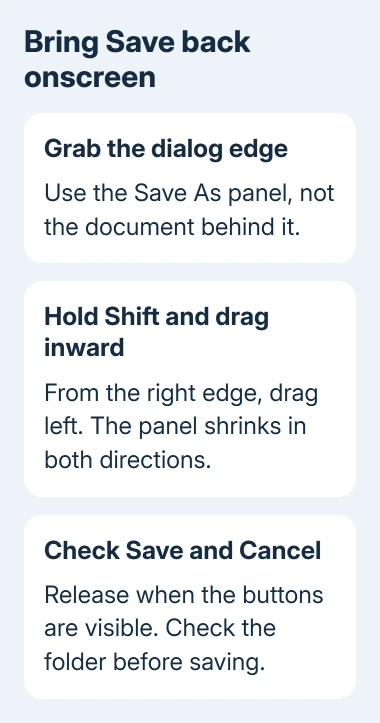
If the right edge is difficult to reach, try the left edge and drag inward toward the right. An owner reported success from that side too. The important part is resizing the dialog while Shift is held.
Several owners in the missing Save button discussion confirmed resizing methods. They were using Office 2011 on OS X Yosemite or El Capitan. Their Save buttons were offscreen, rather than missing from Word's ribbon.
Once the buttons return, check the filename and destination folder before clicking Save. Then open Save As again to see whether the panel retained its smaller size. Some owners needed to repeat the adjustment later.
If nothing changes, check which window edge you're dragging. Moving the document or shrinking its page view doesn't necessarily change the separate Save As panel attached to it.
2. Collapse the folder view, expand it, then shorten it
Find the small disclosure control beside the filename in Save As. Click it once to collapse the folder browser. Click again to expand it, then look for the button row. The panel may have moved higher on the screen.
The smaller view can show Save while hiding the full folder navigation. That's useful for getting the buttons back, but it isn't enough when you need to browse to a different folder or create a new one.
When the expanded panel returns and its bottom edge is visible, drag that bottom edge upward. Make the panel short enough that its buttons will still fit if it opens lower on the screen next time.
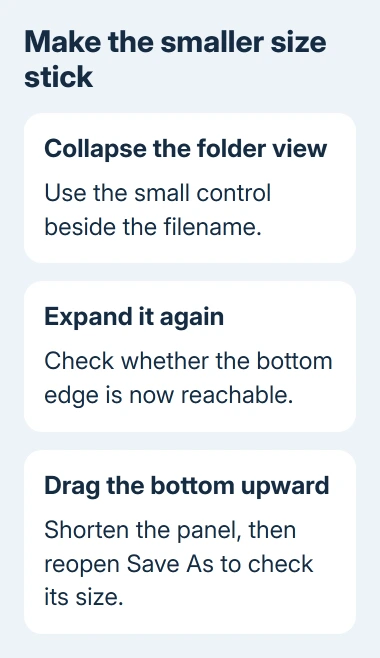
An owner explained that shortening the panel helped it remember a usable size. They also saw the oversized panel return occasionally. Treat the resize as a repeatable workaround, rather than a permanent update fix.
Open Save As again. Make sure both buttons are visible and the expanded browser lets you select your destination folder. A compact panel that hides navigation only solves part of the problem.
If the bottom remains unreachable, move to the full-screen method. It creates more room for the panel so you can try adjusting its edge directly.
3. Use full screen to reach the bottom edge
Cancel Save As and return to the document. In the reported Office 2011 workaround, Control + Command + F puts the Word window into full screen. Open File > Save As again.
Look for the bottom edge of the Save As panel. If it's now reachable, drag it upward until the entire button row fits. Save with a distinct filename if you want to preserve the original document.
Return to the regular document view after saving. Open Save As once more to check the panel's size. Full screen can bring an edge you couldn't reach back onto the display.
One owner posted this sequence, and later replies confirmed that it worked for them. Another owner couldn't reach the bottom edge even in full screen. If you still can't reach the edge, try the side-drag method again.
Current macOS also has window moving and resizing controls, but its newer window tools aren't the same interface as Office 2011 on Yosemite. Use the controls present in your version.
If only the document window is too large and Save As is normal, resize that document window normally. The two situations look similar but need you to grab different edges.
4. Save with Return when the destination is already correct
The original asker could still save by pressing Return, even though the Save button was offscreen. Escape canceled the panel. Those keys can get you past the immediate problem when the dialog responds normally.
Use Return only after checking the filename and the destination shown in the panel. Return saves with the name and location already selected; it won't give you another chance to browse a hidden folder list.
If a replacement prompt appears, read it before accepting. Don't let a hidden button lead you to overwrite your only good copy of a document. A new name is easier to check afterward.
Find the saved file in Finder and open it. For important work, check the latest paragraph or another recent edit. A familiar filename by itself can't tell you that the last changes were saved.
If the panel is frozen and Return does nothing, stop treating it as an offscreen-button problem. The Word Save As loop checks cover a different failure where saving keeps bringing the dialog back.
For work already lost after closing Word, check the document recovery options. Resizing the panel can't bring back changes that never reached a saved or recovery copy.
5. Check the application version if the dialog keeps growing
Record Word > About Word and the macOS or OS X version from Apple menu > About This Mac. Include the display's size and whether an external monitor was connected when the panel became too large.
Changing display resolution hadn't helped the original asker, even after resizing. Start with the Save As panel's own edges. That adjustment targets the oversized window without altering how the rest of the screen looks.
I wouldn't reset all Word preferences before trying the panel's own controls. The workarounds that helped owners change the window's size and leave your document content alone.
For current Word, install offered updates through Help > Check for Updates and retest. If the panel keeps growing, report an oversized Save As dialog to Microsoft Support. Include the app version and the resize method that helped.
For an Office 2011 Mac, ask your administrator about a compatible replacement setup. Keep a working copy of your documents and check their layout in the replacement before retiring the older installation.
The Short Version
Shift-drag a side of the Save As panel inward. If needed, collapse and expand the folder view, then drag its bottom upward. Return can save when the displayed destination is correct. Check that the smaller dialog survives reopening.
Checked November 16, 2026.