
Your Word headings still read fine, but the number in front of each one has turned into a solid black rectangle. The Navigation pane may show the numbers normally. It can hit one heading level and spare the rest. It looks broken.
I would skip the quick repaint from the top-voted answer and reset the list's own font. That fix survives a save, a close and a reopen of the file.
Super User's January 2011 question about it has 452,078 views, and the replies run from 2012 to 2021.
Why only the number goes black
A numbered heading in your document is two things stuck together. The heading text follows the Heading style you picked from the Styles gallery.
The number comes from a list template, and that template keeps its own font settings for each level.
Microsoft MVP Doug Robbins put it plainly in an answer the asker accepted on Microsoft Q&A: "The problem occurs because the font characteristics in the list template have become corrupted."
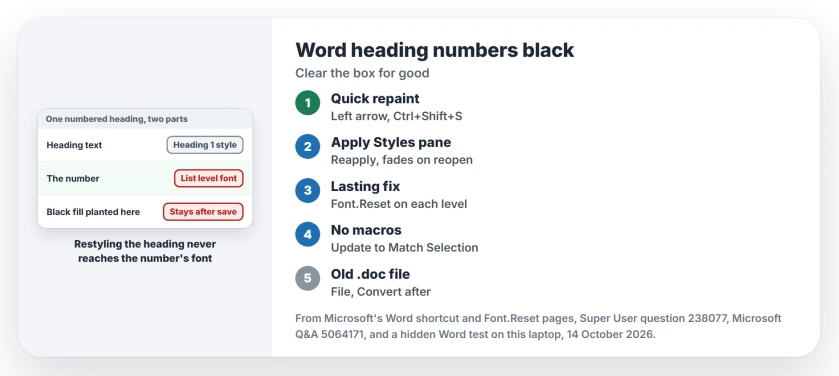
Status: Word for Microsoft 365, build 20430, tested 14 October 2026. The repaint fades on reopen; a list level font reset stays fixed in the saved file.
Ours: we could not make Word corrupt a template by itself. So in a hidden Word we planted a black fill on a level 1 heading number and saved it.
The fill landed in the file's numbering part, the piece that stores list formatting, and the heading text kept no fill at all.
So restyling fails. That is why changing your heading's font or style does nothing. The black lives on the number's side.
Text can carry hidden formatting in other ways too, such as pasted text that keeps its own proofing language.
The quick repaint, and why it comes back
This route has the most votes on Super User. Click just to the right of a black box, then press the left arrow key once. The box should turn gray.
Now press Ctrl+Shift+S, which Microsoft lists as the shortcut to "Display the Apply Styles task pane", and click Reapply.
One commenter warned that the mouse "seems to be useless at this point", so use your arrow key.
Then reopen the file. "Worked for me until I saved the doc, closed it, and re-opened it", one person replied. Others reported the same in Word 2013 and Word 2016. It comes back.
The fix that stays: reset each list level's font
Doug Robbins' macro walks through every list template in your document and resets the font of each level, so every heading level gets a clean slate. It touches the number formatting only, not your heading text.
After repairing the headings, generate a Word contents table from their styles and update the entire table when chapter names change.
- With your document open, press Alt+F11 to open the Visual Basic editor.
- Click Insert, then Module.
- Paste the code, click inside it and press F5.
- Close the editor and save the document.
Sub Fixit()
 Dim templ As ListTemplate
 Dim lev As ListLevel
 For Each templ In ActiveDocument.ListTemplates
 For Each lev In templ.ListLevels
 lev.Font.Reset
 Next lev
 Next templ
End Sub
Microsoft documents what that one line does on its Font.Reset reference: it "Removes manual character formatting (formatting not applied using a style)". For a list level, that formatting is your number's own font.
Ours: in the hidden Word, the loop ran on nine list levels in one template. The copy saved afterwards had no fill left on the level 1 number. The numbers still read 1., 1.1. and 2.
I would test it on a copy first when the document belongs to someone else. A saved .docx keeps no macro, so the code does not travel with the file. When you save, Word may warn about a VB project. Click Yes.
No macros allowed? Update the style instead
Your work PC may block macros. That is common.
An owner on Word 2013 got the repaint to stick another way. After the Reapply step, they selected the heading text with its paragraph mark and chose Update to Match Selection from the style's right-click menu.
Others reached the same end by rebuilding the numbering. Remove the numbers from each heading style, then pick a fresh multilevel list. One commenter added that you must start a new list there, not reuse the old one.
Did the file start life as a .doc?
Owners who fixed it for good often mention an old format. One found their document "was indeed created from a .doc before". Another saved a copy in the Word 97-2003 format, then used File, Convert to come back to a modern file, and the headings held.
If your title bar says Compatibility Mode, convert it after the fix. If Word also traps you in a save loop, our page on Word asking to save as again and again covers that separate fault.
Blank pages that refuse to go are a cousin of this mess. See how to delete a stubborn page in Word.
The Short Version
- The heading text is fine. The black box is the list template's font for that number.
- Left arrow, Ctrl+Shift+S, Reapply clears it on screen, but it comes back on reopen.
- The Font.Reset macro clears it in the saved file. We confirmed that in a test copy.
- No macros? Reapply, then Update to Match Selection with the paragraph mark selected.
- An old .doc in Compatibility Mode: convert it after the fix.
Where to Next
Which Word version opened your file with black numbers, and did it come from a .doc? Tell me in the comments. I am tracking whether converted files ever relapse.

Isaac Smith is the founder and editor of PC Glance, a website that covers computers, laptops, and technology. He is a tech enthusiast and a computer geek who loves to share his insights and help his readers make smart choices when buying tech gadgets or laptops. He is always curious and updated about the latest tech trends.