Changing a heading's paragraph formatting won't fix its multilevel numbering. Edit the list's own controls instead. For a named list style, choose its Modify > Format > Numbering command, then select the level to change.
An ordinary multilevel list takes a different route: put the cursor in its first top-level paragraph and use Home > Multilevel List > Define New Multilevel List. Keep these two routes separate, especially in Word 2010.
In this guide
1. Find out whether the list has its own style
Duplicate your long document to preserve its original numbering. Check a short section with at least two top-level headings and their subheadings. You'll be able to see whether one edit changes all the matching paragraphs.
Click in the first top-level heading and open Home > Multilevel List. Look for the document's named list style. It controls the numbering arrangement; Heading 1 or Heading 2 controls a paragraph's role and appearance.
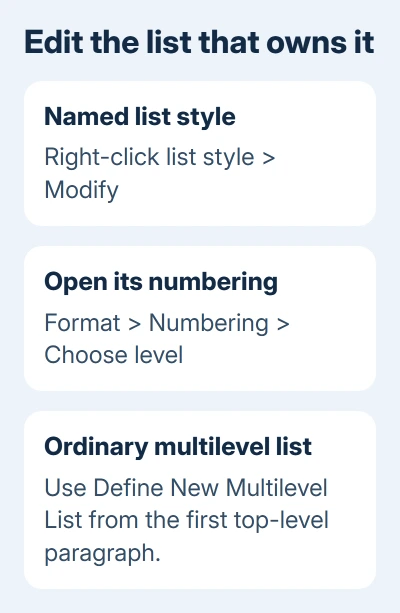
If the document was made with Define New List Style, use that style's Modify command. Don't substitute Define New Number Format from a single-level numbering menu just because it is nearby.
The Word 2010 discussion describes a change reaching one paragraph, then later paragraphs losing numbers or taking the first level's format. Repeatedly switching Numbering off and on won't address those problems together.
For a document where only chapter restarts are wrong, use the Heading 2 restart settings. Restart rules govern the sequence; this procedure governs a named list's number appearance.
2. Modify the named list style at the correct level
In Home > Multilevel List, right-click the relevant list-style entry and choose Modify. In Word 2010, the saved discussion also gives Manage Styles > Edit as a route to selecting and modifying the list style.
Choose Format > Numbering in the style dialog. Select the level you actually want to change, then use Number style for this level to choose numbers, letters or Roman numerals.
Check Enter formatting for number before accepting the change. That field combines the automatic number with punctuation or fixed wording. Changing level 2 shouldn't mean replacing its automatic number with a manually typed digit.
Adjust each affected level before closing the numbering controls. Check its preview, then confirm the dialog. Check another existing paragraph at that level, as well as the one where your cursor is.
Microsoft explains the list-formatting controls for number formats, multilevel lists and list styles. Those commands aren't interchangeable even though their ribbon menus sit close together.
If Modify is missing from the gallery, use Manage Styles to select the named list style. Only the List Styles category holds named list-style entries; other gallery patterns use a different editing route.
The asker reported that a second pass saved changes when the first didn't. In Word 2010, reopen the same definition and check it again if needed. That workaround doesn't repair the underlying behavior.
3. Use the multilevel dialog for a list without a named style
Place the cursor in the first level 1 paragraph of the affected list. For heading numbering, that's the first Heading 1 paragraph. Open Home > Multilevel List > Define New Multilevel List.
Select More if the full set of controls isn't visible. Choose a level in Click level to modify, then check Link level to style if the numbering belongs to heading styles.
Change that level's number format. Use the dialog's Whole list option to apply it to the existing list. A setting that starts at the current paragraph won't necessarily correct earlier entries.
For a hierarchical number such as 2.3, use Include level number from for the higher-level number. Type punctuation around the automatic number fields rather than typing the chapter number as ordinary text.
Check Number alignment, Aligned at, Text indent at and what follows the number. Those controls decide where the number and text sit. A tab or hanging indent can make a correct number look misplaced without changing its actual format.
I'd finish the numbering and indentation in this dialog before adjusting individual headings. That keeps each level consistent, without individual heading changes that conflict with the list's settings.
4. Remove a local number-font override when needed
If the structure is right but one number still has the wrong font, size or appearance, select the number itself. Don't select the heading's words if you intend to correct only its number.
The discussion recommends Ctrl+Spacebar on selected number levels to clear direct character formatting: a local change applied over the style. Check one affected level in your copy before repeating it elsewhere.
That clears a font change on the number. You'll still need the correct level links and number style. If a level still uses letters when it should use digits, return to its numbering definition.
For a number replaced by a solid dark rectangle, the black heading-number repair addresses that particular display fault. Don't rebuild every level just because one number's font looks wrong.
5. Check existing headings and a newly added one
After accepting the changes, inspect two headings at each edited level. Confirm that the format reaches both old paragraphs and a new paragraph using the same heading style. Then save, close and reopen the copy.
Watch the boundaries between sections or chapters. A number can look correct locally while its parent level comes from a separate list. Compare the preceding top-level heading before changing the lower-level format again.
The original report was about desktop Word 2010. Open a browser document in desktop Word for the full list-style dialogs; the browser's simpler numbering menu doesn't expose every control.
If the template still drops numbers, give its author a compact example containing the first top-level heading, an affected lower level and the next matching heading. Include the list-style name and the command that failed to save changes.
In supported Office, use Help > Contact Support with About Word version details. Ask for help repairing the sample's list settings to avoid repeatedly correcting headings throughout your report.
The Short Version
Use Modify > Format > Numbering for a named list style. For an ordinary list, open its multilevel dialog from the first top-level paragraph. Check the edited level in several existing headings and a new one.
Checked November 17, 2026.