Word Heading 2 numbering that carries on into the next chapter usually needs a multilevel list linked to the heading styles. Select the first Heading 1 and choose the built-in heading-numbering pattern under Home > Multilevel List.
If your document uses a custom list, set level 2 to restart after level 1. Changing the heading's font or typing a new number won't repair that relationship, so check the list settings if the built-in pattern doesn't restore it.
In this guide
1. Apply the built-in heading-numbering pattern
Save a separate copy of your document before changing its numbering. Work in desktop Word for Windows, where the full list dialog is available. These controls apply to Microsoft 365, Word 2024 and Word 2021.
Click inside your first main heading. On Home, check the Styles gallery: the paragraph should use Heading 1. A large, bold paragraph can look like a heading while still using Normal or another style.
Open Home > Multilevel List in the Paragraph group. Under List Library, choose the pattern showing heading names beside the numbers, such as 1 Heading 1, 1.1 Heading 2 and 1.1.1 Heading 3.
Microsoft's own steps say to number headings with built-in styles and a multilevel list. An ordinary numbered list doesn't connect chapter numbers to subheadings.
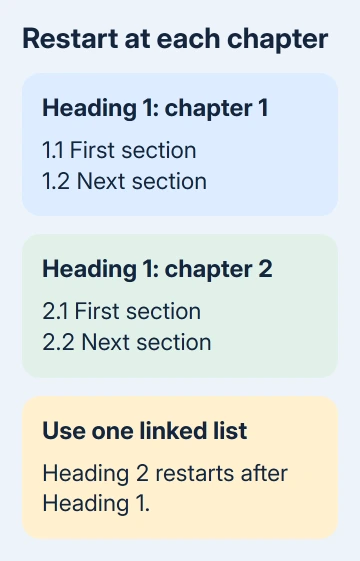
Find the next main heading and its first subheading. The main heading should advance to 2, and the first Heading 2 beneath it should read 2.1. Check a later chapter too, rather than stopping after the first correct pair.
If the built-in pattern works, continue with the document check in section 4. If the chapter number changes but the subheading keeps counting, inspect the custom list settings next.
2. Link each level to the right heading style
A multilevel list is one numbering scheme with several levels. The heading style tells Word which level each paragraph belongs to. Those links need to be right for the subheadings to restart with each chapter.
Click in the first Heading 1 again. Open Home > Multilevel List > Define New Multilevel List. Select More in the lower-left corner if the style-link and restart controls aren't visible.
Choose 1 in the level list, then set Link level to style to Heading 1. Choose 2 and link it to Heading 2. For a third heading level, choose 3 and link it to Heading 3.
When your document uses custom styles, choose those style names instead. For example, if your template has its own second-level heading style, link that style to level 2. Linking only the built-in Heading 2 won't reach those paragraphs.
Don't change Style based on to Heading 1 as a substitute. That changes the text formatting the style takes from another style. It doesn't make the paragraph a second-level heading in your numbered list.
Choose Apply changes to: Whole list so the repair covers the whole numbering scheme. A setting limited to the current paragraph can leave other chapters unchanged.
Before closing the dialog, check the restart rule in the next section. The multilevel-list controls include both the style links and the setting that makes a lower level start again.
3. Restart level 2 after level 1
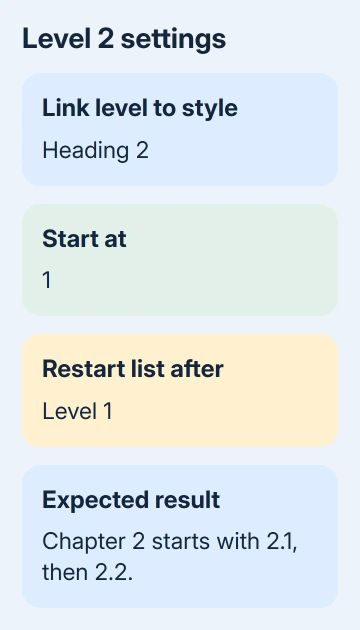
With 2 selected in the dialog's level list, set Start at to 1. Select Restart list after and choose Level 1. This tells Word to start the subheading numbers again whenever the chapter number changes.
Check the number-format preview. For chapter numbering, the subheading needs the current level 1 number, a period and then the level 2 number. Under chapter 2, that produces 2.1, 2.2 and 2.3.
If the leading chapter number stays at 1, inspect Enter formatting for number. A 1 typed as ordinary text stays a 1. The chapter part needs to come from Include level number from > Level 1.
Keep the automatic number for the current level when adjusting the format. Use Number style for this level for its counter and type only separators, such as the period between the two fields. Check the preview before confirming OK.
For level 3, use the same idea with Restart list after: Level 2. Its number should include the higher-level numbers if your document needs labels such as 2.1.1.
Return to the document and look at the chapter boundary again. If 1.3 is followed by chapter 2 and then 2.1, Word is restarting the subheadings correctly. A result of 1.4 points back to the list or paragraph-style setup.
4. Check copied headings and the contents table
Click any heading that still has the wrong number and check its selected style. Pasted headings can look identical to nearby text while using a different style. Apply the intended heading style before making another list definition.
I'd check one correct heading and one incorrect heading side by side. Comparing their styles is quicker than rebuilding the whole document because a single pasted paragraph is attached to the wrong level.
For text that shouldn't be part of the chapter structure, remove its heading style instead. That keeps ordinary paragraphs from advancing the heading sequence.
After the headings are correct, update the Word contents table so its entries reflect the repaired structure. The table gets its numbers from the headings, so repair the headings first.
Save the copy, close it and reopen it. Check the first subheading in two chapters and a third-level heading if you use one. Also inspect the spacing after the numbers, since changing the list can affect indentation.
When the template still won't behave
If headings in the same custom template still won't number together, ask its author to repair the multilevel list and style links in a copy. Send an example showing the last subheading of one chapter and the first of the next.
For a supported Word version, use Help > Contact Support and include the version, the affected style names and whether a new document using built-in headings works. Use a short sample that shows the problem without confidential text.
Older forum instructions mention Word 2007 and 2010. Use a supported desktop version for ongoing work; you don't need to install either old release or run a macro to change a list setting.
The Short Version
Choose the built-in multilevel pattern linked to Heading 1, Heading 2 and Heading 3. For a custom list, link each style to its level and make level 2 restart after level 1. Check chapter boundaries and reopen the saved copy.
Checked November 16, 2026.