
Remove a heading in Word by changing its paragraph style to Normal from Home > Styles. Your words stay in the document, but the paragraph no longer uses Heading 1, Heading 2 or another heading style.
Deleting words and removing a repeating page header are different jobs. If a heading shouldn't appear in the Navigation pane or table of contents, change its paragraph style first, then update the automatic contents table.
Keep the words and change the paragraph style
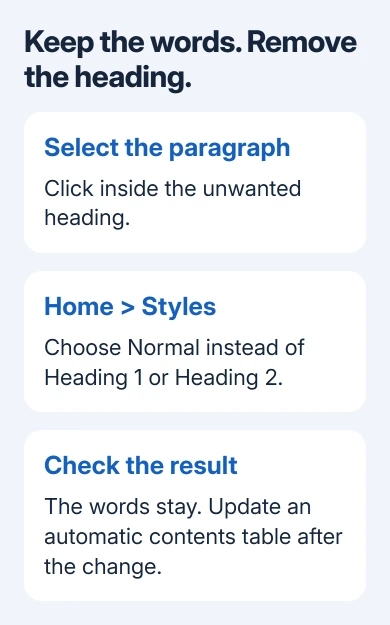
Click inside the heading you want to turn into ordinary text. Open Home, find Styles and choose Normal. Expand the style gallery if the ribbon is too narrow to show Normal.
To change several headings, select their paragraphs before applying Normal. Keep any titles that should remain headings out of your selection. Start with one paragraph if you're unfamiliar with the document's styles.
The font, size and spacing may change when you apply Normal. That's expected because a style is a saved set of formatting choices, rather than just a label attached to text.
Microsoft's style instructions describe applying a different style through Home. Use the same approach to replace a heading style with the document's ordinary paragraph style.
Current Windows and Mac editions of desktop Word support this route. In Word for the web, select the paragraph and use the Home style list to choose Normal. A narrow ribbon can put the style choices inside an expandable menu.
If the paragraph stays large or bold, its text may have formatting applied separately from the style. Check its style, then fix how it looks. Making the font smaller alone doesn't stop it being a heading.
Remove leftover bold, size or color only when needed
After applying Normal, select any text whose appearance still needs changing. On Home, choose the font, size and emphasis you want, or use Clear All Formatting in the Font group to return selected text to default formatting.
Clear All Formatting removes more than a heading's appearance. It can also remove deliberate emphasis, text color, superscript and similar formatting from the selection. Limit your selection to the text whose formatting should change.
In Word for the web, the command can appear as Clear Formatting, beside the font controls or in More when the ribbon is narrow. The formatting removal instructions cover the platform differences.
I'd apply Normal first and clear formatting only if something still looks wrong. You can then tell whether you've changed the heading itself or just its appearance, especially when you've combined text from several sources.
Avoid selecting the whole document as a quick fix for one unwanted heading. Your report may need its other headings, emphasized terms and formatting. Change the paragraph that shouldn't be a heading.
Remove an unwanted entry from the contents
Click the actual paragraph in the document and change its heading style to Normal. Then select the automatic table of contents and use References > Update Table > Update entire table in desktop Word.
Updating only page numbers won't remove an entry whose paragraph style changed. Word needs to rebuild the whole table from your current headings. Check that the unwanted entry disappears and the section titles you need are still there.
In the browser edition, open the generated contents' right-click menu and select Update Table of Contents. Don't simply delete the unwanted line inside the generated table: a later refresh can recreate it from the source paragraph.
The Word table-of-contents steps explain the difference between an automatic table and a manually typed list. A manual list needs manual editing because it isn't linked to heading styles in the same way.
If a Normal paragraph still appears in a custom table of contents, ask the author which styles or entries it includes. It may use more than standard headings, so changing the style again might not fix it.
Check the Navigation pane and the remaining headings
In desktop Word on Windows, open View > Navigation Pane and inspect its heading list. After changing a paragraph to Normal, check that it no longer appears as a heading while the text remains in the page.
A custom style can carry an outline level of its own. If applying the document's Normal style doesn't remove an unexpected entry, check whether that template has customized Normal or whether another paragraph is selected.
For unusual outline settings, ask the author to check the paragraph's outline level and template style in desktop Word. Changing other paragraphs to fix this list can damage formatting you wanted to keep.
Keep real sections as headings. Their structure helps readers move around the document and helps assistive technology recognize its organization. Removing every heading to hide one unwanted entry takes away those benefits.
If the remaining headings have broken numbering or black boxes, use the heading-number repair. Changing a valid heading to Normal removes its role instead of fixing its numbering format.
Keep gallery cleanup separate from document cleanup
Removing a heading style from the Styles gallery only changes which shortcuts the gallery shows. It doesn't automatically convert paragraphs already using that style into ordinary text.
Likewise, closing the Navigation pane hides the list without changing the document. Reopen the pane and the headings are still there. Close it when you just need more editing space.
If you actually want to delete a title's words, select those words in the document and delete them. Expand any collapsed section first and check the selection so the body text you want to keep isn't included.
A header is the repeating page area used for a company name or running title. Changing Heading 1 to Normal won't remove it. Check which item you mean before editing further.
Save a copy and check the finished document
Save your edited document under a separate name to keep the original layout available. Reopen the copy and check the changed paragraphs, the Navigation pane and any automatic contents before sending it.
If a paragraph keeps changing back, send the author or Microsoft Support your Word version and the paragraph's style. Say whether a blank document has the same problem and include a sample without private information.
The Short Version
Apply Normal to keep the text and remove its heading role. Clear leftover formatting if needed, then refresh the whole contents table. Hiding navigation or removing a gallery shortcut doesn't change headings.
Checked November 9, 2026.

Isaac Smith is the founder and editor of PC Glance, a website that covers computers, laptops, and technology. He is a tech enthusiast and a computer geek who loves to share his insights and help his readers make smart choices when buying tech gadgets or laptops. He is always curious and updated about the latest tech trends.