

Missing dots on a few Word contents entries usually mean the page-number tab stops too early. Fix the affected TOC style's tab stops or hanging indent; when every entry lacks dots, check the table's Tab leader setting first.
Those are different problems. A short title with its page number tucked beside it points to an extra stop. Page numbers already lined up at the right, without dots between them and the titles, point to a missing leader setting.
In this guide
1. Match the missing dots to the affected entries
Save the document under another name before changing its contents formatting. Choose one broken entry and compare it with a working entry at the same heading level, rather than comparing a chapter title with a subsection.
Word gives the contents entries their own styles: TOC 1, TOC 2, and so on. They control the contents entries, while Heading 1 and Heading 2 control the titles in the document itself.

If the entries themselves are missing, first check the heading styles used to build the contents. This repair applies when the title and page number are present but the dots or number position are wrong.
Check one short title and one longer title. When only the short one fails, its tab can be landing at an earlier position that the longer title has already passed. Go to section 3 after checking the general leader setting.
I'd repair the formatting before changing a chapter's wording. A title shouldn't need extra words just to make its page number reach the right margin.
2. Turn on the dotted leader for the table
Click inside the contents in your Windows or Mac Word app. Open References > Table of Contents > Custom Table of Contents. This dialog controls the table Word creates, including the space between titles and page numbers.
Keep Show page numbers selected. Select Right align page numbers, then choose the dotted option under Tab leader. Check the preview before accepting the change. If Word asks to replace the existing table, confirm it.
Microsoft's contents-formatting instructions give this route for desktop Word 2024 and Microsoft 365. Word 2010 calls the dialog command Insert Table of Contents.
A successful change puts the page numbers at the right with dots leading up to them. If an entire level still has no dots, check its own style in section 4. If only short entries fail, inspect the earlier stops next.
Don't choose a different heading level just to make the dots appear. That would change the document's structure while leaving the troublesome formatting in place.
If the entries themselves vanish during an update, check Regional format and the TOC field before changing dot leaders.
3. Remove an extra stop that catches short titles
On Windows, click in a broken contents entry and open Home > Paragraph, using the small dialog launcher in that group. Choose Tabs. On Mac, use Format > Tabs to inspect the selected paragraph's stops.
Select each listed tab position to see its alignment and leader. The page-number stop should be right-aligned, near the text's right edge, with a dotted leader. Its measurement depends on your page size and margins.
An earlier left-aligned stop can catch the tab that follows a short title. For example, a short word can end before that stop, sending its page number there instead of to the right-hand page-number position.
Remove only an earlier stop that the entry doesn't need. Keep any stop needed to separate a chapter number from its title, and keep the right-aligned page-number stop. Clear All can remove useful formatting along with the fault.
In an owner discussion, moving an early stop left restored both dots and page-number alignment. Later replies also confirm removing unwanted short stops worked.
When no extra stop appears in the list, check the hanging indent. This places wrapped lines farther inward than the first line, and in affected documents it can also make the tab stop too soon.
Turn on View > Ruler and click in the broken entry. Move the lower hanging-indent triangle left a little, keeping the upper first-line marker in place. Check that the page number now reaches the right-hand position.
If wrapped titles now look wrong, undo that change and make the adjustment through the level's style. Numbered contents need enough space for their numbering as well as the title, so removing all indentation isn't a useful general fix.
4. Save the correction in the right TOC style
If your repair disappears when the table updates, save it in the TOC style rather than just changing one entry. Open References > Table of Contents > Custom Table of Contents > Modify. If Modify is unavailable, set Formats to From template.
Select the affected level, such as TOC 2, and choose Modify again. Open Format > Tabs. Correct the unnecessary earlier stop or select the page-number stop and give that stop a dotted leader.
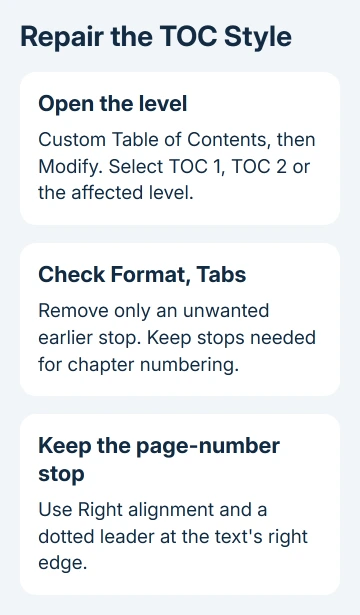
Use Set when changing a tab's settings in the Windows Tabs dialog, then confirm the dialogs. For a hanging-indent problem, use Format > Paragraph in that style dialog and adjust its indentation there.
Work on the contents style, not the chapter's Heading style. Changing the Heading style can alter your actual headings without fixing the contents entries. If the heading numbers are black blocks, use the separate heading-number repair.
Word for the web displays existing tabs but can't set or remove tab stops. Use your desktop Word app for this repair. The browser's automatic contents command doesn't provide the desktop Tabs dialog.
5. Refresh the contents and inspect the result
Select the contents, then choose References > Update Table > Update entire table. Recheck the shortest entries, each affected level, and any title that wraps to another line. Their page numbers should all stay in the right positions.
For an unreadably small page, restore adjustable Word zoom before judging the alignment.
Don't type periods or add invisible characters to the source headings to fill the gap. A tab leader follows the paragraph's formatting and adjusts to the title; typed characters leave another piece of text to maintain.
Some owners reported that changing the visible entries worked only until the next update. If the problem returns, confirm the correct TOC style was changed and show a document specialist the file before and after that update.
For further help, use Help > Contact Support where available in Word. Include the Word version, the affected TOC level, its tab positions, and whether the failure affects short or wrapped titles. Share a copy with private text removed.
The Short Version
Choose a dotted Tab leader when the whole table lacks dots. For short entries with misplaced numbers, repair the early tab stop or hanging indent in the affected TOC style. Update the entire table to check that the change stays.
Checked November 16, 2026.
 If you have any business, I can build it online






