
The Works converter's newer-version error can come from the converter, not a newer document. Open a copy in desktop LibreOffice Writer, then save a new DOCX instead of reinstalling that converter again.
A faulty update caused this loop in 2012. The replacement converter fixed some installations then, but later replies reported failures and missing downloads. That old fix isn't a reliable option for your current computer.
In this guide
1. Keep the original and confirm it's a Works document
Duplicate the WPS file into a separate folder before trying another application. Keep the original filename and extension. Work on the copy so a poor conversion can't replace the only version you have.
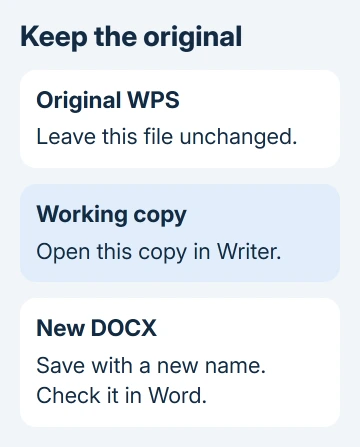
This procedure is for a Microsoft Works word-processing document, normally ending in .wps. Works spreadsheets and databases need different applications. A folder of old Works files can contain several kinds.
On Windows 11, show extensions through File Explorer > View > Show > File name extensions. On Windows 10, open Explorer's View tab and select File name extensions.
The extension helps identify the file, but the program that created it matters too. Ask the sender whether it came from Microsoft Works, especially if the file arrived recently rather than from an old backup.
Don't rename .wps to .docx. A filename change doesn't convert the document's contents, and it can leave Word reporting a different error while the original problem remains.
If the file is stored in an email, save the attachment to your computer first. That gives you a separate working copy and a clear place to save the converted document.
2. Open the copy with Writer and save a Word version
Use a current desktop installation of LibreOffice Writer. It can read Microsoft Works documents and save Word's DOCX format. Writer reads the file with its own importer instead of Word's failing Works converter.
- Start Writer and choose File > Open.
- Select the copied
.wpsdocument and choose Open. - Read the beginning, middle, and end to check that the expected document appeared.
- Choose File > Save As and choose a different folder.
- In File type, select the Word 2007-365 (.docx) choice, or the Word DOCX choice shown by that version.
- Give it a new name and save. If asked which format to use, keep the selected Word format.
LibreOffice's file format guide lists Works as an input format and DOCX as an output format. Some layout details can still change when you convert an old document.
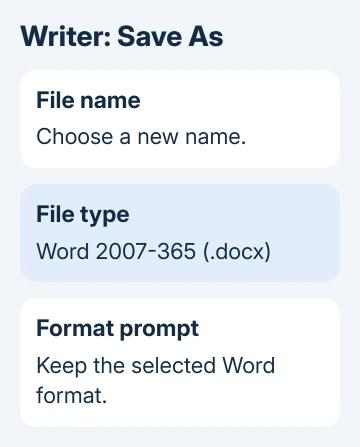
If the file picker doesn't show the document, change its file-type filter to show all files. If Writer then asks which format to read, select Microsoft Works only when that's the program that created the document.
I'd convert one file and check it before processing a whole folder. A readable first page isn't enough when the important table, address, or final paragraph is on another page.
If Writer can't open it, stop and keep the error message. Repeatedly saving the unreadable copy won't make a better Word file. Try opening it in Works as described in step 4, rather than forcing Writer to read it as plain text.
3. Check the converted document in Word
Open the new .docx in the desktop Word version you intend to use. Check headings, paragraph breaks, page breaks, tables, images, headers, and footers against the original where you can.
A document can preserve its text while changing its page count. Different fonts or layout rules can move a paragraph onto another page, so check what's on each page instead of judging the conversion by page count.
Check dates, totals, and contact details individually in important documents. If an image contains text, confirm that the image survived too. Search for a distinctive phrase near the end to check that the last section wasn't lost.
Make small formatting repairs in the DOCX copy. If a table becomes unreadable or a large section is missing, keep the original and try another conversion route instead of rebuilding from a damaged result without checking it.
When the converted document opens in Word but saving fails, use Word's Save As loop troubleshooting after conversion. A save error in DOCX is different from the initial Works import failure.
After checking the new file, close its window and open that saved file again before sharing it. That checks the saved result rather than only the document still held in the editor.
4. Use an existing Works computer when the importer fails
If an older computer still opens the original in Microsoft Works, use that working installation to save another format. Open a copy, choose File > Save As, and inspect the formats that particular Works version offers.
Choose a Word-compatible format such as .doc or Rich Text Format (.rtf) if it is available. Transfer that new file to the computer running Word, open it, and save a DOCX copy there.
The choices vary by Works version. Don't expect the oldest Works release to offer modern DOCX. You need a readable file that Word can open and then save as DOCX.
RTF can lose formatting or images during conversion. Use it to recover editable text when necessary, then compare the result carefully. Keep the source file even after the text has been rescued.
If the old computer can't be used, ask the sender or an IT technician with a compatible application to convert the document locally. For private records, that avoids handing the file to an unfamiliar conversion service.
5. Stop chasing the old download prompt
One owner confirmed the replacement converter worked in April 2012, and another reported success that May. Later replies report failures, a missing Wks9Pxy.cnv error, and a download link that no longer worked.
The differing results explain why repeated converter installations can fail. Leave security updates installed, and avoid individual converter files from unknown download pages. Focus on recovering a readable document.
Moving the WPS attachment to an Android phone won't solve this format limitation. Microsoft's Android file compatibility list marks Works 6-9 documents as unsupported.
For other transfers, using Office on a Mac explains the desktop and browser choices. Convert the Works file first; an Office subscription alone doesn't replace this missing import step.
If neither Writer nor Works can read the file, ask a document-recovery technician to check a copy. Give them the source program, approximate age and size, and exact errors. Ask for recovered text as well as a formatted version.
The Short Version
Preserve the WPS original. Open a duplicate in Writer, save DOCX, then check it in Word. If import fails, use an existing Works installation or ask for a local conversion. Don't keep following the old converter download loop.
Checked November 17, 2026.






