

A plain document title can still fail Word's name check because its folder or an older Mac's disk label contains a bad character. Try a short name in a local folder, then check the disk label for a slash if every name fails.
Protect the open document before restarting Word. Essay.docx failing everywhere points to a different cause from one long title failing in one folder. The checks here separate those cases without discarding your work.
In this guide
1. Save a plain name somewhere local
Keep the document open and choose File > Save As. On current Word for Mac, select On My Mac if the dialog is showing online locations. Choose your local Documents folder, or another writable local destination.
Use a simple test name such as Essay copy.docx. Keep Word Document (.docx) as the file format for an ordinary document. Let Word add the filename extension instead of typing the ending for a different format.
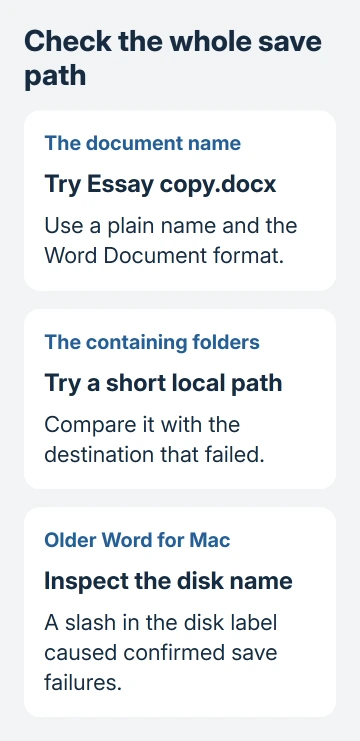
If the copy saves, open it through Finder or Explorer and confirm your work is there. Keep the original open until that check succeeds. Then examine the rejected name and destination.
If the plain name fails too, make a text backup in a different application before any restart. On a Mac, open TextEdit, paste the document text into a new file, and save it under a plain name.
That emergency text copy may lose layout, pictures or other document features. Keep Word open while you save those separately if needed. That way, you have a copy of the writing while you work on the save failure.
I'd get that separate copy first. The original asker had an unsaved essay and couldn't save even a short test name; restarting immediately would have put the work at risk.
2. Remove characters the destination can't accept
For Windows, avoid these characters in the filename: < > : " / \ | ? *. Replace a date like 11/16/2026 with 2026-11-16. Slashes inside a title can be read as path separators rather than ordinary letters.
Also remove a space or period at the very end of a Windows filename. Names such as CON, PRN, AUX and NUL are reserved device names; use an ordinary descriptive name instead.
On Mac, Finder won't accept a colon in a name, and some apps won't accept a slash. Even if Finder accepts a name, your version of Word or cloud storage service might reject it.
Check the title in the actual Save As name field. A heading inside the document can contain punctuation that doesn't belong in a filename. Changing the heading won't necessarily change the name Word is trying to save.
The Windows file-naming rules explain reserved characters and names. For a cross-platform document, plain letters, numbers, spaces and hyphens are a practical choice.
If the plain name works, add the useful parts of your title back without the problem characters. If the error returns specifically in the original folder, keep the working copy and inspect that folder's path next.
3. Check the folders containing the document
The full path includes the destination folder and every parent folder leading to it. Older Word versions can reject a name because of something in that chain, even when the final document title looks normal.
Try a shorter folder close to your normal Documents location. For example, create Word files inside Documents and save the plain test name there. That lets you compare a simple location with the original folder inside several other folders.
If the short path works, examine the original folders for punctuation or unusual names before moving the copy back. Change only a folder you own. Shared folders and work-managed locations need their owner's approval before renaming.
For OneDrive or SharePoint, a local save helps you tell whether Word can't save or the online destination is rejecting the file. Saving locally doesn't mean the cloud copy has uploaded; check that once the name is corrected.
Use the OneDrive filename and sync checks when local saving works but the cloud location rejects or won't upload the file. Keep the local document until the online copy is confirmed.
If every local folder still fails on an older Mac, inspect the disk label next. Renaming more document titles won't change a bad character earlier in the path.
4. Older Word for Mac: look at the disk name
One owner in the invalid-filename discussion found a slash accidentally added to their Macintosh HD name. Removing it restored normal saving. That fix was confirmed on an older Mac. It doesn't explain a current Windows save error.
In Finder, choose Go > Computer to view the disks. Select the disk holding your destination and inspect its displayed name. A label such as Mac/John contains the kind of slash involved in that report.
For a disk you own, select it, press Return, enter a plain name without the slash and press Return again. Approve authentication if the Mac requests it. Then return to Word and retry the local test save.
Do not rename your home folder, Library or other system folders while following this check. The reported fix changed the disk's displayed name. Renaming your account's home folder is a different operation.
If the name has no troublesome character, leave it alone. Don't rename the disk simply because an old discussion mentioned Macintosh HD. Continue with a restart and version check after your text is safe.
Word 2011 in that discussion and current Microsoft 365 aren't identical applications. The disk-name fix helps when you have the same problem. In modern Word, the destination or your permission to save there may be responsible instead.
5. Restart safely and report the failing save
Once a separate copy is saved, quit Word and reopen it. Create an empty document, then repeat the plain-name save to that local folder. Compare that with saving the original document under another name.
If only the original fails, preserve it and use the Word Save As loop guide when the save dialog repeatedly reopens. That behavior can involve document contents and needs its own repair.
If every new document fails, give support three details: the exact error text, your Word version and the destination folder. Include whether the same folder accepts a TextEdit or another app's file and whether a plain local name also fails.
With current Word, ask support to review your folder access and installed Word build. For Word 2011, discuss moving the document to supported software. Leave templates and account folders unchanged while checking names.
The Short Version
Try a plain local filename, check every folder in the path, and inspect an older Mac's disk name for a slash if all names fail. Preserve unsaved text before restarting, then give support the exact failing destination and Word version.
Checked November 16, 2026.
 If you have any business, I can build it online






