

To delete comments in Word, use a comment's menu for one conversation or Review's Delete menu for the whole document. Deletion removes feedback from the file; resolving a thread keeps it available for later review.
Save a review version separately if the discussion needs to be retained. In a shared document, make that copy before removing other reviewers' feedback.
Remove one comment or its whole thread
Open the document and select Comments near the top-right corner. In Word for Microsoft 365, this opens the list containing both active and resolved discussions.
Microsoft documents the list and contextual views in its modern-comments guide. The contextual view hides resolved threads, so start with the list when checking the entire file.
Status: Microsoft's Word comment controls checked November 1, 2026. Desktop, browser and iPhone routes are distinguished. No shared document or review history was edited.
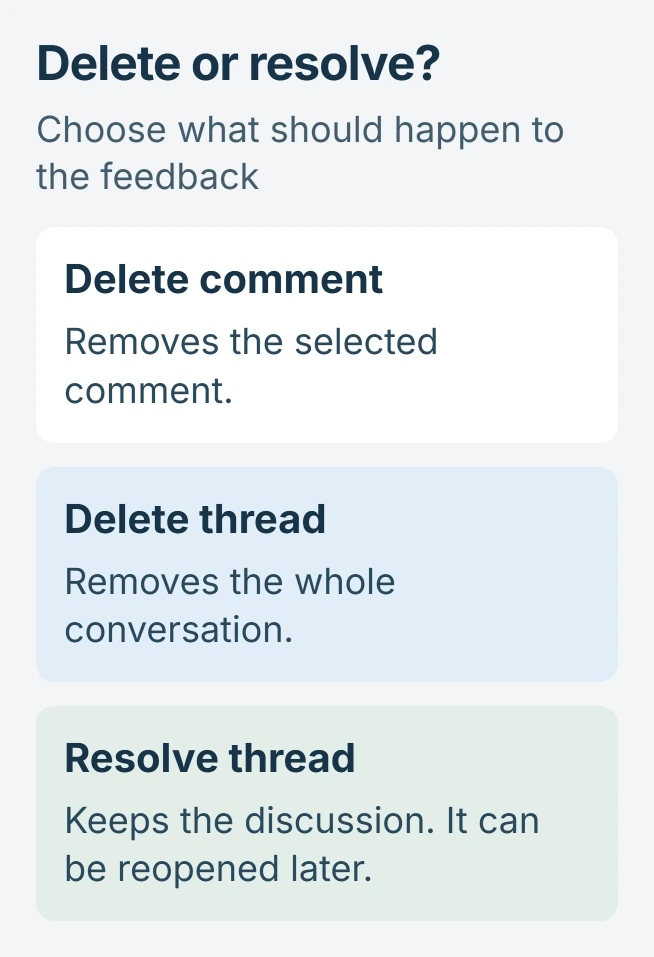
Find the relevant comment and open its three-dot menu. Choose Delete comment for that comment, or Delete thread when the whole conversation should go. Check the menu wording before selecting it.
Microsoft says a resolved thread can be deleted or reopened in its accessible comment instructions. Resolution alone is not removal.
In older desktop layouts, select the comment and use Review > Delete. Microsoft's classic comment instructions show that ribbon route for Word 2019 for Mac.
Delete all comments in the document
In desktop Word, open Review and find Delete in the Comments group. Open its drop-down arrow, then select Delete All Comments in Document. Using the arrow matters: the main button targets the selected comment.
For Windows desktop Word, Microsoft's keyboard instructions also give Alt+R, D, O for deleting all comments. Press the keys in that sequence; this command applies to the document's comments collectively.
Afterward, check the Comments list and save the file. A document with no visible margin balloons might still contain resolved discussions, so judge the result from the full list rather than the page layout alone.
Use the controls for Word in a browser or on iPhone
In Word for the web, select the comment and choose Review > Delete. Microsoft's browser collaboration instructions also describe Show Comments for reviewing the file.
If the browser interface lacks the bulk command, switch to the Word desktop app and use its Delete menu. A Windows ribbon shortcut does not necessarily apply to a browser tab.
On Word for iPhone, tap the comment twice to select it. Open Review, tap Delete, then choose the single-comment option or Delete All, as appropriate.
Microsoft states these iPhone choices in its mobile reviewing instructions. The same page separates comment deletion from accepting and rejecting text changes.
Finish the review without confusing comments and edits
Deleting a comment leaves the document's tracked text revisions to be handled separately. The Word revision workflow explains how to accept or reject those edits after tracking stops.
For a PDF deliverable, check the Word PDF export settings too. The attachment's appearance and the review information retained in the source document are separate things to verify.
If Delete is unavailable, check whether the document permits editing and ask its owner for access. If an editable file still fails, record the Word version, file location and error when contacting Microsoft Support.
The Short Version
Use a comment's menu to remove one item or thread. Desktop Word's Delete drop-down has the command for clearing all comments. Review the complete Comments list, then handle any tracked edits separately before sharing the final copy.

Isaac Smith is the founder and editor of PC Glance, a website that covers computers, laptops, and technology. He is a tech enthusiast and a computer geek who loves to share his insights and help his readers make smart choices when buying tech gadgets or laptops. He is always curious and updated about the latest tech trends.