

Word's personal-information removal can replace comment initials with A or Author when the document saves. Clear that removal setting in the affected file's Privacy Options when you need to keep reviewers' names.
This applies when the comment stays but its author's name or initials change. Missing comments, names wrong before saving, and a different modern-comments layout need separate checks. Save a duplicate before changing its settings.
In this guide
1. Turn off removal on save for the affected document
Open the document that loses initials. In Word 2007, choose Office Button > Word Options > Trust Center > Trust Center Settings > Privacy Options. Look for Remove personal information from file properties on save.
Clear that checkbox and confirm with OK. In Windows Word editions with the File tab, the route is File > Options > Trust Center > Trust Center Settings > Privacy Options, when the document-specific option is available.
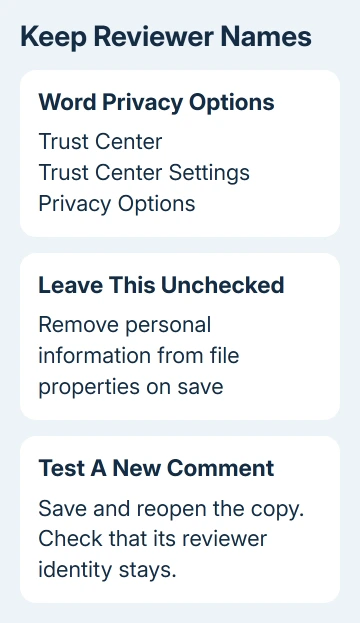
Microsoft's privacy guidance separates this file's removal setting from general privacy preferences. Turning off optional usage-data collection won't preserve a comment author's identity.
One owner later confirmed that the privacy-setting suggestion worked. Other replies report continued failure, so check a new comment in your own file to see whether the setting works for you.
The removal checkbox may be unavailable in a document that doesn't use this older setting. Check the affected file, especially an older Compatibility Mode document, rather than assuming a blank document will show the same options.
If anonymizing reviewers is an agreed part of the review, keep that requirement in place. Ask the document owner whether names should be retained before changing how a confidential or anonymous review is saved.
Save the copy after clearing the setting. Then add a new test comment and follow the save check in the next section. Older anonymized comments need separate attention; the checkbox can't bring back names that were already removed.
2. Check a new comment through saving and reopening
Highlight a few words, then select Review > New Comment. Enter a brief test note, then look at the reviewer name or initials shown before saving. Keep this comparison in the copy you're using for the repair.
Save and watch the same comment. In the Word 2007 report, its initials changed just after saving while the text remained. That timing matters more than whether a bubble looks different in another release.
Reopen the copy after closing it and inspect that new comment again. If the name or initials stay, check a second new comment before resuming the real review. Remove your test notes when you're satisfied with the result.
If old comments still say Author but new comments retain the right identity, the setting change is working for new comments. Don't rename every old comment based on an assumption about who wrote it.
For a comment that's gone completely, compare the document versions and the comment deletion choices. This privacy setting removes identifying information, not the discussion text itself.
If the name is wrong even before saving, move to the user-name check. If it is correct before saving and changes afterward, keep checking the document's removal setting and review workflow.
3. Correct the name used for future classic comments
In Word 2007, open Office Button > Word Options > Popular. Under the Office personalization settings, check User name and Initials. Enter the identity that should appear on your new comments and confirm.
In later Windows Word, look under File > Options > General. Some editions offer Always use these values regardless of sign in to Office. Select that only when your review requires those fixed values.
Add another comment in the test copy. These fields set the name and initials for new classic comments; they don't restore names that have already been removed from existing review history.
Modern comments can use the signed-in Office account and display names differently. A modern comment card without an old-style initials-and-number label isn't automatically the Word 2007 problem where saving removes the name.
For comment references missing their old numbers in Word 2016, use the comment numbering workaround. Adding numbers to Comment Text is separate from preserving an author's name on save.
If every file shows the wrong author immediately, correct your profile or account information first. If only documents from one sender change names when saved, ask that sender to check their document's privacy setting too.
4. Check whether document inspection reapplies anonymity
Ask whether the document was previously cleaned with Document Inspector or sent through a review process that removes names. The original discussion links repeated removal to a file whose personal information had been removed.
On current Windows Word, the inspection route is File > Info > Check for Issues > Inspect Document. In Word 2007, look under Office Button > Prepare > Inspect Document. Use a copy before running any removal operation.
Inspection and removal are separate actions. Reading inspection results doesn't require choosing Remove All. Removing document properties and personal information can erase information you still need during collaborative review.
Don't remove comments and revisions just to stop initials changing. That category can remove the review material itself. Keep the discussion and change the personal-information setting that removes the authors' names.
If your organization cleans files before sharing, keep a named working copy and a cleaned distribution copy. Agree which version should return to reviewers so reviewers know when names are meant to be hidden.
I'd check that workflow before replacing Word's Normal template. The saved thread includes a template-reset suggestion, but no later reply confirms that it stopped names disappearing from the affected file.
5. Recover earlier identities from an earlier copy
Turning removal off stops Word removing names on later saves; it doesn't rebuild names saved as Author. Look for the original attachment, an earlier review copy, or version history when OneDrive or SharePoint holds the file.
Open the earlier version separately and compare a comment with its surrounding sentence. Keep both files until you know which review each belongs to. Overwriting the current copy with an older file can also lose later edits.
Ask the original reviewers to identify their comments when no named copy remains. Record who wrote each comment in the review notes rather than assigning authors from memory or assuming all comments with the same label came from one person.
If supported Word still strips new identities with removal disabled, give IT a sample without private text, your Word build, the file format, and what changed when you saved. Ask them to check document privacy and automated cleanup.
One reply says the proposed resolution didn't help. Start with this setting, then use the comparison results to guide support. Keep Word 2007 files backed up while moving the review to supported Office.
The Short Version
Check personal-information removal in the affected file and test a new comment through saving and reopening. Correct future-comment identities separately. Recover removed names from an earlier copy; the checkbox won't restore them.
Checked November 17, 2026.






