
Word 2016 removed the familiar numbers from its on-screen comment bubbles. Adding numbering to the Comment Text style puts numbers into the comment text, though it also numbers extra paragraphs inside a comment.
That workaround suits short, single-paragraph comments. For a document with longer comments, check print preview first and agree on how you'll refer to each comment before changing the whole file.
In this guide
1. Check print preview before changing the document
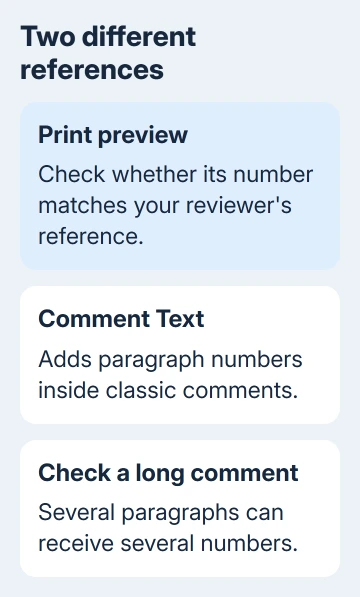
Open the reviewed document in Word 2016 for Windows and choose File > Print. Look at a page containing comments. If comments aren't included, check the print settings for Print Markup.
Compare a specific comment with the reference your reviewer sent. If preview shows the number they mean, you can find that comment without changing its text or formatting. You can check this without printing the page.
The asker in the original Word 2016 discussion confirmed that preview gave them a workaround. A later reply disputed that numbers appeared in their installation, so check yours before using preview to find a comment.
This step matters when someone refers to an existing comment number. Adding a new numbering scheme to the text doesn't automatically make it match the numbers shown in an older Word version.
If preview helps, note enough of the comment and its nearby wording to locate it back in the document. If preview still doesn't give you a usable reference, continue with the style workaround in a separate copy.
2. Add numbering to the Comment Text style
Save a copy with File > Save As before applying numbering across the comments. Keep the original available so you can compare a reviewer's old references with the changed file.
Click inside the text of an existing comment balloon. Press Ctrl+Shift+S to open Apply Styles. Check that the style name is Comment Text, then select Modify.
Place the cursor within the comment itself. If the pane shows Normal, Heading 1, or another document-body style, cancel and click the comment text again before modifying anything.
In Modify Style, select Format > Numbering. Choose a simple numbered format, select OK, and return to the style dialog. Choose Only in this document to keep the change in this file, then confirm with OK.
The comments using that style should now show numbers at the start of their paragraphs. Check more than the selected balloon; changing a style affects other text using it in the document too.
Microsoft's style-editing instructions explain the distinction between changing the current document and future documents based on its template. For this first attempt, change only the copy you're working on.
One owner in the saved discussion reported that this style method worked in their Office 365 installation. It worked for that owner, but these added numbers still aren't the original comment labels.
If selecting a style applies a different style altogether, use the Word 2016 wrong-style checks before changing more formatting. Missing comment numbers and a pane selecting the wrong item are separate faults.
3. Check a comment containing several paragraphs
Find a longer comment and inspect each paragraph. The workaround uses paragraph numbering, so a comment containing three paragraphs can receive three numbers. The next comment can then start with a number you didn't expect.
A later reply describes this problem: the owner needed one number per comment, and numbering Comment Text didn't give them that. The workaround doesn't bring back Word 2010's bubble labels.
For a new comment that only needs a line break, Shift+Enter creates a new line without starting another paragraph. That keeps the text within the same numbered paragraph. Use ordinary Enter when you actually need a separate paragraph.
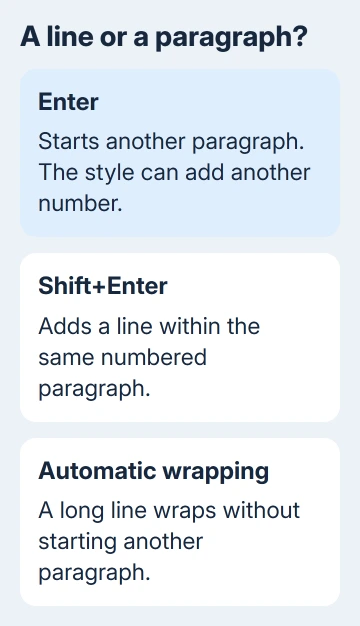
Try this in one sample comment before rewriting a long review. A wrapped line created automatically by Word isn't a new paragraph either; the paragraph number doesn't repeat just because the text reaches the balloon's edge.
I'd avoid flattening a carefully structured review just to make this numbering trick look tidy. When separate paragraphs carry separate points, keeping that structure and quoting a few words is often clearer for the person answering.
If the resulting numbers don't match the reviewer's references, ask them to identify one comment by its opening words. That quickly reveals whether you're comparing two numbering systems or two different versions of the document.
4. Agree on references before returning the review
Agree on how you'll refer to each comment: its first words, the nearby sentence, or a number you've checked in the same saved copy. Include the document version when several attachments are circulating.
In your reply, you could give the comment's opening words and name the paragraph it discusses. A page number alone can shift when fonts, margins, or printer settings change on another computer.
If you're exchanging attachments, share the intended Word copy and make clear which version contains the added numbering. A link to one shared document and a separately edited attachment aren't interchangeable.
Check the returned file by reopening it and looking at a short comment and a longer one. Check that all the words are still there, the numbering works for your review, and the reviewer can find the comment you mean.
These steps apply to classic comments in Word 2013/2016 for Windows. They aren't a setting you can use for modern comments on every platform. Word for the web, Mac, and current Microsoft 365 can show different comment controls and layouts.
Reviewer initials becoming Author after saving need the document privacy check; paragraph numbering cannot preserve their identity.
If your supported Word edition lacks these controls, send your Office administrator the edition, version, and a sample without private information. Ask how to get the result you need: one visible reference per comment.
Office 2016 for Windows is out of support. A missing display option isn't a reason to reinstall it or replace a newer supported edition. Keep the review usable with shared references while planning the move to supported Office.
The Short Version
Try File > Print to identify a comment reference. For numbers in classic Windows comment balloons, modify Comment Text and add paragraph numbering. Extra paragraphs get extra numbers, so this isn't the old bubble-number feature.
Checked November 16, 2026.






