
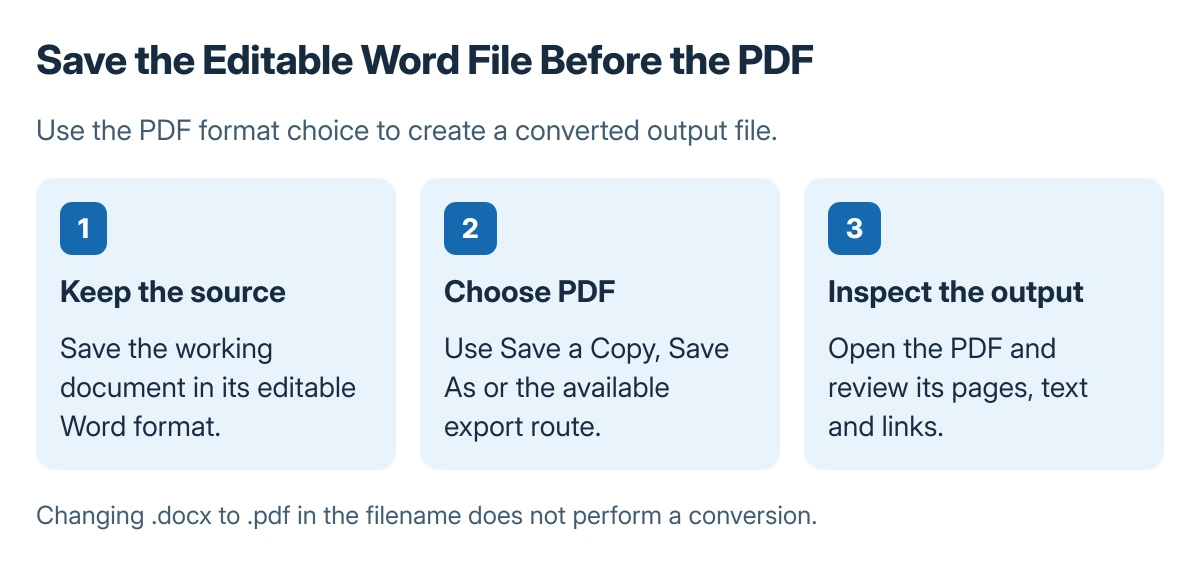
Save a Word document as PDF by choosing PDF in Word's built-in save or export controls. Keep the editable Word file as well; changing a filename from .docx to .pdf does not convert its contents.
Before sharing, open the exported PDF and check its pages, links and visible comments or changes. The saved output can include options that differ from the editing view.
Save the source, then create the PDF
Save the current Word document with its normal name first. For a Windows desktop file already saved, choose File > Save a Copy, select a destination, and choose PDF from the format list.
Microsoft documents the PDF format choice in the Office PDF conversion guide. Some desktop versions offer Save As; choosing the PDF format is the essential part of either route.
Status: PDF saving and output options documented by Microsoft, checked 23 October 2026. The guide preserves the editable source; no document was converted locally.
An alternative Windows route is File > Export > Create PDF/XPS Document > Create PDF/XPS. Choose the destination and publish the file after reviewing its options.
Use a name that distinguishes the final output from an earlier draft. Select a location that can be found again before attaching the document to a message.
Decide which pages and changes belong in the output
Open the export Options when only certain pages should be included. Review the page range and whether the PDF should contain the document itself or the document showing markup.
Microsoft says Document showing markup includes tracked changes. Choose the appropriate publication setting deliberately, then inspect the PDF rather than assuming hidden editing marks disappeared.
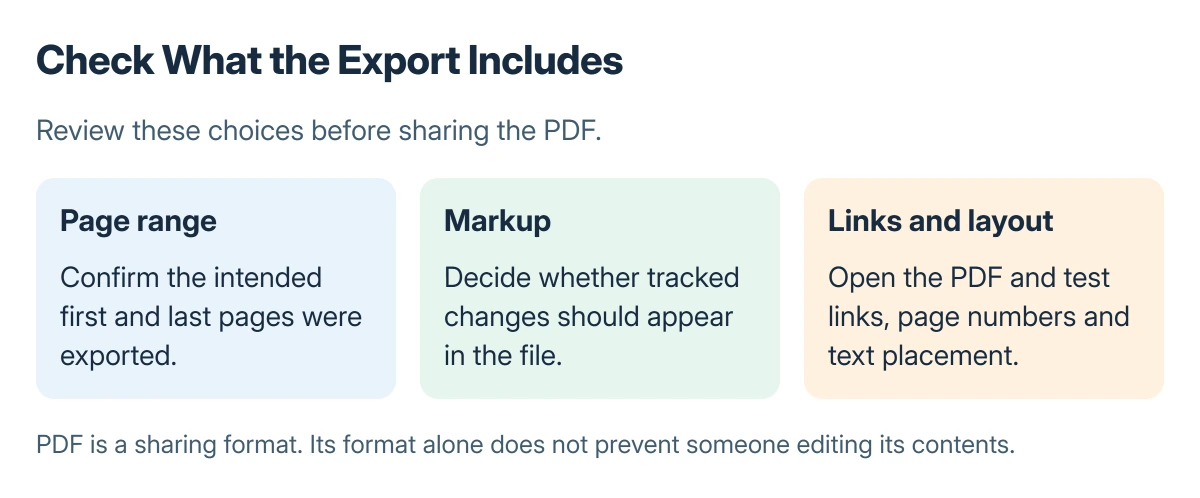
For a draft still being reviewed, the Track Changes controls explain how edits are recorded. Check the page numbering setup before exporting if the document starts its visible numbers later.
Mac and browser editions use their own save controls
In Word for Mac, choose File > Save As or Save a Copy, then select PDF. Review the resulting file, particularly when hyperlinks matter to the reader.
Microsoft states that Word for Mac's Best for printing setting has a known hyperlink conversion issue. Test those links in the export; use the available alternative output option when needed.
Word for the web can produce a basic PDF through File > Print and the PDF-saving printer option. Use desktop Word when the task needs detailed PDF export settings such as bookmarks.
The Short Version
Save the Word source, select PDF in its save or export controls, and review the output options. Open the finished file to check pagination, markup and links before sending it.
Where to Next
If the export differs from the document, keep both versions and the chosen settings for Word support. A PDF is also editable in suitable software, so its format alone does not prevent changes.

Isaac Smith is the founder and editor of PC Glance, a website that covers computers, laptops, and technology. He is a tech enthusiast and a computer geek who loves to share his insights and help his readers make smart choices when buying tech gadgets or laptops. He is always curious and updated about the latest tech trends.