
Faxing from a computer needs either an online fax service or fax-capable hardware connected to a telephone line. A normal printer connection does not send a fax, even when the printer can scan documents.
For an existing fax printer, check its PC-fax software first. Without that hardware, a browser-based service can send the file over the internet. The recipient receives a fax in either case.
Choose the route your equipment supports
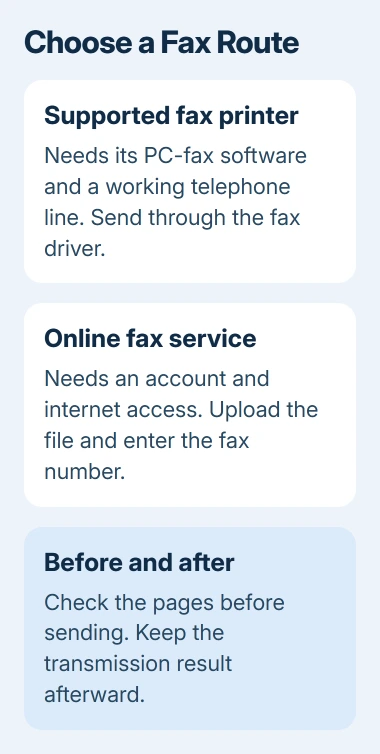
Brother says PC-FAX needs a working telephone line connected to the fax machine. The computer passes the document to that machine, which makes the fax call. The computer-to-printer USB or Wi-Fi connection does not replace the line.
An online service handles that transmission remotely. It needs an account and may charge for sending or receiving. Check the service's current limits before uploading the document, especially if only one fax is needed.
Status: Brother PC-FAX and Fax.Plus sending procedures checked November 3, 2026. Printer support varies by model and operating system. No fax was sent here.
Prepare a readable document
Open the file and confirm every page is present, facing the right way and readable. For a Word document, exporting a PDF keeps the page layout ready for the browser route.
For paper, Microsoft documents scanning with Windows Scan. Select the scanner and source, scan, then open the saved image to check it before sending.
Confirm the recipient's fax number separately from their voice number. For sensitive paperwork, also confirm that this is the recipient's intended way to receive it.
Send through Brother PC-FAX on Windows
These controls apply to Brother's Windows PC-FAX software, including its MFC-L2710DW guide. Other models use their own fax drivers. Download the model's software from Brother, checking that it supports your Windows version.
Open Brother Utilities, select the machine, then open PC-FAX > Setup Sending. Enter the sender information. Under Sending, enter an outside-line access number only if the office telephone system requires one.
Brother documents the sending sequence in its PC-FAX instructions:
- Open the document and choose Print in its application.
- Select Brother PC-FAX as the printer and complete the print command to open the fax dialog.
- Enter the destination number and choose Add Send Address, or select a recipient through Address Book.
- Select Add Cover Page if needed. Review the destination, then choose Start.
This feature sends in black and white. Check a document that relies on color before transmitting it. If Brother PC-FAX is absent from the printer list, check the installed software and model support before treating it as a telephone fault.
Send through a browser when no fax printer is available
Fax.Plus is one documented example for Windows or Mac. Sign in to its website, select Send Fax, and enter the destination in To, including its country and area codes.
Choose Add File, attach the prepared document and arrange the pages. Review the destination and contents before selecting Send. This uploads the file to the provider, so use a service approved for the material you are sending.
The service emails a transmission result. Its confirmation report is available through Faxes > Sent > More > Fax Confirmation Report. Check the status and page count; an uploaded document alone does not prove transmission finished.
The iPhone fax procedure covers capturing paper with the phone if that is the available scanner. The computer route can start with the file already on disk.
When sending fails
For PC-FAX, confirm the printer's telephone connection and destination, then record any reported error. For an online service, check its failure report before retrying. Repeated attempts without checking can send duplicate paperwork.
If the report shows delivery but the recipient cannot locate it, ask them to check their fax system using the send time and page count. Give unresolved hardware errors to the printer manufacturer, or service errors to the online provider.
The Short Version
Use the printer's PC-fax driver when suitable hardware and a telephone line are available. Otherwise, upload the document through an online fax service. Inspect the pages first and keep the transmission result afterward.

Isaac Smith is the founder and editor of PC Glance, a website that covers computers, laptops, and technology. He is a tech enthusiast and a computer geek who loves to share his insights and help his readers make smart choices when buying tech gadgets or laptops. He is always curious and updated about the latest tech trends.