Word PDF exports can change when fonts are substituted or markup is included. Compare Print Layout with a fresh PDF made through Word's own export control. Then choose the fix for what changed on the page.
Changed line breaks point toward fonts or page setup. Missing shapes, review marks, and blurry pictures need different settings. Keep your original Word file and try the changes on a copy.
In this guide
1. Compare the same saved document and page view
Save the document, then choose View > Print Layout in desktop Word. Check the page where the PDF first differs. Draft, Web Layout, and a phone's reading view aren't reliable comparisons for the fixed pages in a PDF.
Check Layout > Size, Orientation, and Margins. Letter and A4 are different paper sizes. A document with the wrong paper size can wrap lines differently before export, so repair that in the Word copy first.
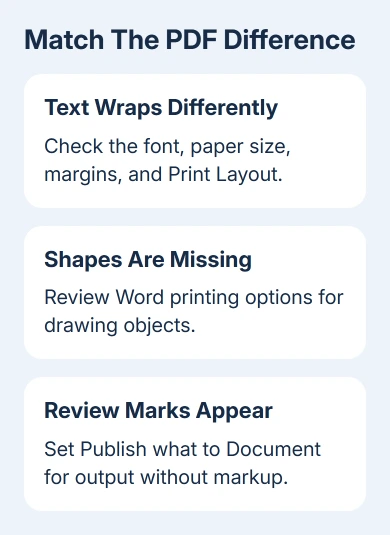
Open File > Print for a preview of the pages without printing them. If the same missing object or unexpected page break is already visible there, check the document first rather than the PDF reader.
Export with a new filename, then open it from its saved folder. An old attachment or browser tab can keep showing yesterday's PDF. Check the first affected page before reviewing the whole document.
I'd use a name such as Report-check.pdf during these comparisons. That keeps the earlier PDFs intact and makes the new copy easy to recognize.
2. Use Word's PDF export and review its options
In Word for Windows, choose File > Export > Create PDF/XPS Document > Create PDF/XPS. Choose a folder and filename. For sharper print output, select Standard (publishing online and printing) rather than Minimum size.
Open Options before publishing. Under Publish what, choose Document for the document without tracked-change markup. Use Document showing markup when the reviewer actually needs the edits shown in the PDF.
Hiding marks in the editing window and choosing what to publish are separate choices. Check the exported pages after changing the option. This avoids sending a review copy with an unexpected margin area or visible revisions.
Microsoft's PDF export options describe these controls. Using Word's own export gives you those choices; a PDF printer dialog may offer different options.
For the basic saving procedure in other editions, use the Word to PDF guide. Continue here when the PDF saves successfully but its appearance is wrong.
3. Fix font substitution and changed line breaks
Check the font used where the text first shifts. A substitute font can have wider letters, different spacing, or different line height. Even a small change can push a heading or table onto the next page.
Export on the computer where the intended font is installed and Word looks correct. If another computer already shows changed spacing in Word, fix its missing font before making the PDF.
For a custom font in desktop Word on Windows, use File > Options > Save > Embed fonts in the file. Save the document copy after enabling it. This saves font information in the Word file, if the font allows it, for use on another computer.
Not every font permits embedding. Check its licensing and embedding permissions if Word won't include it. Choose an available replacement font in the document copy if the intended font can't be included with the file.
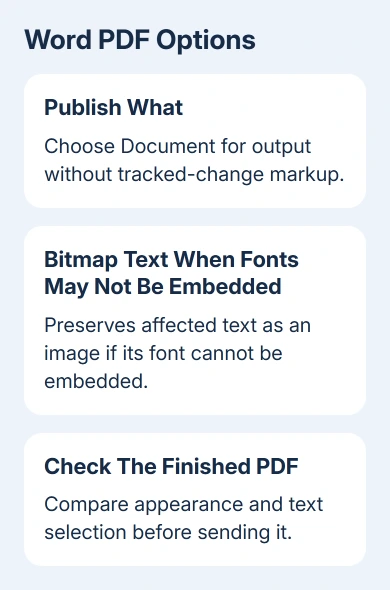
In the Windows PDF export Options, try Bitmap text when fonts may not be embedded. It preserves that text's appearance as an image when the font can't be embedded, instead of letting the PDF reader substitute another font.
Check text selection and readability in the result because affected text is now image content. For a document that needs searchable, selectable text, you may be better off choosing a font that allows embedding.
4. Restore missing drawings and background content
When shapes or text boxes disappear in print output, open File > Options > Display in Word for Windows. Under Printing options, check Print drawings created in Word. Export a fresh copy and compare the missing object.
For a page background missing from print output, check Print background colors and images there too. It applies to background content; it won't repair an ordinary picture linked to a missing file.
If calculated text changes during output, review Update fields before printing. A field is text Word calculates, such as a date or reference. Its updated value may differ from the one shown during editing.
After changing the relevant setting, make another export. If a table still extends past the page edge inside Print Layout, adjust its width or the document margins in the source before exporting.
5. Handle Mac, browser, and viewer differences
In Word for Mac, use File > Save As or Save a Copy and select PDF. The Windows bitmap-font checkbox isn't available in every Mac version. Check fonts on the Mac and use its available PDF output choices.
The Mac Best for printing option can produce PDFs with broken hyperlinks. If the pages look right but links fail, compare your Word version's alternative electronic-distribution option and test the links in the finished file.
In Word for the web, export from File > Export and select the PDF download type. If its output changes a complex layout or custom font, use desktop Word with the intended fonts for that export.
Finally, open the same PDF in a second viewer. If it looks wrong in only one viewer, update that viewer and report the display problem. If both show the same wrong pages, return to the source and export settings.
Send Word support a small document copy that shows the fault, its PDF, Word version, and font name. Remove private content first. Describe the changed pages, missing objects, image quality, or broken links.
The Short Version
Compare Print Layout with a new export. Check paper size, quality, markup, and fonts. On Windows, try bitmap text for fonts that can't be embedded. Review missing drawings and compare another PDF viewer.
Checked November 12, 2026.