
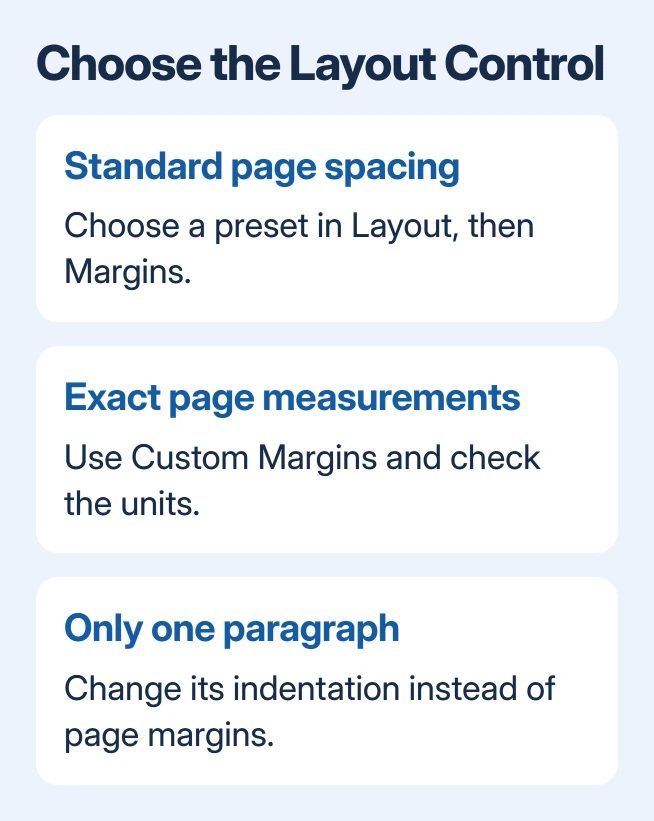
Word's Layout > Margins menu changes the space between the page edges and its main text. Choose a preset for a standard layout, or open Custom Margins when a form, school or publisher specifies exact measurements.
Margins affect the page layout, so changing them can move text onto different pages. If only one paragraph needs to move inward, adjust its indentation instead of changing the page margins.
Choose a preset from Layout
For an important original, keep a separate Word copy before experimenting with the layout. Make the margin changes in that copy.
With the file open in desktop Word, click within its main text. Select Layout, then Margins. Read the measurements in the gallery and choose the preset that matches the required layout.
Microsoft documents this menu in its margin instructions. Its default example uses one-inch margins, but a document made from another template can already have different settings.
Status: Margin controls documented by Microsoft, reviewed November 1, 2026. The detailed procedure uses desktop Word on Windows. No document was edited.
Inspect the first page after applying the preset. Text should reflow within the changed space; review later pages too when the document contains several sections.
Enter exact measurements in Custom Margins
Return to Layout > Margins and select Custom Margins. In the Page Setup dialog, enter the required Top, Bottom, Left and Right values. Check the unit shown with those values.
Review Apply to before confirming. Choose Whole document for changes throughout the file, or This section when only the current section needs them. Select OK to apply the values.
Reopen the dialog if a value is uncertain. A requirement for one inch is not a requirement for one centimeter. One inch equals 2.54 centimeters, so changing only the number without considering the unit gives a different layout.
Microsoft's custom-margin procedure includes a section-scope warning. If only part of the file changes, inspect its boundaries and the chosen scope before deleting any section breaks.
Keep paragraph indentation separate
A paragraph can start farther from the edge even when the page margins are correct. Select that paragraph and inspect its indentation settings before changing the layout for every paragraph around it.
For references with the first line farther left than later lines, use a hanging indent in Word. That is a paragraph format, not a second set of page margins.
Likewise, adding spaces at the start of each line does not set a page margin. It inserts text that can shift when words wrap, making later edits harder to align.
Use mirror margins for facing pages
For a document that will be bound and printed on both sides, Microsoft says Mirror margins makes the inner and outer margins correspond across facing pages. Use it only when that layout is intended.
In Windows, open Custom Margins and select Mirror margins under Multiple pages. Set Inside and Outside, then confirm with OK. Microsoft's facing-page guide shows this route.
Word for the web preserves existing mirror margins but requires desktop Word to create them. A missing browser option does not mean the document needs rebuilding.
Before printing, open File > Print and inspect the preview. Confirm the paper size and watch for a margin warning from the selected printer. Keep important text inside that printer's printable area.
If a required layout still prints incorrectly, compare the preview with the actual page and give those results to the printer's support team. A preview that is already wrong needs the document settings corrected first.
The Short Version
Use Layout > Margins for a preset, or enter precise values in Custom Margins. Check the units and application scope. Paragraph indentation and facing-page margins solve separate layout needs, so select the control that matches the task.

Isaac Smith is the founder and editor of PC Glance, a website that covers computers, laptops, and technology. He is a tech enthusiast and a computer geek who loves to share his insights and help his readers make smart choices when buying tech gadgets or laptops. He is always curious and updated about the latest tech trends.