
A picture that won't move freely in Word is usually using In Line with Text, which makes it behave like a large text character. Select the picture, choose Picture Format > Wrap Text > Square, then drag it to your chosen spot.
Keep In Line with Text when the picture should stay between paragraphs instead. For a picture that must stay at one spot on a page, use a wrapping layout and Fix Position on Page. Those choices solve different placement problems.
Choose whether the picture belongs in the text or on the page
Click the picture once. In the Windows desktop app, open the small Layout Options button beside it, or use Picture Format > Wrap Text on the ribbon. The Picture Format tab appears when the picture is selected.
Pick Square for a movable picture with the surrounding text arranged around it. This is a useful starting point for a photo beside a paragraph because you can see how much room the text has left.
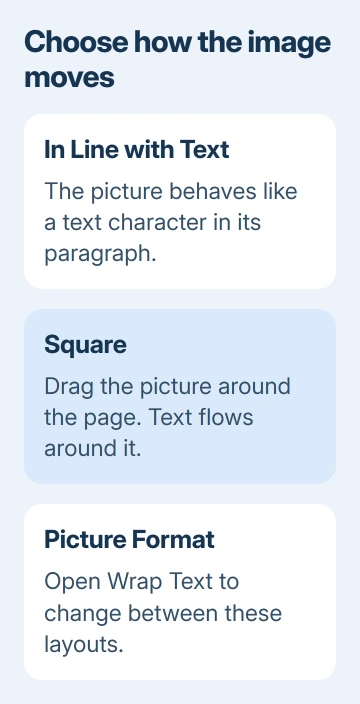
The picture-wrapping instructions explain the difference. An inline picture stays in a paragraph. The other wrapping choices let the picture move around the page and control how text fills the space around it.
Don't choose In Front of Text just to make dragging work. It lets the picture cover your words. Use it when overlapping the text is what the layout needs, such as placing an image over an area you've left as a background.
For a straightforward report, I'd try Square first. It's easier to judge the page when both the image and the surrounding words remain visible.
Drag the picture to its new location
With Square selected, drag from inside the picture to move it. Avoid the small sizing handles around its edge unless you want to resize it. Dragging a corner handle changes the picture's size instead of simply moving it.
Release the mouse and read the paragraph around the image. Moving the picture changes the space available for text, so a sentence can shift onto another line or page even though the words haven't changed.
For a small adjustment on Windows, select the image and hold Ctrl while pressing an arrow key to move it a little at a time. This helps when dragging places it close to the right spot but not exactly where you want it.
For a picture that should remain inside a paragraph, leave it inline and move it with cut and paste. Select it, press Ctrl+X, click the destination in the text, and press Ctrl+V. On Mac, use Command+X and Command+V.
An inline image also follows its paragraph's alignment. Put it in its own paragraph and center that paragraph when the goal is a centered picture between blocks of text, rather than a floating image beside them.
Decide whether it should move when the words change
Select the picture and open Layout Options. With a wrapping layout selected, choose Move with text if the picture should travel with its related paragraph as you add or remove writing.
Choose Fix Position on Page if the picture should keep its page position while text changes around it. The same choice is available through Picture Format > Wrap Text in desktop versions that show it there.
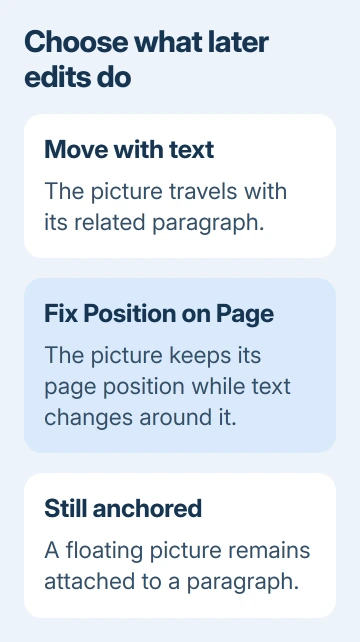
A floating picture, one with a wrapping layout, stays attached to a paragraph through an anchor. That's Word's marker linking the picture to the paragraph. Fixing its page position doesn't remove that connection to the document's text.
On Windows, show the markers through Home > Show/Hide, the paragraph-mark button. For a selected floating picture, the anchor can help you understand why moving or deleting a paragraph affects the image.
Avoid deleting the attached paragraph while arranging a floating picture. If the image disappears with an edit, use Undo immediately and check which paragraph it's attached to before moving it again.
Use an exact alignment instead of guessing
For a centered floating image in desktop Word, select Picture Format > Wrap Text > Square. Open Position > More Layout Options, then use the Position tab to set Alignment: Centered, relative to Page.
That centers it on the page rather than wherever the last drag ended. The same dialog can position a picture relative to margins or other page elements when a document needs a more precise layout.
If position controls are unavailable, check Text Wrapping in the dialog. Those position controls aren't available for an inline image. Change its wrapping layout before trying to set its position again.
For two pictures that should stay together, the Word grouping steps cover moving them as one object. Each picture needs a suitable wrapping choice before you can group them.
If the space beside a picture is unexpectedly narrow, check the page's margin settings. A small text area limits how much room Square wrapping can leave for readable text.
Find a picture hidden behind text or another object
A picture can be present but hard to click because text or another object covers it. In the Windows desktop app, open Home > Select > Selection Pane. Choose the picture from the object list instead of trying to click through the page.
Once selected, change its wrapping or position. If it's meant to be visible beside the text, switch away from Behind Text and move it into the available space. Check the result before adjusting another object.
Microsoft's picture-positioning guide describes both the Selection Pane and the detailed position controls. Try these controls when a picture is hard to drag because it's hidden or several objects overlap.
Follow the Mac and browser differences
On Word for Mac, select the image and open Picture Format > Wrap Text. Some releases call the tab that appears Format. Choose Square to move it around the page, or In Line with Text to keep it in the paragraph.
For a fixed position, use Picture Format or Format > Wrap Text > Fix Position on Page. It works the same way as on Windows, even when the ribbon is arranged differently. Use the Mac's Command key for cut, paste and Undo shortcuts.
In Word for the web, a picture inserted there can be moved with cut and paste and arranged using paragraph formatting. Desktop-created pictures with wrapping or a fixed position can require the desktop app for placement changes.
Use Open in Word when the browser can't change that picture's layout. Save the document back to its original location, then return to the browser. The web version keeps the layout settings you applied in desktop Word.
If placement still fails, try a spare picture in a new document. Report problems affecting every file to Microsoft support, including the app version and which action fails: selection, wrapping or movement.
The Short Version
Choose Square wrapping to drag a picture freely, or keep it inline to move it with the text. Select Move with text or Fix Position on Page to control later edits. Use the desktop app for browser layouts it can't reposition.
Checked November 8, 2026.

Isaac Smith is the founder and editor of PC Glance, a website that covers computers, laptops, and technology. He is a tech enthusiast and a computer geek who loves to share his insights and help his readers make smart choices when buying tech gadgets or laptops. He is always curious and updated about the latest tech trends.