
An HP monitor's Input Signal Not Found message means the selected input isn't receiving video. Match the input to your cable, then reconnect it with the PC off.
The same warning can appear when the computer is asleep, won't start or connects through a dock that isn't sending video. Check those possibilities if selecting the input doesn't bring the picture back.
Input Signal Out of Range is different: video is reaching the monitor, but its resolution or refresh rate isn't supported. Check the exact wording before changing Windows display settings.
1. Select the input that matches the cable
Trace the cable from your computer to the HP monitor. Read the label beside the monitor's socket, such as HDMI 1, HDMI 2 or DisplayPort. Use the monitor's menu to select the matching connector.
Open the on-screen controls using the HP's Menu button or joystick. On HP 27b/27x curved displays, open Input Control. Other HP models can use different control names or button positions, so follow the model's menu labels.
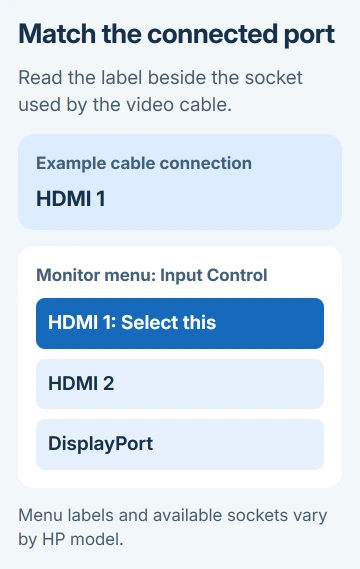
If the monitor has Auto-Switch Input and it keeps choosing another connector, turn that option Off and select the input manually. HP lists this option for the 27b/27x; your model's menu may differ.
Wait for the selected source to appear. If the desktop returns, the monitor was listening to a different connector. If the same warning remains, check whether the computer is sending anything.
I'd check this before buying a cable. A working HDMI connection can't show an image while the monitor is set to DisplayPort.
2. Wake the computer and check whether it started
Try a key press or some mouse movement to wake the PC. Check the computer's power light and listen for its normal startup. The monitor can keep showing the warning while your computer is asleep, switched off or stuck during startup.
On a laptop, open the lid and check its built-in screen. If that screen shows a normal desktop, Windows is running and you can check the external display connection knowing the computer has started.
On a desktop, look for the usual startup activity. No power light or fan activity points toward a computer power problem. Fans running without any picture can still mean a startup fault rather than a monitor setting.
If the PC gives beeps or a repeating diagnostic light pattern, record it for the computer maker. Don't treat those signs as proof that the HP panel is broken.
A warning that appears briefly while the computer is off and disappears as Windows starts can be normal. A warning that never clears while the computer runs needs the cable and source checks that follow.
3. Reconnect the video cable and remove extra adapters
Turn the computer off before reconnecting its video cable. Check both ends for a loose plug, bent connector or visible cable damage. Reconnect it firmly without forcing the socket.
On an older VGA connection, make sure the plug is aligned and its retaining screws are secure. HDMI and DisplayPort use different plugs; a cable fitting one socket doesn't mean an unrelated adapter will convert the signal correctly.
If the ports allow it, try a cable straight from the computer to the monitor, without a dock or video adapter. Power up both devices, then check input selection again.
If the direct connection works, check whether the dock or adapter supports your setup. Keep using the direct cable while you check the dock's exact model and supported display connections.
When a desktop has an added graphics card, connect the display cable to the card's sockets. A motherboard video socket may not provide an image with the installed processor or configuration, even though the socket is physically present.
Try a known-working cable of the correct type if the message remains. Change only the cable for that test. If the image returns, the old cable or its connection was causing the problem.
4. Check a USB-C or dock connection separately
A USB-C plug can carry charging or USB data without carrying video. The laptop's port, the cable and any dock must all support the display connection being used.
If the monitor's USB accessories work but its screen shows no signal, those accessories don't confirm that video is reaching the panel. Check the laptop manual for a video-capable USB-C port and use the appropriate video cable.
For a dock, connect its required power supply and its upstream cable to the laptop. The upstream cable links the dock to its host computer. A socket for a mouse or USB drive doesn't make that connection.
Follow the dock monitor checks if a direct cable works and the dock doesn't. They separate a video-capable connection from a cable or port used only for other USB functions.
Some dock display connections need software on the computer; others use the graphics hardware directly. Check the dock's own instructions before installing software that belongs to a different type of dock.
5. Enable the external screen in Windows
When the laptop screen or another display works, press Windows + P. Choose Duplicate for a copy of the laptop desktop, or Extend to use the HP as another part of the desktop.
The PC screen only projection choice leaves the external display unused. A successful Duplicate or Extend selection should replace the monitor's warning with a desktop image.
On Windows 10 or Windows 11, open Settings > System > Display. Expand Multiple displays where needed and choose Detect. Microsoft's external-monitor troubleshooting covers detection and connection checks.
For a screen that worked earlier and stopped during Windows use, press Windows + Ctrl + Shift + B once to reset the graphics driver. The screen can blink and the computer may beep during the reset.
If Windows detects the HP but it remains blank, use the second-monitor troubleshooting steps for the software side. If no screen shows the computer's startup, try the cable and second-source checks instead.
6. Treat Out of Range as a video-mode problem
For Input Signal Out of Range, use a working screen to open Display settings. Select the HP display and choose a resolution it supports. Check the monitor's manual for its supported resolution and refresh-rate combinations.
On Windows 11, select Advanced display and choose the HP before changing its refresh rate. On Windows 10, use Advanced display settings. Select one of the model's supported rates, rather than assuming every monitor needs the same rate.
The desktop should stay visible without the Out of Range warning. If the message actually says Input Signal Not Found, changing resolution isn't the first correction because there may be no video reaching that input at all.
7. Use a second source to decide who needs to repair it
Connect a known-working computer to the HP with a known-working cable and matching input. If it works, return to the original computer or dock. If it doesn't, test the original computer on another working display if one is available.
Give HP support the monitor model, chosen input, cable type and comparison results. Ask for a hardware assessment if it fails with a working source.
If the original computer can't drive another display either, ask its manufacturer for startup or video-output help instead.
The Short Version
Match the input and cable, wake the PC and test a direct connection. Then check the dock and Windows output. Out of Range needs a supported video mode. Compare a working source and cable before arranging a no-signal repair.
Checked November 8, 2026.

Isaac Smith is the founder and editor of PC Glance, a website that covers computers, laptops, and technology. He is a tech enthusiast and a computer geek who loves to share his insights and help his readers make smart choices when buying tech gadgets or laptops. He is always curious and updated about the latest tech trends.