

An APA format Word document needs double spacing, one-inch margins, page numbers, and the right paragraph indents. Set up the page first, then format the title page and references separately so a whole-document change doesn't undo them.
Use these steps for an APA 7 student assignment with Windows or Mac desktop Word. Follow your instructor's requirements when they differ, especially for the title page, abstract, font, or paper size.
In this guide
Set the page and font before typing
Start with a blank document. For an existing assignment, make a copy of the Word document first so you can compare its formatting with the original if something changes unexpectedly.
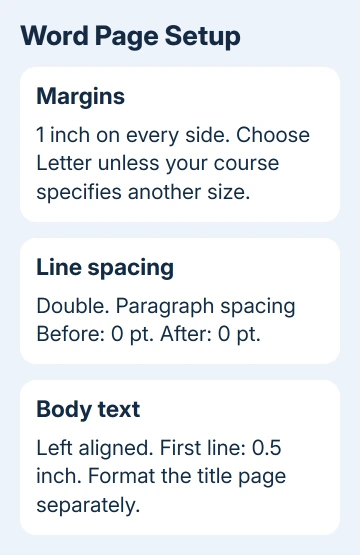
Open Layout > Margins > Normal. Check that each margin is 1 inch, which is 2.54 cm. Under Layout > Size, choose Letter for the usual US student-paper setup, unless your course requires another size.
Choose a readable, permitted font on Home. The APA font guidance allows several choices, including 12-point Times New Roman and 11-point Arial. A course can still request one particular option.
Use the same font throughout the main text. Changing to Times New Roman alone doesn't format an APA paper; spacing, paragraph indents, page numbers, and the reference list still need attention.
For an existing document, select its main text with Ctrl + A on Windows or Command + A on Mac before changing the font. Check the header separately because its page number may keep a different font.
Set double spacing without extra paragraph gaps
In Windows Word, select Home, then use the Paragraph group's small corner button to open its dialog. On Mac, choose Format > Paragraph from the menu bar. Open the Indents and Spacing controls.
Set Line spacing to Double and paragraph spacing Before and After to 0 pt. These are separate settings. A document can be double-spaced and still have unwanted extra gaps after every paragraph.
Microsoft's indent and spacing instructions explain these controls in desktop Word. Click OK, then check two neighboring paragraphs in the document itself.
Use one press of Enter to start a new paragraph. An empty paragraph still creates space when those two spacing values are zero. Turn on Home > Show/Hide to see paragraph marks if the spacing looks uneven.
APA's line-spacing rules call for double spacing in the main text and references, with exceptions for things such as the content inside tables. Don't single-space the references just to save a page.
Set these defaults early in a blank document. In an existing paper, apply them to the main text, then check tables and figures separately. Their spacing can differ from the paragraphs around them.
Give body paragraphs a first-line indent
Select the body paragraphs and reopen the Paragraph dialog. Set Alignment to Left, Special to First line, and By to 0.5 inch or 1.27 cm. Keep the left and right indents at zero.
The first line should move inward while the remaining lines stay against the left margin. The right edge remains uneven. Don't choose full justification. It stretches spaces across the line instead of leaving the right edge uneven.
Don't press the space bar repeatedly to create an indent. The First line setting keeps the indent consistent when you change fonts or revise sentences. Avoid adding a Tab indent as well if First line is already doing the job.
The paragraph-format rules set different requirements for body paragraphs, titles, headings, abstracts, and references. Select only the body text when applying its first-line indent.
Build the student title page and page header
On the first page, center the title and make it bold. Position it three to four lines from the top of the text area. Leave one double-spaced blank line between the title and your name.
Continue with the department and institution, course number and name, instructor's name, and assignment due date. Keep these lines centered and double-spaced. Clear any first-line indent for this title-page text.
The student title-page instructions explain how a student paper differs from a professional paper. Leave out the running head for student work unless your instructor or institution asks for it.
Add a generated page number to the header's right side. Windows Word provides Insert > Page Number or Page Numbering; choose a top-right header layout. On Mac, use Insert > Page Number and choose the header placement.
The title page is page 1. Leave Different First Page off when it would hide that number. Check the next page too, because an extra section break can change numbering or disconnect one header from another.
Insert a page break after the title-page text using Insert > Page Break. Repeated blank paragraphs can push the text onto another page temporarily, then move it again when you edit the title page.
Format the paper and reference list separately
Begin the main text on its new page with the paper title centered and bold, then use left-aligned body paragraphs with first-line indents. Student papers usually omit an abstract unless the assignment asks for one.
Use the heading levels your paper needs. For example, a Level 1 heading is centered and bold, while a Level 2 heading is left-aligned and bold. Word's built-in heading styles may need adjustment to match those requirements.
Start the reference list on a new page. Center and bold References. Select the reference entries, then set Special > Hanging to 0.5 inch in the Paragraph dialog, keeping double spacing and zero extra paragraph spacing.
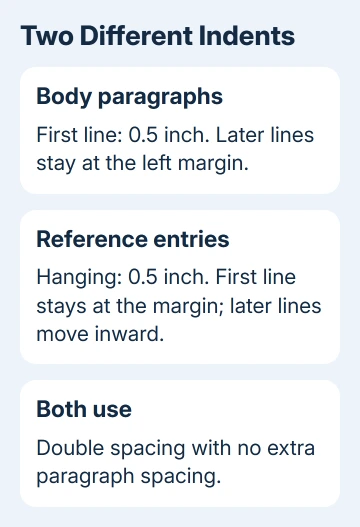
With a hanging indent, the entry begins at the left margin, but the remaining lines are indented. Treat each reference as one paragraph; don't press Enter at the end of every displayed line.
Word's citation tools can help collect source details, but choosing an APA option doesn't check the entire paper. Compare the references and in-text citations with your course's required edition and the sources you actually used.
Check the finished pages before submitting
Review the title page, a normal text page, and the reference list in Print Layout. Look for the page number, consistent font, the correct indent direction, and gaps caused by empty paragraphs.
If you need to submit a PDF, save the Word document as PDF and inspect the exported file too. If the assignment gives conflicting instructions, ask your instructor which to follow, or take the instructions to the campus writing center.
The Short Version
Set one-inch margins, an accepted font, double spacing, and zero extra paragraph spacing. Use first-line indents for body text, hanging indents for references, and top-right page numbers starting on the student title page.
Checked November 13, 2026.
 If you have any business, I can build it online






