
A footnote in Word belongs to a reference mark in the document. Place the cursor where that mark should appear, choose References > Insert Footnote, then type the note in the page-bottom area Word creates.
Use Word's footnote command instead of manually typing a raised number and placing text near the page edge. The command keeps the reference and its note linked as the document changes.
Place the reference before inserting the note
Open the document in desktop Word for Windows. Click at the point the note should refer to, following any punctuation-placement rules required by your editor or course.
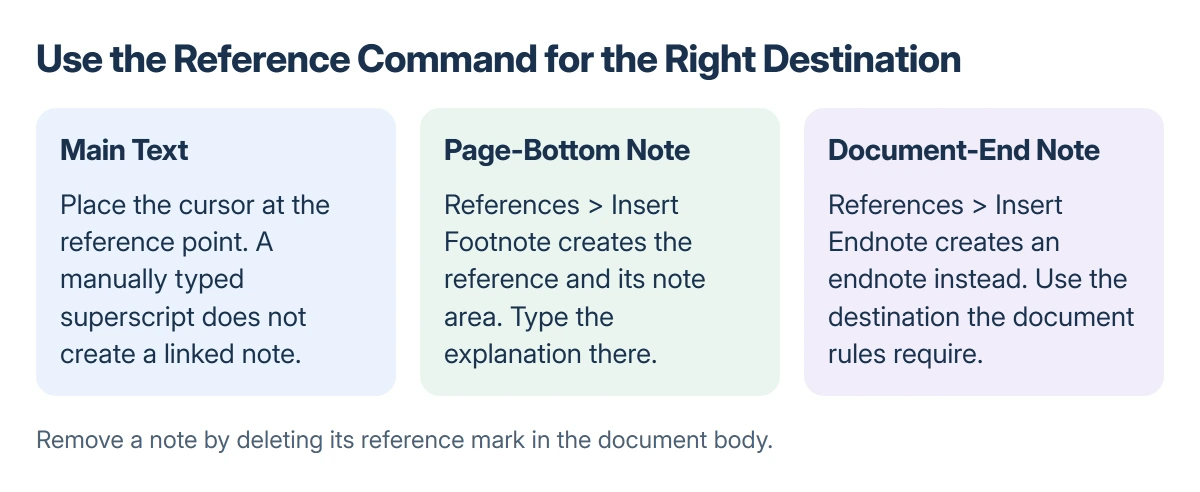
On the References tab, select Insert Footnote. Word adds the reference mark and moves the insertion point to the note area, where the explanation or citation belongs.
Status: Microsoft help for desktop Word on Windows and Mac checked 22 October 2026. No insertion, deletion or renumbering test was performed.
Type the note text there. Microsoft documents the insertion sequence in its footnote and endnote instructions.
Double-click the reference mark at the beginning of the note to return to the corresponding place in the main text. This is useful in a long document where scrolling back would lose the sentence being edited.
Footnote or endnote?
Microsoft says footnotes occupy the page-bottom note area, while endnotes follow the document text. Choose the destination required by the document's style rules.
For an endnote, place the cursor at its reference point and select References > Insert Endnote. Type the note in the endnote area Word creates.
Do not insert a footnote and then drag its text to the end of the document to imitate an endnote. That separates the visual arrangement from the feature being used.
A normal superscript number is also different from a footnote reference. Formatting a typed 1 as superscript does not create the linked note area.
Desktop Word for Mac uses the same References commands. Microsoft's Mac footnote guide confirms both note types and the double-click return to the reference.
Correct or delete a note in the right place
To correct the wording, edit the note text. To remove the note itself, locate its reference mark in the main body of the document.
Select that small reference mark and press Delete. Microsoft states that the reference mark is the part to delete, rather than erasing only the text in the note area.
Its note-deletion guide covers both footnotes and endnotes. Deleting only the explanation can leave the reference operation unfinished.
Review the nearby references after removing a note. Do not type replacement numbers over Word's generated markers to make an inconsistent sequence merely look right.
For a document shared for review, inspect Track Changes and outstanding revisions before deciding that a deleted reference has become a numbering fault.
Spacing and page layout are separate settings
A note's position is managed by Word, but its text formatting still matters. Follow the required type size and spacing rather than copying the body's appearance automatically.
When a submission needs double line spacing, set Word's spacing controls instead of inserting blank lines into notes or between paragraphs.
If a note lands in an unexpected place, first check whether it is a footnote or an endnote and which reference mark owns it. Those checks are safer than deleting page breaks or rebuilding the document.
If generated references remain inconsistent in a long or heavily reviewed file, preserve a copy and ask Microsoft Support or the document's editor to inspect it.
This insertion guide does not establish a universal numbering-repair procedure.
The Short Version
Place the cursor at the reference point, choose References > Insert Footnote and type the note. Use Insert Endnote for the document-end version.
To remove a note, delete its reference mark in the main text. Do not replace Word's generated markers with manually typed numbers.
Where to Next
Inspect your first note in print preview, then add later references with the same command. Verify both the reference position and the note's formatting before sending the document.

Isaac Smith is the founder and editor of PC Glance, a website that covers computers, laptops, and technology. He is a tech enthusiast and a computer geek who loves to share his insights and help his readers make smart choices when buying tech gadgets or laptops. He is always curious and updated about the latest tech trends.