
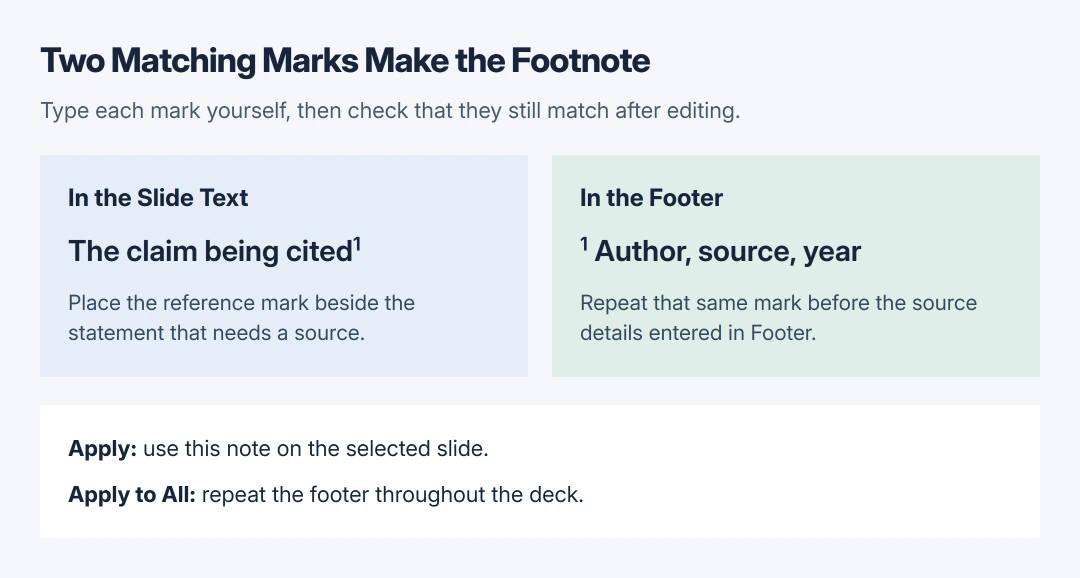
Adding footnotes in PowerPoint requires a reference mark in the slide text and a matching note in its footer. Type the mark, open Insert > Header & Footer, enable Footer, enter the note and choose Apply.
PowerPoint's reference numbers are manual. Unlike Word's linked footnotes, inserting another citation does not automatically renumber the existing ones.
Add the reference and its matching footer
Select the slide, click after the claim that needs a source and type a number or symbol. Follow the citation style required by the course, editor or organization.
Open Insert > Header & Footer in desktop PowerPoint for Windows or Mac. On the Slide tab, select Footer, then type the same mark followed by the source details. Choose Apply for this slide.
Status: Microsoft's Windows, Mac and web footnote instructions checked October 28, 2026. References are manual. No presentation was edited or tested.
Microsoft states in its PowerPoint footnote instructions that both marks must be entered manually. Inspect the slide to make sure the mark points to the intended note.
Use Apply to All only when exactly the same footer belongs on every slide. A citation for one slide's claim usually needs Apply. That choice prevents replacing different source notes throughout the deck.
For a report with automatically linked notes, use Word's footnote command. Formatting PowerPoint's number does not create that relationship.
Raise the reference numbers with Superscript
Select only the reference character in the slide's main text. On Windows, open the small dialog launcher in Home > Font, then enable Superscript under Effects on the Font tab.
On a Mac, select the character and choose Home > Superscript. Give the footer's reference marker the same formatting so the two references look consistent.
The Superscript effect documented by Microsoft raises and reduces the character; it does not manage a citation.
If the whole sentence rises, undo the change and select just the mark. Keep the source text at a readable size rather than shrinking the entire note to resemble its reference number.
Use the Footer pane in PowerPoint for the web
With a browser presentation open, type a reference mark in the slide text, then select it. Use Home > More Font Options > Superscript, or the Superscript button in the Home tab's Font group when shown.
Choose Insert > Footer > Footer. Enable Footer in the pane and enter the matching reference and source. With one slide selected, the text applies to that slide automatically; close the pane when finished.
For several selected slides, the pane offers Apply to Selected Slides. Microsoft's web footer guide warns that Apply to All puts the footer across the presentation.
Footer placement depends on the slide design. A note can appear along an edge or near the top rather than in the position expected from a different template.
Restore a footer that does not appear
First inspect Don't show on title slide in the footer controls. If the citation belongs on the title slide, clear that option and apply the change to the intended slide.
For an absent footer in desktop PowerPoint, select the affected slide, then open View > Slide Master. Microsoft says its layout appears in the main pane. Enable Footers in the Slide Master tab's Master Layout group.
If that option will not stay selected, choose the layout's parent slide master in the thumbnail pane. Layouts are indented beneath their parent. Open Slide Master > Master Layout, enable Footer and confirm.
Return to the affected layout and enable Footers there, then leave Master View and check the slide. Microsoft's missing-footer procedure explains this parent-and-layout dependency.
Changing a layout can affect other slides that use it. Duplicate a shared template before making layout changes, then inspect every affected slide.
Correct the note without leaving a stray reference
Edit the footer through its insertion controls when the source details change. Check its mark against the one in the slide text, particularly after adding another source or moving text between slides.
To remove a desktop footer, clear Footer in Insert > Header & Footer, then choose Apply for the selected slide. Remove the matching typed character from the slide text as a separate edit.
Speaker notes serve a different purpose. A citation placed only in the Notes pane does not become visible slide text. For a presenter copy on paper, print the slides with speaker notes using Notes Pages.
For a footer that remains absent, ask Microsoft Support or the template's author to inspect the slide and master in a saved copy. Include the PowerPoint version and whether another layout displays its footer correctly.
The Short Version
Type matching marks in the slide text and footer, apply the note to the intended slide and format the marks as superscript. Keep the numbering consistent yourself. Check the title-slide setting and Slide Master when a footer stays hidden.

Isaac Smith is the founder and editor of PC Glance, a website that covers computers, laptops, and technology. He is a tech enthusiast and a computer geek who loves to share his insights and help his readers make smart choices when buying tech gadgets or laptops. He is always curious and updated about the latest tech trends.